April 21, 2026
How to Make Your iPhone Messages Sound More Professional Instantly
You just sent a message to your boss. Then you stared at it for two minutes, wondering if it sounded too casual. Or you fired off a quick text to a client and realized halfway through — it's missing a greeting. Or worse, you typed something in all caps by accident and immediately felt your credibility drop.
The problem isn't that you can't write. The problem is that mobile writing has a different rhythm than sitting in front of a laptop. Your thumbs move faster than your editing brain, and autocorrect tries to be helpful in ways that aren't.
There's a better way. You don't need to rewrite everything in Notes and paste it back. You can fix your messages right in the conversation.
The Problem With Mobile Texting
Think about the last time you had to send a work-related message on your phone. You probably did one of these:
- Typed a rough draft
- Sent it too quickly
- Instant regret
Maybe you sent "thanks for the file" when you meant "thank you for the file." Or you wrote "pls review" when you wanted "please review." Or you hit send before realizing you missed a greeting and context.
The issue isn't your vocabulary. It's that typing on a small screen changes how we write. We type in fragments. We use abbreviations. We forget to include the little details that make our tone come across the right way.
When you're in front of a laptop, you have time to check, edit, and rephrase. On your phone, you're thinking about the next message you need to send. That's why it's so easy to send something that lands less professionally than you intended.
Why Your Messages Need Polish
Professional communication isn't about being stiff or formal. It's about making sure your tone comes across clearly. That means:
- A proper greeting and closing
- Clear sentences without typos
- The right level of warmth for the relationship
- No accidental autocorrect mishaps
You don't need to sound like you're sending a formal letter. But you also don't want to accidentally sound dismissive or rushed.
Think about the last time someone sent you a message that was clearly typed quickly. Maybe it had typos. Maybe it was all one big paragraph. Maybe it lacked a clear subject line.
That's how you come across too. Your messages reflect on you — even the casual ones. And in work settings, you want to make sure the impression you're making is intentional, not accidental.
Meet the Solution: Rewrite Inside Your Messages
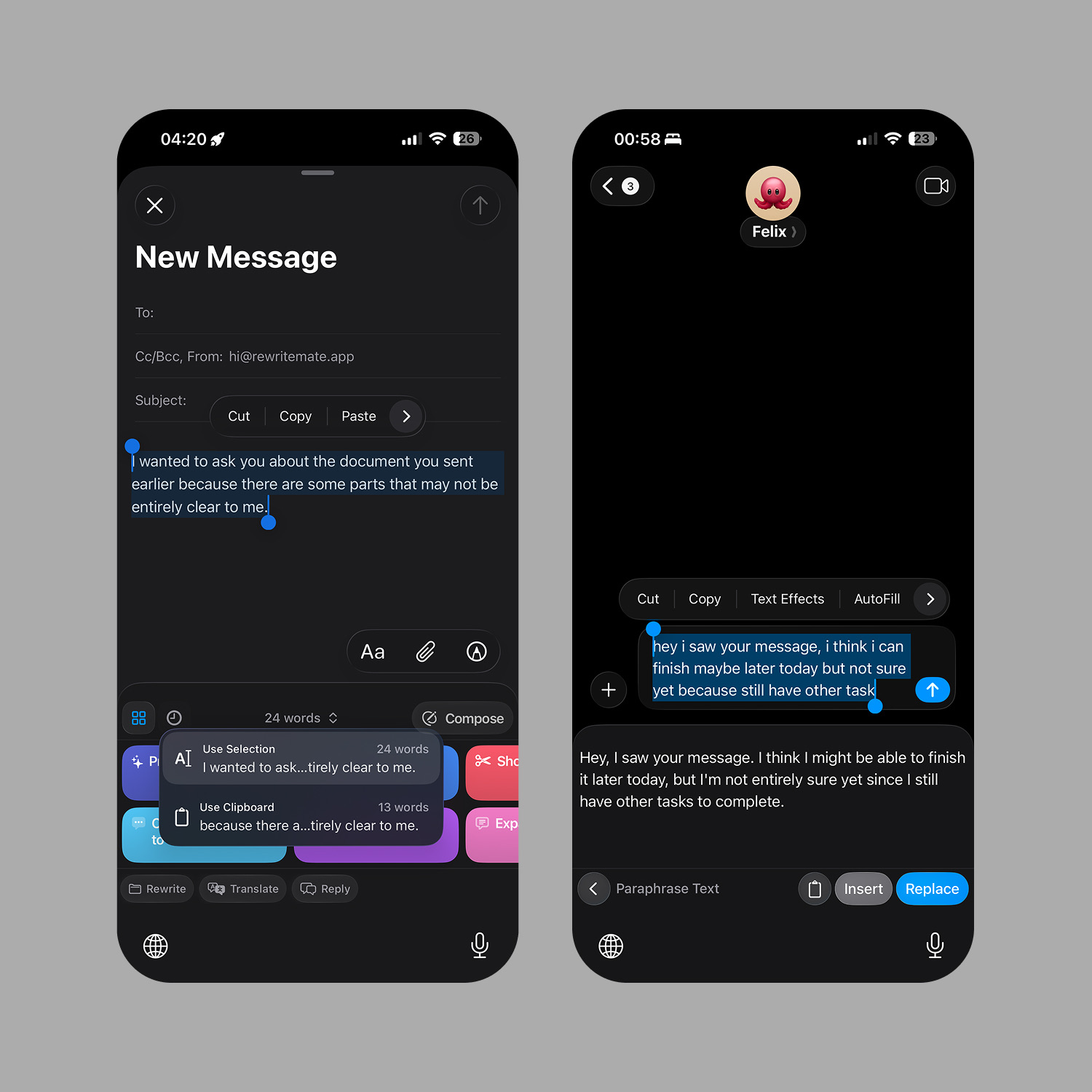
Here's the thing nobody tells you: you don't have to leave your messaging app to fix your messages.
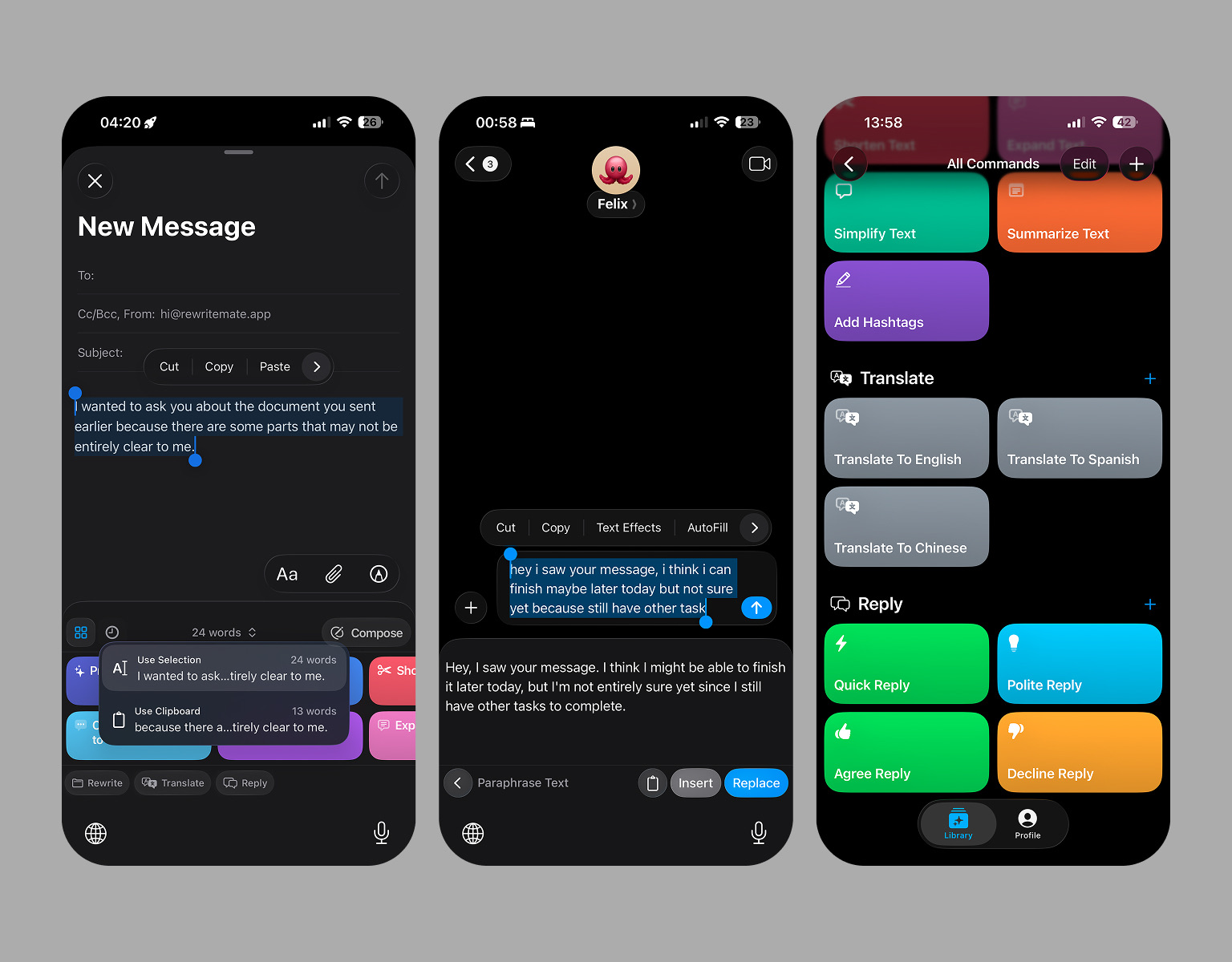
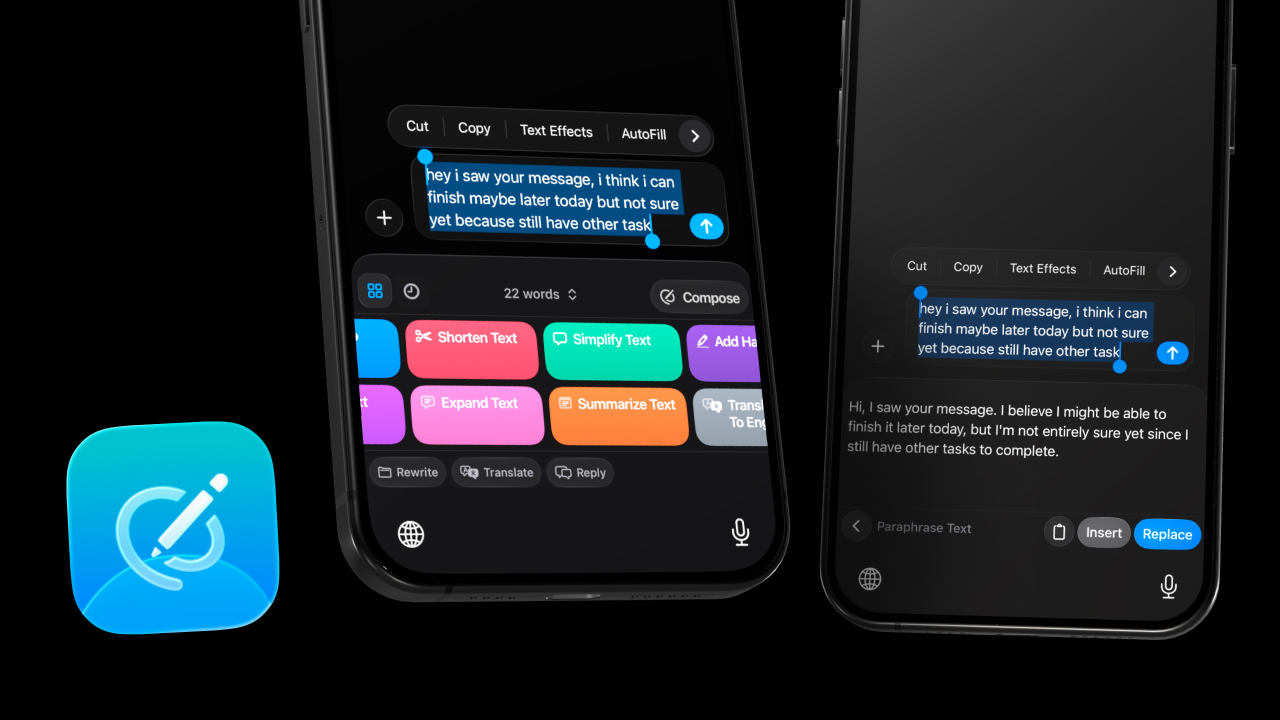
There's a way to polish your text right where you're typing. You select your message, tap a button, and it instantly transforms — all without switching apps, copying and pasting, or waiting for a separate AI tool to load.
This works in Messages, Mail, Outlook, Slack — anywhere you can type. You highlight the text that needs work, tap the command you want, and the AI refines it in seconds. The best part? You can see exactly what changed. If you don't like it, you tap Undo and try again.
It's like having an editor in your pocket, ready to help the second you need it.
Fixing Typos and Grammar Without Breaking Flow
There's nothing worse than sending a message and immediately spotting a typo. On your phone, you can't just hover over it and click "undo." You have to go back, find the message, delete it, and rewrite it.
Unless you have the right tool.
RewriteMate catches typos and awkward phrasing before you hit send. You select the text, tap "Proofread," and it fixes the mistakes. The AI identifies issues like:
- Missing punctuation
- Double words
- Spelling errors that slipped through autocorrect
- Run-on sentences
- Awkward phrasing that could be clearer
When you proofread in RewriteMate, you see exactly what's being fixed. If you don't agree with a change, you can edit it manually or tap Undo and try again.
This means you can send messages with confidence, knowing you've caught the obvious mistakes before hitting send.
Using Custom Commands for Your Most Common Messages
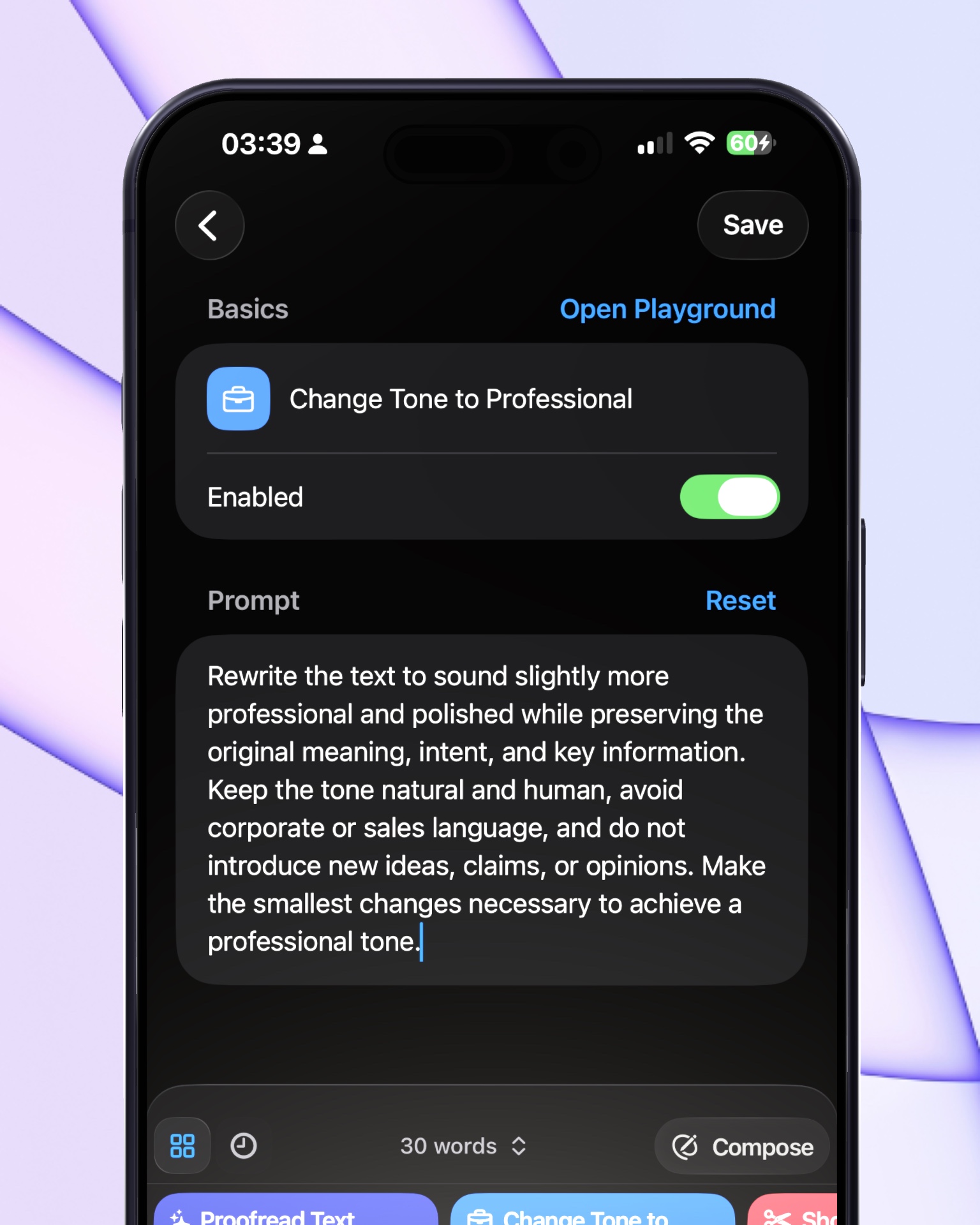
If there are certain types of messages you send over and over, you can save time by creating custom commands for them.
Say you frequently have to ask your team for status updates. You can set up a command that formats your question in a consistent, professional way. Then you just select your draft and tap the command.
Or maybe you need to decline meeting requests professionally. Create a "Polite Decline" command that handles the wording for you. Just select it, tap the button, and you're done.
The AI respects your voice — you can edit the command prompt to match exactly how you want things phrased. Then you can organize all your custom commands into folders for easy access.
This means you spend less time thinking about phrasing and more time actually communicating.
Making Sure Your Tone Comes Across Right Every Time
Sometimes you're not sure if a message will land the way you want. Is it too direct? Too casual? Does it sound rude?
RewriteMate gives you a preview of how your message will come across before you send it.
Select the text, tap the command, and see the rewritten version. Read through it. Does it sound like you? Does it convey the right tone? If not, try a different command — Change Tone to Professional, Make it Friendlier, Simplify the text.
You can experiment until you find the version that feels right. Then send it with confidence.
This is especially helpful when you're messaging someone you don't know well. You can run the message through a few commands until it sounds appropriate for the relationship.
The Bottom Line
Your messages reflect on you. That's true whether you're texting a coworker, a client, or a close friend.
But you don't have to stress about perfect messaging. You can have an editor in your pocket, ready to help the second you need it.
RewriteMate works right inside your messaging apps. You select text, tap a button, and it transforms — all without switching apps, copying and pasting, or waiting for anything to load.
Start with the basics: use tone adjustment to sound more professional, proofread to catch typos, and shorten long messages to make them clearer. Then add custom commands for the messages you send most often.
It takes about 30 seconds to set up, and it will save you time and improve your messaging in the long run.
If you want to try it, RewriteMate is free to download on the App Store.
Write better everywhere
Rewrite, rephrase, and refine text instantly without switching apps.
Related articles
Keep reading

How to Rewrite a Text Message With AI on iPhone
Learn how to use AI to rewrite a text message on iPhone while keeping the facts, context, and voice that make the message yours.
I Write 40 Messages a Day on My iPhone. This keyboard help me sounds better in all of them.
Most AI writing tools fix your grammar but erase your voice. This is how I built a setup that makes every message sound like me — without switching apps or starting over.

How to Tell a Client You Need More Time Professionally
A clear way to request more time from a client without making excuses, overpromising a new date, or leaving the next step unclear.

Felix Tran
RewriteMate Dev & Editorial Lead
Write about everyday workflows, systems that help ideas move faster, from first draft to finished work.