April 2, 2026
How to Write Better Professional Emails on iPhone Without Speaking Native English
You've drafted a professional email on your iPhone. It sounds fine in your head, but you're not sure if it comes across as professional — or if your grammar is spot on. Maybe you're worried your manager or client will think less of you because you're not a native English speaker.
The good news? You don't need to sound like a native speaker to write professional emails. You just need the right tools working right inside your keyboard.
Why Professional Emails Matter — Especially on Mobile
You're probably writing more emails on your phone than you think. A quick reply to your manager, a follow-up to a client, a message to your team. These moments matter. When your emails sound clear and professional, you stand out as competent and confident — regardless of your English background.
But here's the friction: to make your email sound better, you normally have to copy your text, paste it into a grammar app or ChatGPT, wait for results, then copy everything back. That's too many steps when you just need to send the email.
That's where an AI writing keyboard comes in. It lives inside your keyboard and cleans up your writing right where you're already typing — in Mail, Messages, Slack, wherever. No more app switching. No copy-paste. Just sharper emails in seconds.
What Makes an Email Sound Professional
Before we get into the tools, let's break down what professional email tone actually means:
- Clear structure — short sentences, logical flow
- Appropriate formality — not too casual, not overly stiff
- Correct grammar — subject-verb agreement, punctuation
- Natural phrasing — sounds like you meant it, not like a robot wrote it
If any of these are off, your email can come across as unclear or even unintentionally rude. The goal isn't to sound like a corporate robot. It's to sound like a competent professional who cares about clear communication.
How to Check and Improve Your Email Tone on iPhone
Here's the practical part. You can actually fix your professional email tone right on your iPhone without leaving your Mail app:
- Write your email normally — don't overthink it, just get your point across
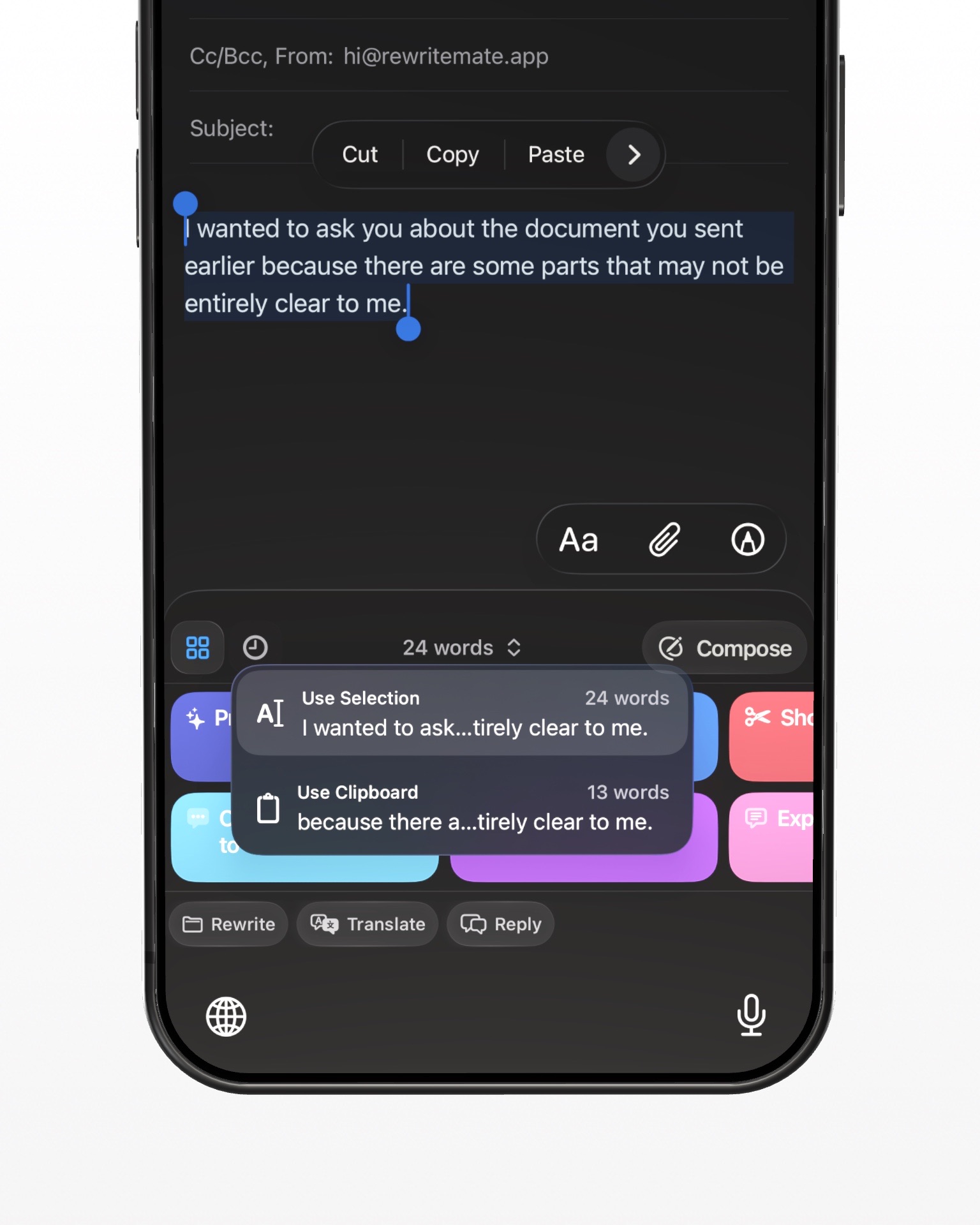
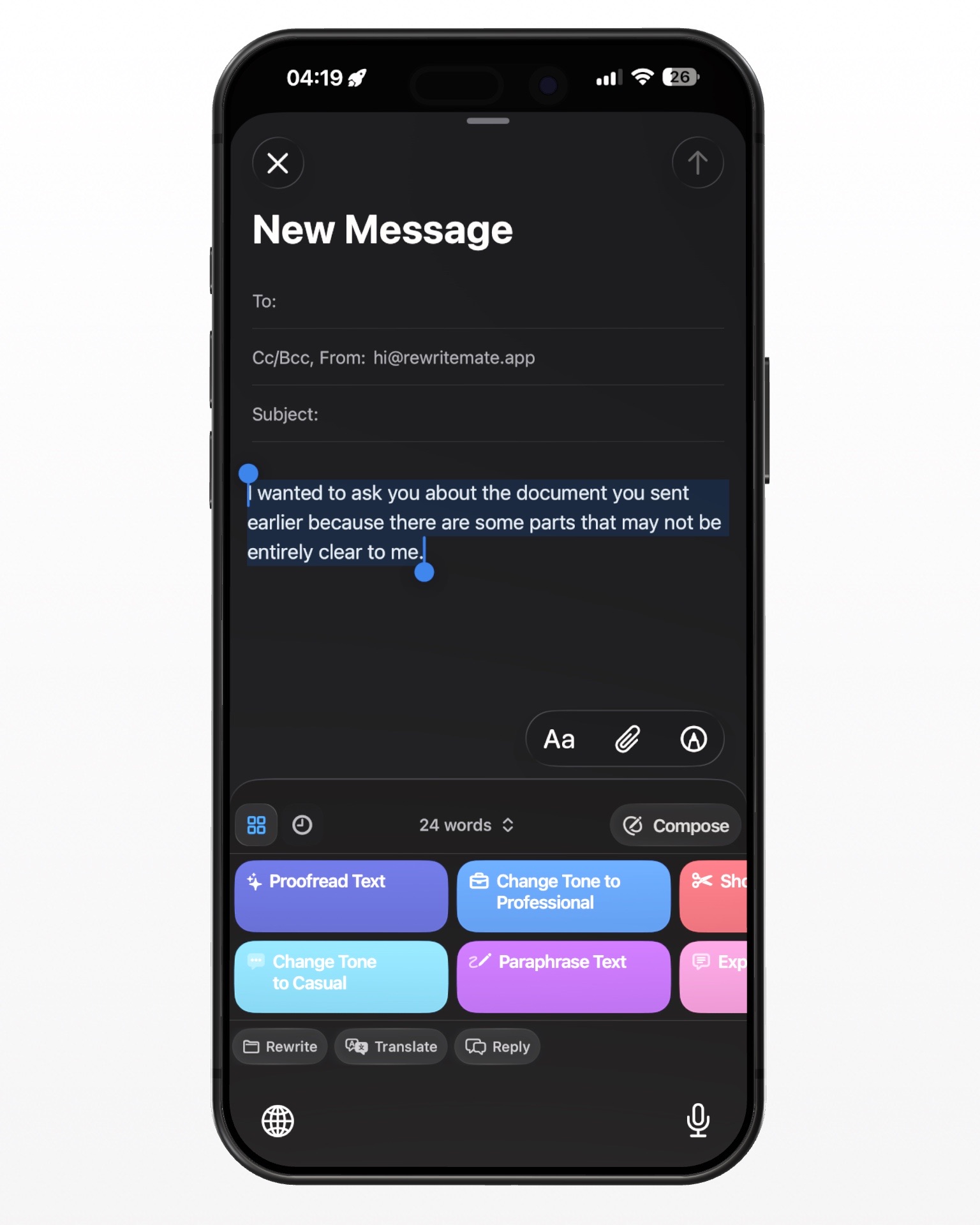
- Select your text — highlight what you just wrote
- Tap your AI keyboard — choose "Professional" or "Formal" tone
- Preview the result — see how it sounds, then replace or adjust
This works in real time. You see what changed, you can edit it, and you send when you're ready. It takes about five seconds.
The key is finding a keyboard that lets you adjust tone without rewriting everything into something that doesn't sound like you. Your voice matters. The AI's job is to sharpen it, not replace it.
Why Copy-Paste to ChatGPT Feels Like a Chore
Been there. You write an email, copy it, open ChatGPT, paste it, type "make this more professional," wait for the response, copy it, go back to your email, and paste. That's five or six steps for one sentence.
And here's the thing — ChatGPT sometimes over-edits. It can make your email sound overly formal or completely unlike your actual voice. If you use it every day, that adds up.
An inline keyboard solves this. You select what you wrote, tap a button, and get a refined version back — all without leaving your email. It's faster, it's private (your text doesn't go to a separate app), and it's designed specifically for email tone.
The Features That Actually Help Non-Native Speakers
Not every AI keyboard tool is built the same. Here's what to look for:
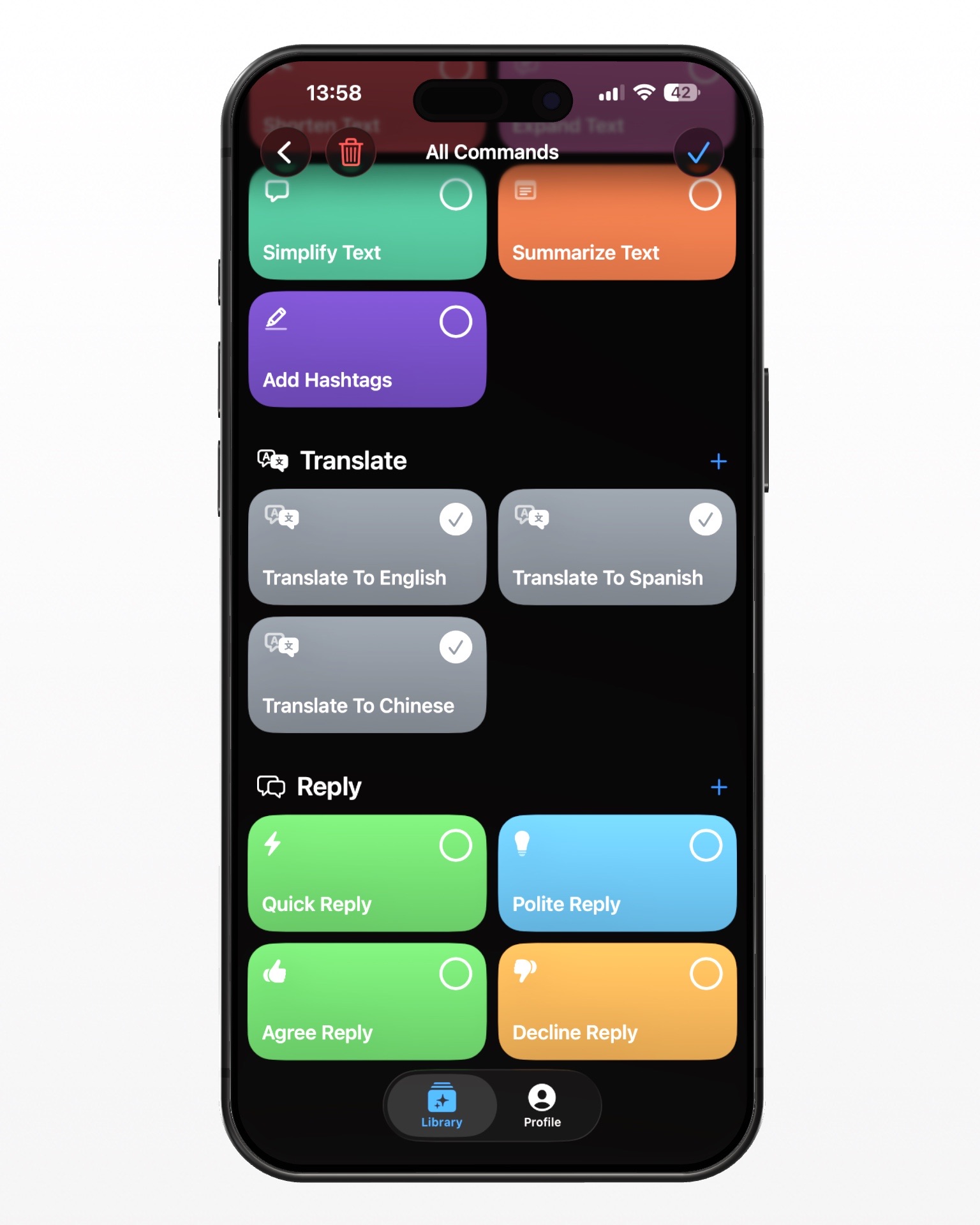
- Tone adjustment — being able to switch to "professional" or "formal" in one tap
- Grammar fixing — cleaning up small errors that hurt credibility
- Your own commands — if you write the same types of emails often, save a custom command for those
The best part? You're in control. You see the prompt behind every command, so you know exactly what the AI is doing. That's the "glass box" approach — transparency over magic.
Common Mistakes Non-Native Speakers Make (And How to Fix Them)
Let's be honest — there are some patterns that trip up non-native speakers. Knowing what they are helps you spot them in your own emails:
Starting with "Please find attached" — it's wordy. Just say "Here's the report" or "Attaching the file."
Being too formal — things like "I shall endeavor to" sound stiff. Write like you'd speak in a meeting.
Over-apologizing — "I apologize for the inconvenience" every time gets old. Only apologize when it's genuinely needed.
Mixed tenses — switching between past and present confuses readers. Pick one and stick with it.
An AI writing tool catches these in real time. You write naturally, it flags or fixes the issues, you learn over time. It's like having a proofreader right in your pocket.
Why Your Voice Matters More Than Perfect Grammar
Here's something non-native speakers often forget: clarity beats perfection. If your email is understandable and professional, that's enough. You don't need to sound like a native speaker.
In fact, overly "perfect" English can come across as insincere. Your natural voice — even if it's slightly accented in phrasing — adds authenticity. What you want is clean, not robotic.
So don't aim for perfect. Aim for clear. Let the AI clean up grammar and tighten tone, but keep your personality. That's what makes your emails sound like you wrote them — because you did.
The Privacy Thing (Because It Matters)
When you're using AI to help with email, you might wonder — where does my text go? Is it being stored? Used for training?
Good news: the best keyboards only process your selected text to generate a rewrite. They don't store your emails or read your messages. Privacy matters, especially when you're writing work emails. Check that your chosen tool has clear privacy terms and doesn't require "Full Access" to your keyboard to work.
RewriteMate, for example, only processes the text you select — nothing else.
Putting It All Together
Your workflow becomes this simple:
- Open Mail on your iPhone
- Type your message
- Select text → tap "Professional" on your AI keyboard
- Tap "Replace" to swap in the improved version
- Send
You're done in seconds, and your email sounds confident and clear. Whether you're emailing your boss, following up with a client, or messaging your team, you come across as the professional you already are.
The tool doesn't make you sound like someone else. It makes you sound like the best version of yourself — in clear, professional English.
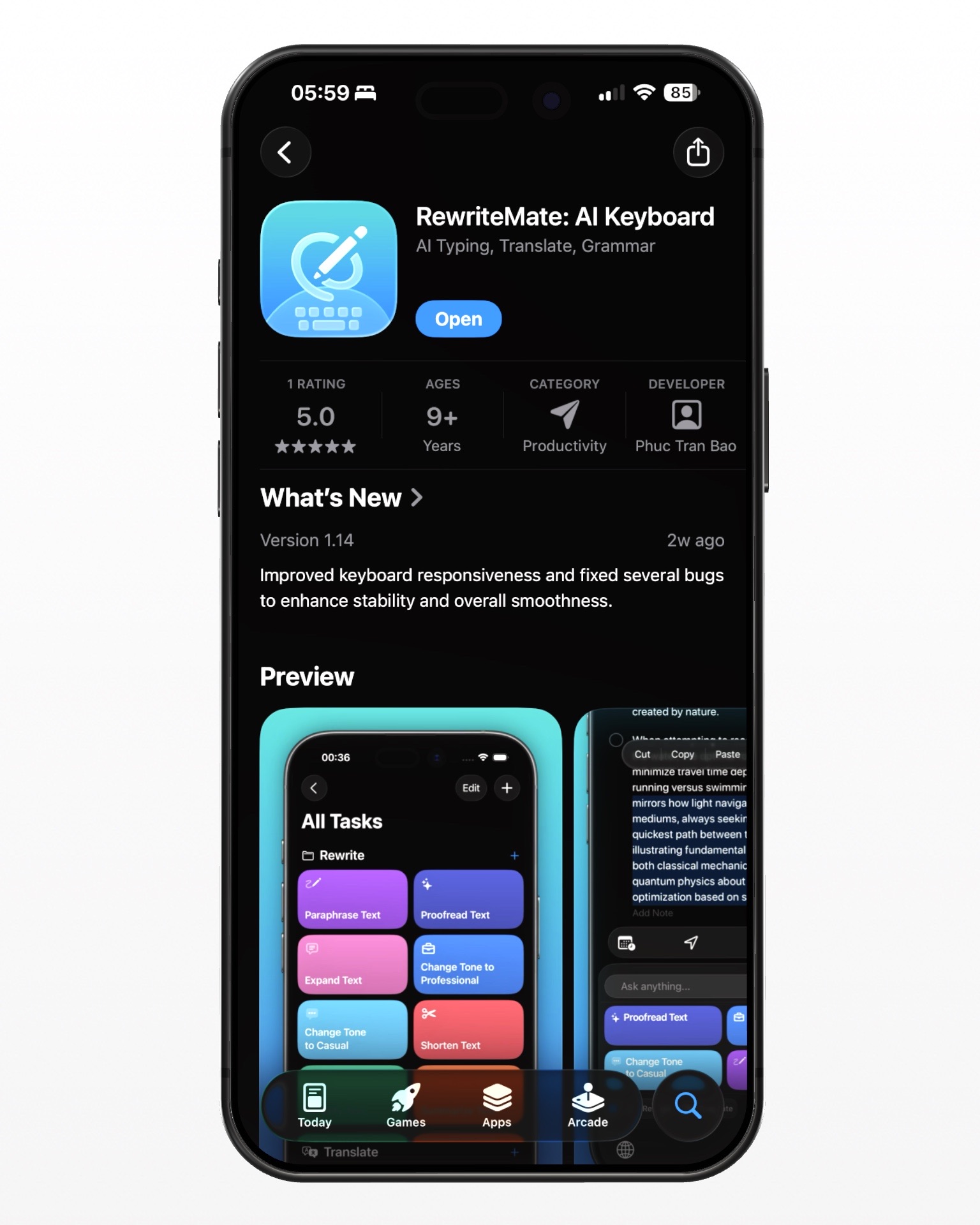
Try it out. If you want to write professional emails without the copy-paste headache, there's a keyboard that does exactly this — right inside whatever app you're using. You can download RewriteMate on the App Store and have it running before your next message.

Felix Tran
Indie Developer & RewriteMate Founder