November 7, 2026
Why iPhone Dictation Stops When You Pause (and What to Do)
If iPhone Dictation stops after you pause, the first thing to check is how long the silence lasted: Apple says Dictation stops automatically after 30 seconds without speech. That is different from a 30-second maximum recording; if you keep speaking, the documented stop condition is not met. If Dictation ends while you are still talking or before a long silence, Apple’s guide does not identify that as the normal timeout, so treat it as a separate interruption to investigate rather than assuming the timer caused it. (Apple’s current iPhone Dictation guide).
For a longer note, work in short thought-sized sections. After a deliberate pause, tap Dictation again when you are ready to continue, then review the point where the two sections meet. You can also switch between typing and Dictation in the same text field, according to Apple’s guide. This makes a pause easier to manage without expecting the microphone to stay active indefinitely.
The 30-second rule, in plain language
Apple’s iPhone User Guide says you can stop Dictation by tapping the Dictate button, saying “Stop dictation,” or remaining silent for 30 seconds; in that last case, Dictation stops automatically. The guide also says you can type and dictate in the same session, with the keyboard staying open. That supports a practical interpretation: the silence timer is an idle stop, not a fixed cap on how long one continuous stretch of speech can be. (Apple Support: Dictate text on iPhone).
Use this quick distinction:
- It ends after a long pause: consistent with Apple’s documented 30-second silence behavior.
- It ends after a shorter pause: the guide does not specify a shorter silence timeout. Note what happened and compare it with a short test without a long pause.
- It stops while you are still speaking: that is not the documented 30-second silence case. Don’t label it a confirmed iPhone bug based on one interruption; gather a little more detail first.
- The Dictation button is missing: that is a setup or availability question, not the same as an active session timing out. Apple’s guide explains how to check whether Dictation is enabled and notes that availability can vary by language and region.
The distinction matters because the next step differs. A normal idle stop needs a simple restart. An interruption during speech calls for a small, controlled check—not repeatedly changing unrelated keyboard settings.
What to do when Dictation stops
If it stopped after you paused
Your words already entered in the text field should remain available to review. Tap the Dictation button again when you are ready to continue. Before speaking, make sure the insertion point is where you want the next words to go. If you are dictating a long message, use the pause as a natural section break rather than trying to hold the microphone open while planning the next paragraph.
For example, dictate one complete thought, pause to check a name or date, then begin the next thought as a new sentence or paragraph. When the text is assembled, read the transition once for a repeated word, missing connector, or punctuation mark. This is a practical editing method, not a guarantee that every word will be recognized correctly.
If it ended before 30 seconds or during speech
Apple’s published guide establishes what happens after 30 seconds of silence, but it does not explain every possible early interruption. A simple comparison can help you describe the problem more clearly:
- Use a text field where you can safely discard the test afterward.
- Dictate one short sentence without a long pause.
- If that works, try another sentence with a pause, and notice roughly when Dictation ends.
- Repeat once in a different text field if the behavior is unexpected.
This is a diagnostic suggestion, not a validated Apple troubleshooting procedure. It helps separate “stopped after silence” from “stopped while I was speaking” and whether it appears limited to one field. Avoid testing with private or important text; the goal is to describe the behavior, not create a sensitive transcript.
If Dictation is unavailable in a particular language or region, consult Apple’s current Dictation instructions and availability notes. If the button itself is missing, follow Apple’s steps for checking the Enable Dictation setting. If a short, continuous test still ends unexpectedly, contact Apple Support or consult its current iPhone guidance; the 30-second rule alone does not diagnose an interruption that occurs while you are speaking.
A better way to dictate longer notes
Long-form dictation is easier to review when you separate composition from correction. Instead of speaking one unbroken message with several topic changes, decide on a few short sections and dictate each one as a complete idea.
Before you start
- Decide the purpose of the text: a note to yourself, a message, or a longer draft.
- Keep a few keywords or names visible if you need to say them accurately.
- Put the insertion point at the intended location.
- If you expect to pause to think, plan to restart Dictation after the pause rather than relying on an open microphone.
These are practical recommendations. Apple’s documentation supports using Dictation and typing together, but it does not prescribe a specific drafting method.
While you speak
Use one thought per section. You can say punctuation or formatting commands—for example, Apple’s guide lists “new line” and “new paragraph”—but the available commands can depend on language support. If a pause becomes long, tap the Dictation control to stop intentionally; when ready, begin again at the correct insertion point. (Apple’s Dictation instructions).
Here is a fictional work-note example:
Project update: the draft is ready for review. New paragraph. I’m checking the figures against the source file before I share a final copy. New paragraph. Please send any corrections in the document comments.
The example is just a structure. Replace it with the facts and commitments that are true for your situation. Don’t dictate a promise or deadline unless you intend to make it.
After the final section
Read the text once on screen. Listen for omissions as well as obvious wrong words: a missing “not,” the wrong person’s name, a date that changed, or a sentence that continued in a way you did not intend. Correct those details before sending or sharing. Automatic punctuation may be available in supported languages, but a polished-looking sentence is not proof that its words are accurate.
If you’re troubleshooting a different Dictation problem—such as punctuation appearing where you don’t want it—see why iPhone Dictation adds unwanted punctuation. If the words are captured but the rough draft needs a cleanup pass, see how to clean up a voice-dictated message on iPhone.
Where RewriteMate fits—and where it doesn’t
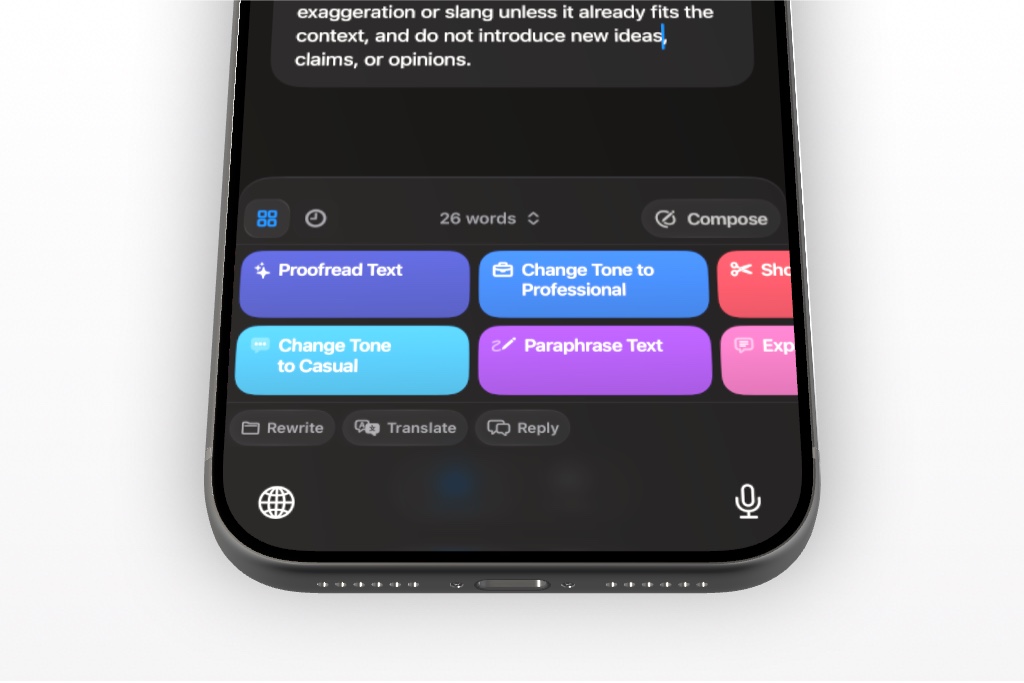
RewriteMate is an optional next step after you have text to edit. Its iOS keyboard lists actions such as Proofread, Change Tone, Paraphrase, and Shorten; those can help transform a captured draft, but they do not keep Apple Dictation listening through a pause or recover speech that never entered the text field. (RewriteMate’s iOS keyboard features).
Use a rewrite or proofreading tool only after checking that the dictated draft contains the facts you meant to say. Verify names, dates, numbers, negations, and commitments yourself. RewriteMate can help draft or transform text; it is not a source of truth and does not diagnose Apple Dictation.
Frequently asked questions
Does iPhone Dictation have a 30-second limit?
Apple documents an automatic stop after 30 seconds of silence. That is a silence timeout, not a statement that one continuous stretch of speech can last only 30 seconds.
Can I pause while dictating on iPhone?
Yes, you can pause, but if the silence reaches 30 seconds, Apple says Dictation stops automatically. For a longer pause, stop intentionally and start Dictation again when you are ready to continue.
How do I continue after Dictation stops?
Tap the Dictation button again at the insertion point where you want to continue. Review the text around the break so you catch an accidental duplicate, missing word, or awkward transition.
Why does Dictation stop while I am still talking?
Apple’s guide describes the 30-second silence stop, not every possible reason for an interruption during speech. Try a short, non-sensitive test without a long pause and note whether it happens in more than one text field. If it continues, consult Apple Support rather than assuming the silence timeout explains it.
Does Dictation work in every language?
Apple notes that Dictation may not be available in every language or region and that features can vary. Check Apple’s current iPhone guide and availability information for your language rather than assuming a language-specific behavior is a microphone problem.
Can RewriteMate prevent Dictation from timing out?
No. RewriteMate’s role here is to help edit text after Dictation has entered it. It is not a replacement for Apple’s voice capture controls and does not change the documented silence timeout.
Related articles
Keep reading
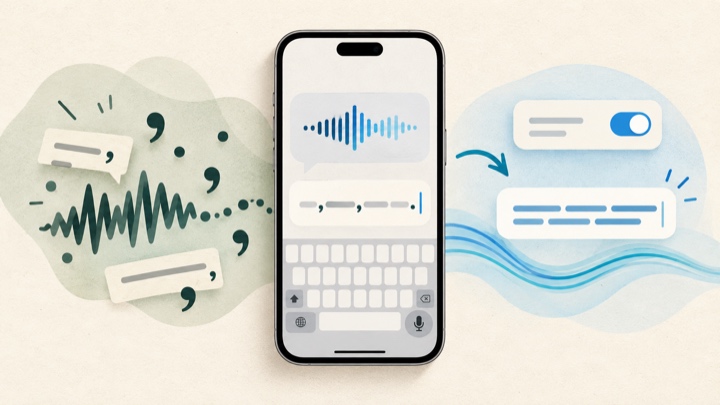
iPhone Dictation Keeps Adding Punctuation? Check This Setting First
If iPhone Dictation inserts commas or periods you did not intend, check Auto-Punctuation before changing other keyboard settings. This guide shows how to test the setting, distinguish automatic marks from spoken commands, and handle cases where the control is missing or does not seem to change the result.

How to Clean Up a Voice-Dictated Message on iPhone With AI
Learn how to dictate a message on iPhone, correct transcription mistakes quickly, and use AI to make the final text clearer without losing your voice.

Felix Tran
RewriteMate Dev & Editorial Lead
Write about everyday workflows, systems that help ideas move faster, from first draft to finished work.