Custom Command Recipes
Save your most-used writing instructions as one-tap keyboard shortcuts. Copy a recipe below, create a custom command in the RewriteMate app, and it appears as a chip in your keyboard.
AI keyboard for iOS and macOS. Free to try.
What Are Custom Commands?
Custom commands are your own AI instructions saved as one-tap shortcuts in the keyboard. Give it a name, pick an icon and color, write a prompt, and it appears as a chip alongside the built-in commands. Tap it on any text — the AI follows your instruction instantly.
Recipe Collection
The Executive Polish
Best for: Professional emails, client messages, formal communication
Prompt to copy:
Suggested icon: ✨ Sparkles or 👔 Briefcase
PR Format
Best for: Developers writing pull request descriptions
Prompt to copy:
Suggested icon: 🔧 Wrench or 💻 Terminal
Raw Notes → Bullet Points
Best for: Meeting notes, brain dumps, Slack updates
Prompt to copy:
Suggested icon: 📋 Clipboard or ••• List
Bilingual Flow Adjustment
Best for: Non-native English speakers, bilingual writers
Prompt to copy:
Suggested icon: 🌐 Globe or 🔄 Refresh
Academic Counter-Argue
Best for: Students writing essays with counterarguments
Prompt to copy:
Suggested icon: ⚖️ Scale or 📚 Books
Organizing with Folders
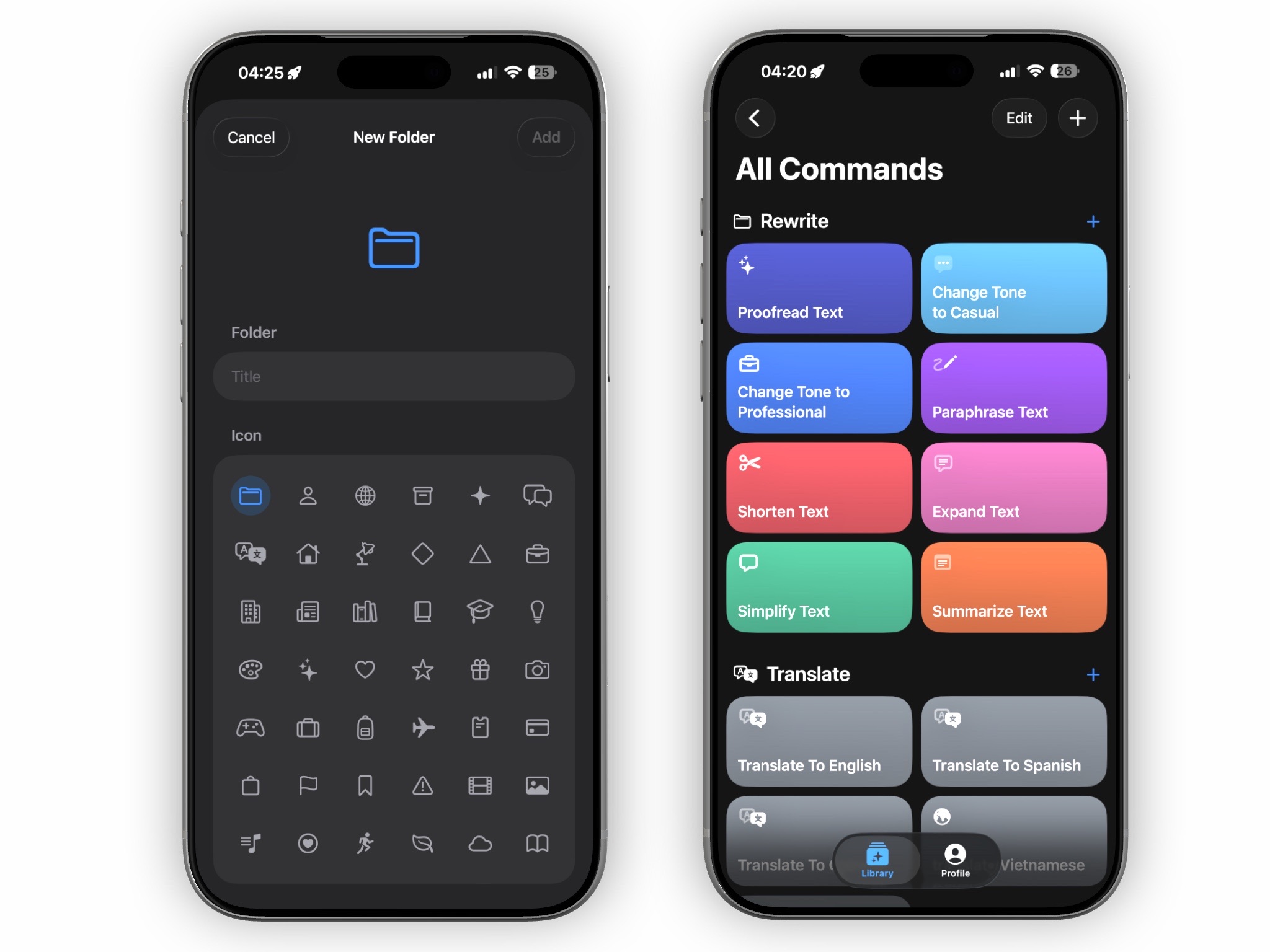
Group related commands into folders so your keyboard stays organized. For example, create a “Work” folder with Executive Polish and PR Format, and a “Content” folder with your social media commands. Folders appear as filter chips above the command grid in the keyboard — tap one to show only that group.
Pro tip: folder by context
Create folders like “Work,” “Social,” and “Academic.” Drop each custom command into the right folder. In the keyboard, tap the folder name to filter — no scrolling through dozens of commands.
Testing with Prompt Playground
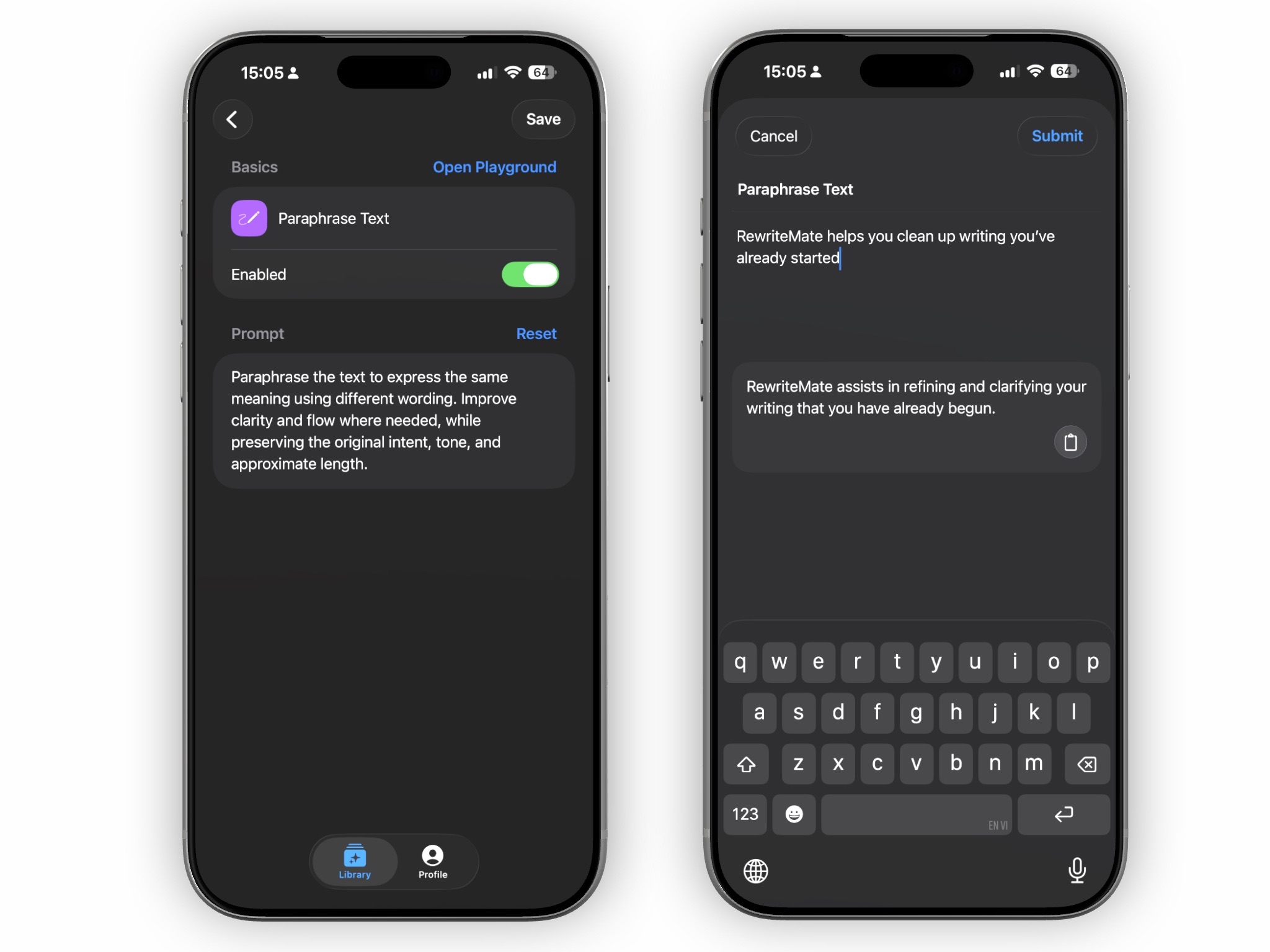
Before saving a custom command, test it in the Prompt Playground. Paste your prompt, type or paste sample text, and see what the AI produces. Tweak the instruction until the output matches exactly what you want — then save with confidence.
How to use the Playground
- Open the RewriteMate app and create a new command
- Tap “Open Playground” on the command detail screen
- Type or paste sample text to test against
- Adjust your prompt until the result looks right
- Save — your command is now ready in the keyboard
Build Your Own Writing Shortcuts
Custom commands, folders, and the Prompt Playground give you complete control over how AI rewrites your text. Set it up once, tap to use forever.
Download RewriteMate FreeFrequently Asked Questions
How do I create a custom command?▾
Open the RewriteMate app, tap the + button in the command grid. Give it a name, pick an icon and color, write your AI prompt, and save. It will appear as a chip in your keyboard's top bar.
How many custom commands can I have?▾
Free users can create up to 100 custom commands. Pro users have unlimited custom commands.
Can I organize commands into folders?▾
Yes. Create folders in the RewriteMate app and drag commands into them. In the keyboard, folders appear as filter chips above the command grid — tap one to show only that group.
What is the Prompt Playground?▾
It's a test area where you can try your custom prompt against sample text before saving. Open it from the command detail screen in the RewriteMate app.
Can I edit or delete a custom command later?▾
Yes. Tap any custom command in the RewriteMate app to edit its name, icon, color, or prompt. Swipe to delete.
Start building your command library today
Get RewriteMate FreeAI keyboard for iOS and macOS. Free to try.