August 15, 2026
Do AI Keyboards Read Everything You Type? What iPhone Users Should Know
An AI keyboard can process the text you type while it is active, but it does not automatically mean every keyboard sends everything to a server. What a keyboard can do depends on its iPhone permissions, whether you enable Allow Full Access, and the developer’s own privacy practices.
The practical rule is simple: treat a keyboard like a tool that may handle sensitive text. Before you use one for AI rewrites, translations, or grammar checks, understand when text is processed, whether it leaves your device, and what controls you have.
The short answer
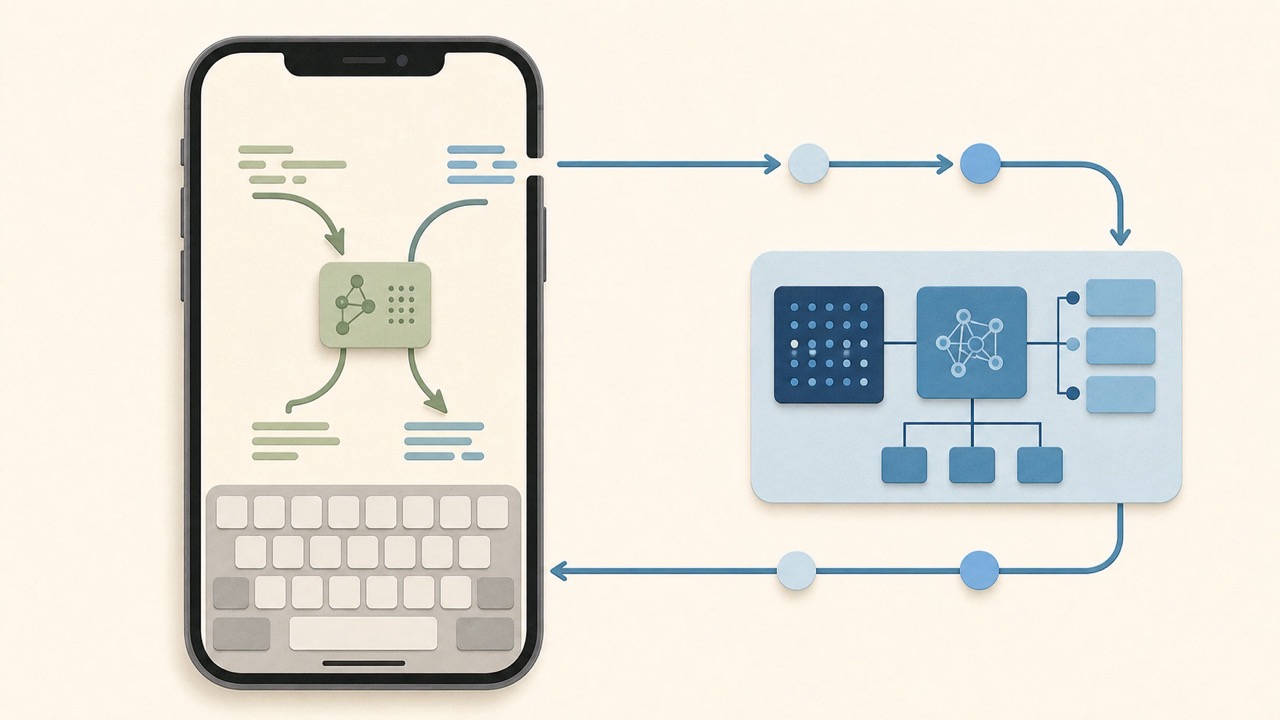
A third-party keyboard can only work with text when it is the active keyboard. If the keyboard requests and receives Full Access, it can use network-connected features, which may allow typed text to be sent to a server for processing.
Apple’s developer documentation is clear on the distinction:
- Without open access, Apple says a custom keyboard has no network access and keystrokes cannot be sent to the developer’s server.
- With open access enabled by the user through Allow Full Access, a keyboard and its containing app can send keystroke data to a server for features that need server support.
Apple’s documentation on custom keyboard open access explains both the capabilities and the privacy responsibility that come with this permission.
That is why the right question is not only “Does this keyboard read everything I type?” It is also:
- Is this keyboard active when I type?
- Does it have Full Access?
- What does its privacy policy say about text processing?
- Does it send text only when I trigger an AI action, or more broadly?
- Do I trust the developer with the type of information I write?
Why AI keyboards ask for Full Access
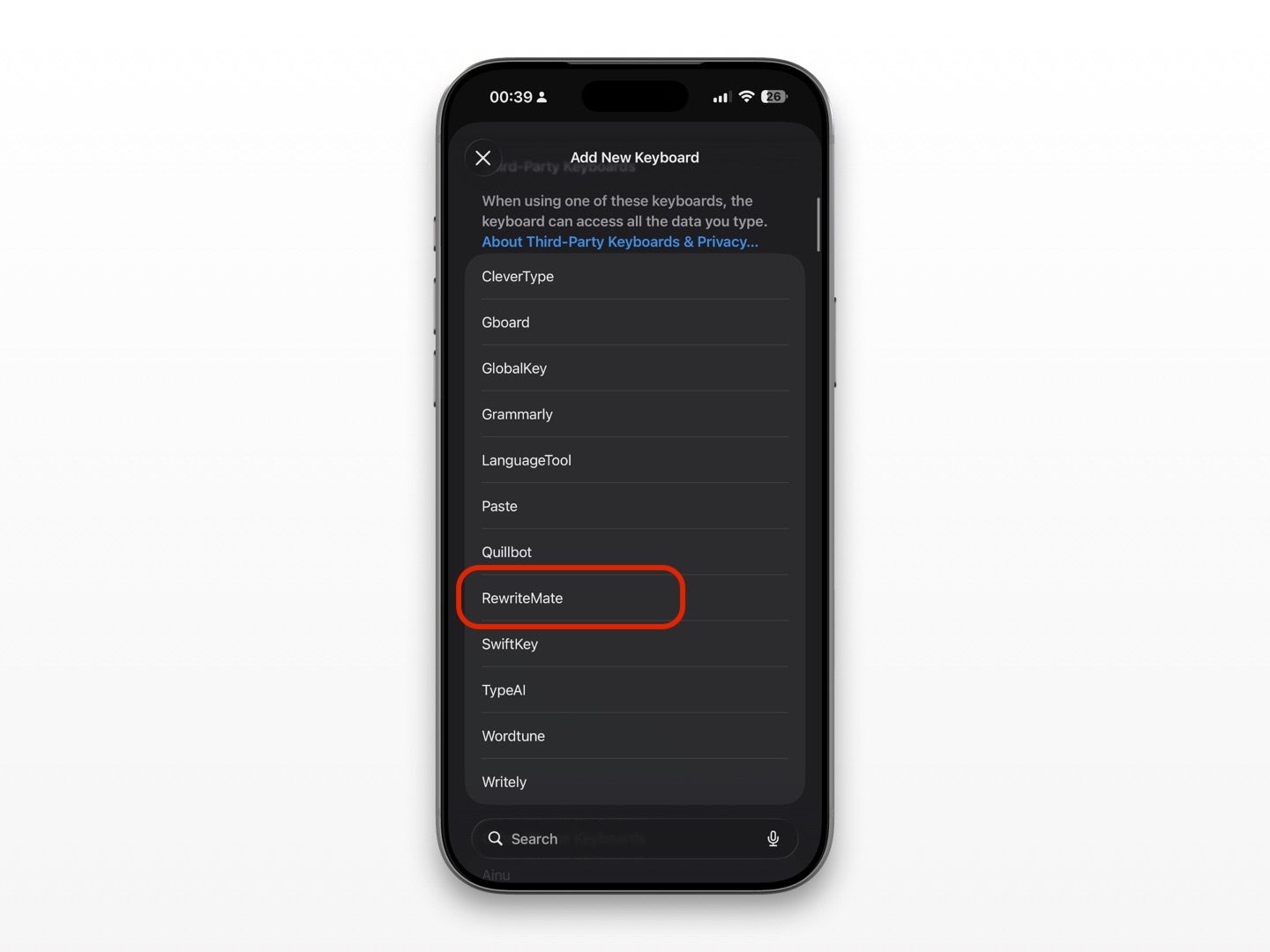
Many AI features need an internet connection. A keyboard may use a connected service to:
- Correct grammar
- Rewrite a message
- Change tone
- Translate text
- Generate a reply
- Sync settings or custom commands
- Process text with an AI model
On iPhone, a third-party keyboard must request open access before it can use network resources. Apple describes open access as enabling network use and shared-container access for a custom keyboard. See Apple’s RequestsOpenAccess reference.
The Allow Full Access switch is Apple’s way of putting that decision in the user’s hands.
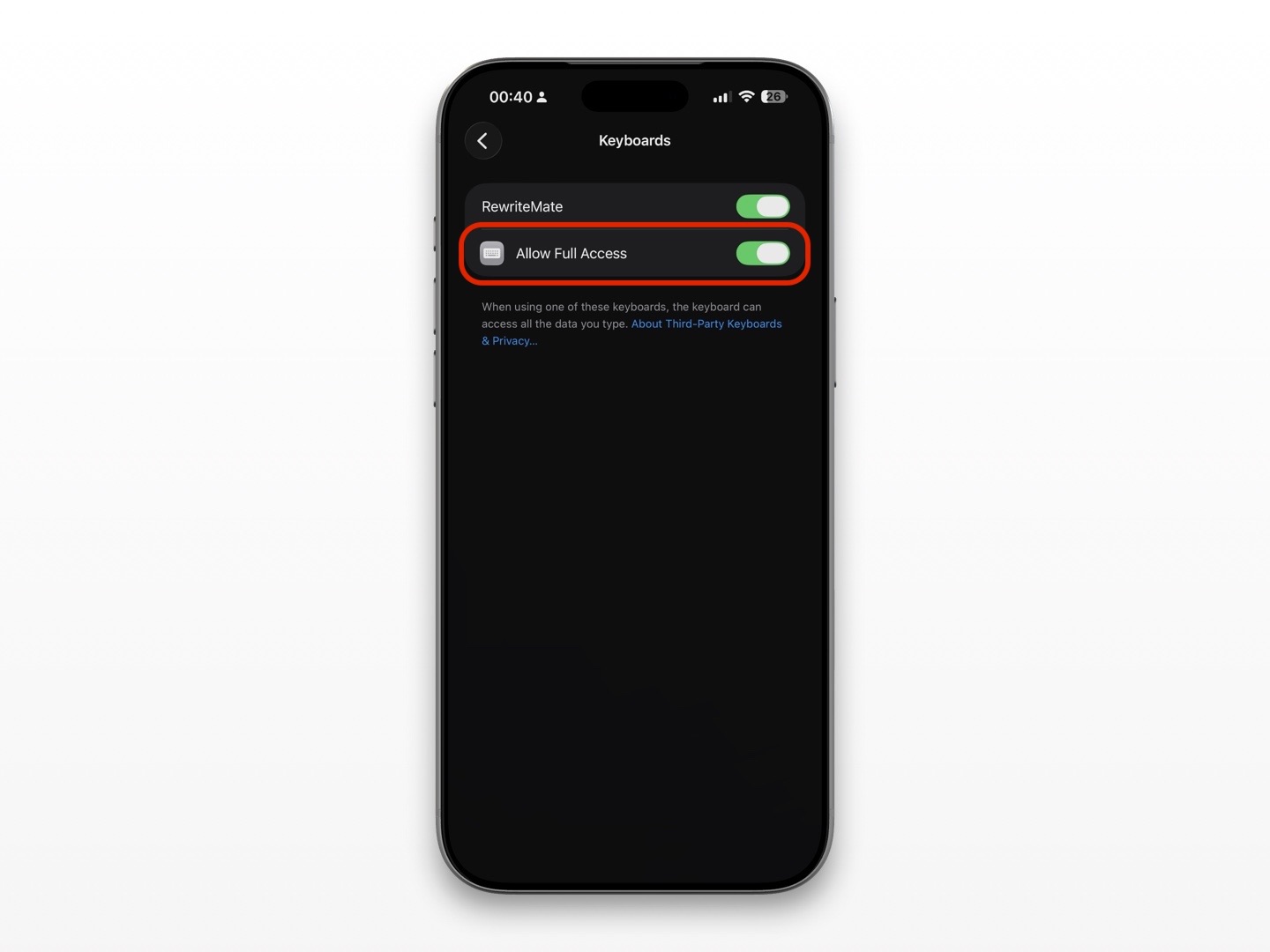
If you leave the switch off, some basic keyboard features may still work, but connected AI features may not. If you turn it on, you should expect that the keyboard may be able to communicate with its service according to the provider’s implementation and policy.
What a keyboard can access when it is active
A keyboard needs access to your typed input to do its basic job: place characters in the text field. That applies to Apple’s keyboard and third-party keyboards alike.
The privacy differences become more important when a third-party keyboard uses connected services.
| Keyboard setup | What this generally means |
|---|---|
| Apple’s built-in keyboard | Uses Apple’s system keyboard experience and Apple’s own privacy model |
| Third-party keyboard without Full Access | Has a more restricted sandbox and no network access from the keyboard extension |
| Third-party keyboard with Full Access | Can use network-connected features, subject to the developer’s implementation and privacy policy |
| AI keyboard with a rewrite or translation action | May need to process the selected or entered text to produce a result |
Apple notes that custom keyboards run in an isolated process and do not have direct access to the text input view in the same way as an app. Apple’s keyboard interaction documentation explains that keyboards interact through a text document proxy to insert text into the current input field.
That technical boundary is useful, but it does not replace careful decisions about which keyboard you use and when.
Does Full Access mean a keyboard reads every message automatically?
Not necessarily.
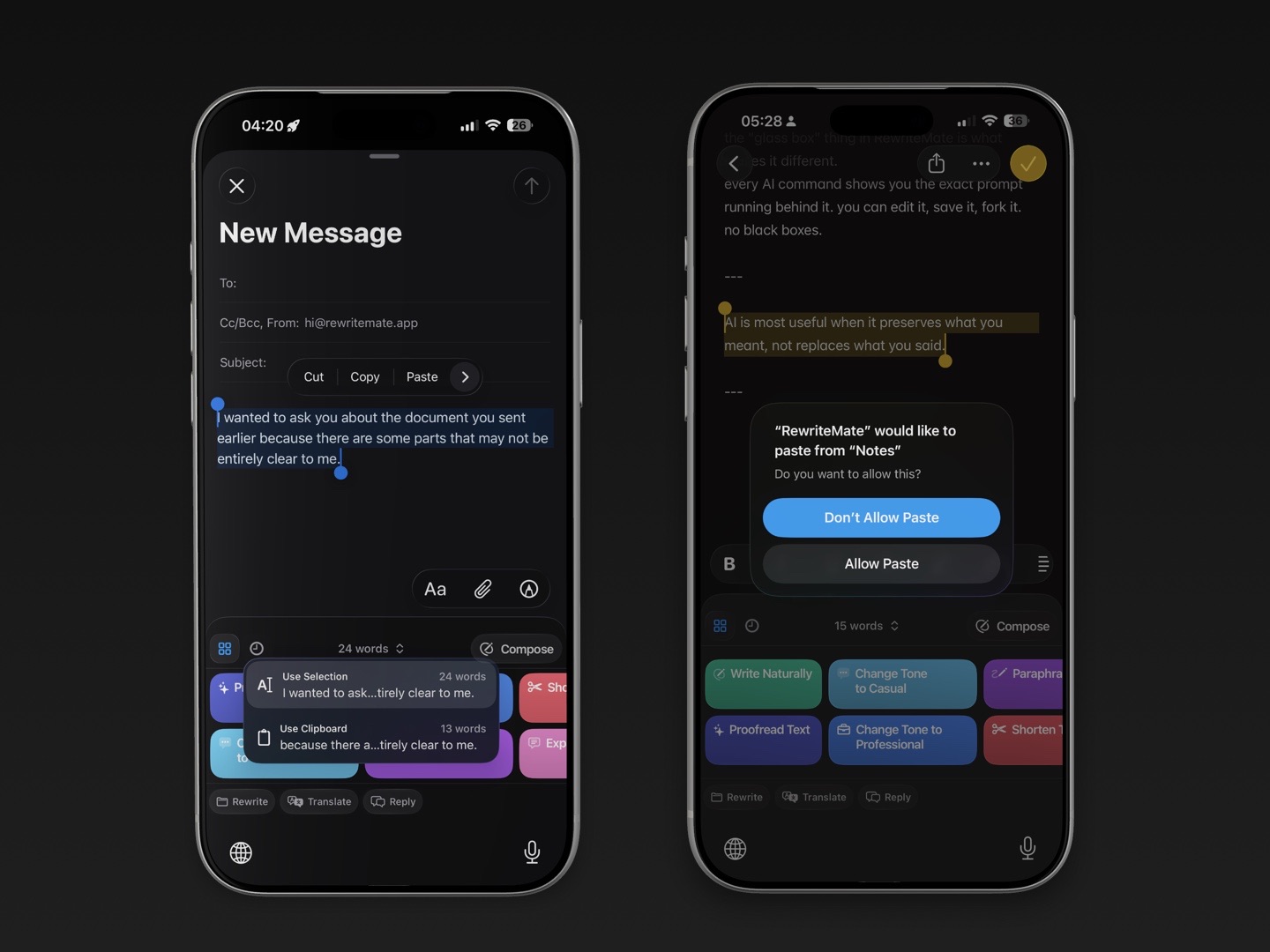
Full Access enables capabilities, including network access. It does not by itself explain exactly when a particular keyboard processes or transmits text. That depends on how the keyboard app is built and what its developer says it does.
For example, one provider might process text only after you tap a button such as “Rewrite” or “Check Grammar.” Another might use connected features more continuously. You should not assume the behavior is the same across all keyboard apps.
Before enabling Full Access, look for specific answers to these questions:
- Does the keyboard process text only when I trigger an AI feature?
- Is text sent off the device for grammar, rewriting, or translation?
- Is text retained after the request is complete?
- Is text used to improve models or services?
- Can I opt out of retention or training?
- Does the provider share data with other service providers?
- Can I delete my account and associated data?
If those answers are hard to find, consider that a reason to use a different keyboard or leave Full Access disabled.
Why password fields are different
You may notice that iPhone switches back to Apple’s keyboard in certain sensitive fields, such as password entry. This is an intentional system protection, not a sign that your third-party keyboard has stopped working.
Apple’s custom keyboard guidance says that some text input views do not allow custom keyboards. Read Apple’s custom keyboard overview.
That protection is helpful, but it should not lead you to treat all other text as low-risk. Messages, emails, notes, customer details, account numbers, addresses, and private conversations can still be sensitive.
How to decide whether an AI keyboard is safe enough for you
“Safe” is not a single yes-or-no answer. It depends on what you write and how much privacy risk you are comfortable accepting.
Use this checklist before enabling an AI keyboard.
Check the developer
Start with the basics:
- Download the app from its official App Store page.
- Confirm the developer name and website.
- Read recent reviews, but do not rely on reviews alone.
- Look for a clear privacy policy and support contact.
- Check whether the company explains its data practices in plain language.
A keyboard that handles text should make its privacy approach easy to find.
Check the data policy
Look for details about:
- Text entered through the keyboard
- AI prompts and rewrite requests
- Diagnostic data
- Account information
- Analytics
- Data retention
- Third-party AI providers
- Deletion requests
Be cautious with vague statements such as “we value your privacy” if they do not explain what happens to your text.
Check the permission explanation
When iPhone displays the Full Access warning, pause before accepting it.
Ask yourself:
- Do I need the feature that requires this permission?
- Would I be comfortable using this keyboard for work or personal messages?
- Can I use it without Full Access for basic typing?
- Can I turn the permission off later if I change my mind?
You can review or revoke the permission at any time through Settings > General > Keyboard > Keyboards, then tap the keyboard’s name.
When to avoid using an AI keyboard
Even with a keyboard provider you trust, some content may be better kept out of an AI workflow.
Avoid entering or processing sensitive information unless you have verified the app’s handling of that data and have permission to use it:
- Passwords and passcodes
- Banking details
- Government identification numbers
- Medical information
- Legal advice or private legal documents
- Confidential work information
- Customer or client data
- Private messages involving another person
- Internal company strategy, financials, or source code
If you need help writing about sensitive information, consider drafting a generalized version that removes identifying details. You can also wait until you are using an approved work device or writing tool.
A privacy-conscious workflow for AI writing
You can use an AI keyboard while reducing unnecessary exposure.
Draft sensitive ideas in general terms
Instead of pasting a full confidential email into a rewrite tool, remove names, account numbers, client details, and internal references first.
For example, change:
Please update Acme’s Q3 pricing proposal to include the confidential discount discussed with Jordan.
To:
Please rewrite this as a concise internal request to update a pricing proposal after a client discussion.
You still get help with tone and structure without sharing the most sensitive details.
Trigger AI only when you need it
If the keyboard’s privacy model supports action-based processing, use the AI feature deliberately rather than treating it as an always-on editor.
A focused request such as “make this friendlier” or “correct grammar only” also reduces the amount of text you need to submit.
Review before you send
AI-generated suggestions can change wording, tone, or meaning. Always check:
- Names
- Dates
- Numbers
- Commitments
- Links
- Attachments
- Confidential details
- Tone
Privacy is not the only risk. Accuracy matters too.
Revoke access when you no longer need it
If you stop using an AI keyboard, remove it from your keyboard list and turn off Full Access. Keeping fewer keyboards installed makes it easier to understand which tools can appear while you type.
What to ask an AI keyboard provider
If you cannot find a clear answer in the privacy policy, contact the developer. Good questions include:
- Does the keyboard send text to your servers?
- Is text sent only after I tap an AI action?
- Do you store prompts, inputs, or outputs?
- How long do you retain text?
- Is text used for model training?
- Which third parties process AI requests?
- Can users delete their data?
- Does Full Access enable features beyond AI rewriting?
- Is any part of the service available on-device?
A trustworthy provider should be able to answer these questions without hiding behind vague marketing language.
How RewriteMate fits into this decision
RewriteMate is intended to help you rewrite, polish, and adjust text where you already type on iPhone. Before enabling any connected keyboard feature, review the app’s current permission explanation and privacy policy, then decide whether its workflow fits the kind of writing you do.
For lower-risk tasks, an AI keyboard can be useful for:
- Improving grammar in a casual email
- Making a message more professional
- Tightening a work update with non-sensitive details
- Rewriting a social post
- Adjusting the tone of a general message
For high-risk content, use your judgment. An AI keyboard should make writing more convenient, not pressure you into sharing information you would otherwise keep private.
Common myths about AI keyboard privacy
“If I install an AI keyboard, it can see everything on my iPhone.”
Not automatically. A keyboard interacts with text when it is active, and iOS imposes technical boundaries around custom keyboards. However, you should still review the app’s permissions and privacy policy, especially if you grant Full Access.
“Full Access means the keyboard definitely stores everything I type.”
Not necessarily. Full Access enables capabilities, including network access. Whether text is stored, when it is transmitted, and how it is used depend on the keyboard provider’s documented practices.
“If a keyboard is in the App Store, I do not need to read its privacy policy.”
App review is not a substitute for understanding a provider’s data practices. The keyboard may still use connected services or third-party processors that are relevant to your decision.
“I can never use AI writing tools safely.”
You can reduce risk by choosing reputable providers, reading policies, limiting sensitive inputs, and using AI only when it adds real value.
Write better everywhere
Rewrite, rephrase, and refine text instantly without switching apps.
FAQs
Do AI keyboards read everything you type on iPhone?
An AI keyboard can process text while it is active, but whether it sends or stores that text depends on its permissions, implementation, and privacy policy. Full Access can enable network-connected functionality.
Is it safe to enable Allow Full Access for an AI keyboard?
It can be appropriate if you trust the developer and understand the data practices. Read the permission explanation and privacy policy before enabling it, and do not use connected AI features for sensitive information unless you are confident in the handling of that data.
Can I use a third-party keyboard without Full Access?
Often, yes, for basic typing. However, AI features, cloud sync, translation, and other connected tools may not work without Full Access.
Does iPhone protect passwords from third-party keyboards?
iPhone may use Apple’s keyboard in some protected input fields, including password-related fields. This does not mean other text you type is automatically private from a third-party keyboard with connected capabilities.
How do I turn off Full Access for a keyboard?
Go to Settings > General > Keyboard > Keyboards, tap the keyboard’s name, then turn off Allow Full Access.
Should I use an AI keyboard for work emails?
Only if your organization permits it and you understand the provider’s data handling. Avoid entering confidential client information, internal strategy, financial data, or other sensitive material without approval.
What is the safest way to use an AI keyboard?
Use a reputable provider, read its privacy information, enable only the permissions you need, process only low-risk text, and review every AI suggestion before sending it.
Use AI writing help with clear eyes
AI keyboards can make everyday writing faster, clearer, and less stressful. They can also handle text that matters to you, which is why permission prompts deserve attention.
Use RewriteMate for the messages where writing help adds value. Keep sensitive information out of any workflow you have not fully evaluated, and make Full Access a deliberate choice rather than an automatic one.
Related articles
Keep reading
On-Device vs Cloud AI Keyboards: What’s the Difference?
Understand how on-device and cloud AI keyboards process text on iPhone, what the privacy and performance trade-offs are, and what to check before choosing one.

How to Enable Allow Full Access for a Keyboard on iPhone
Learn how to turn on Allow Full Access for a third-party keyboard on iPhone, what the setting enables, and how to decide whether it is right for you.

Third-Party Keyboard Not Showing Up on iPhone? 8 Fixes That Work
Fix a third-party keyboard that is missing, won't open, or keeps switching back to the Apple keyboard on iPhone with these practical troubleshooting steps.

Felix Tran
RewriteMate Dev & Editorial Lead
Write about everyday workflows, systems that help ideas move faster, from first draft to finished work.