
August 11, 2026
How to Enable Allow Full Access for a Keyboard on iPhone
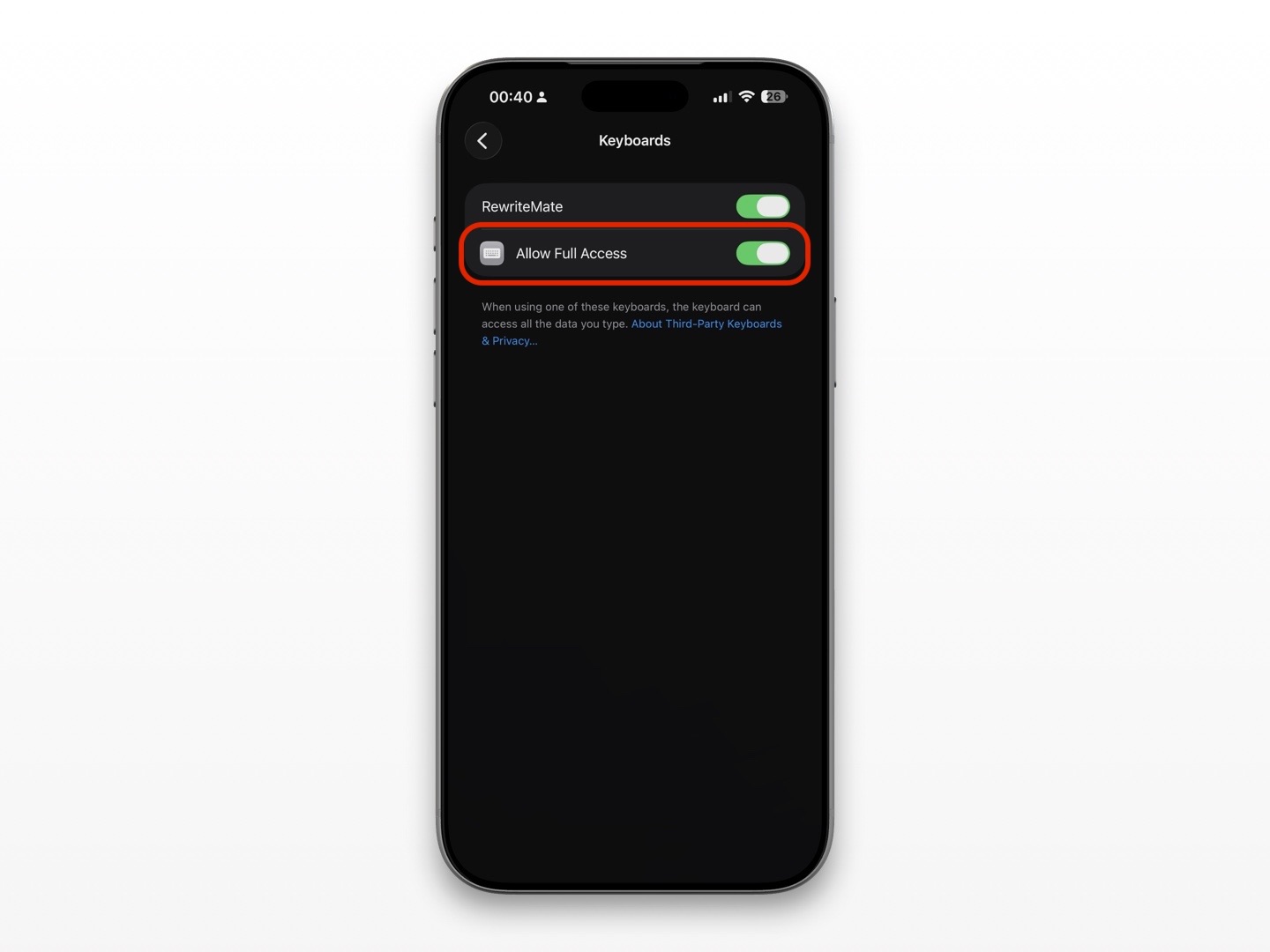
To enable Allow Full Access for a third-party keyboard on iPhone, go to Settings > General > Keyboard > Keyboards, tap the keyboard’s name, then turn on Allow Full Access and confirm your choice.
This setting can unlock features that need an internet connection or access to the keyboard app’s connected services. For example, some AI keyboards need it to rewrite text, translate messages, or run cloud-based writing tools. It is optional, though, so it is worth understanding what you are enabling before you tap Allow.
What “Allow Full Access” means on iPhone
A third-party keyboard is an app that appears in your iPhone’s keyboard picker alongside Apple’s built-in keyboard. Examples include grammar keyboards, multilingual keyboards, swipe keyboards, and AI writing keyboards.
By default, iOS limits what a keyboard extension can do. A keyboard may still provide basic typing features, but some connected features may be unavailable. Allow Full Access gives that keyboard permission to use capabilities outside its most limited mode.
Exactly what changes depends on the keyboard app. For example:
- Google’s Gboard setup guide says Full Access lets users use Google Search from the keyboard.
- Microsoft SwiftKey’s instructions explain that Full Access may be needed for some functions and can be toggled off and on again when the keyboard requests it.
- An AI keyboard may need the setting to send selected text to its writing service and return a rewrite, tone adjustment, translation, or suggested reply.
The key point: Full Access is not a universal “make the keyboard work” switch. It is a permission that may enable specific features for a specific keyboard.
How to turn on Allow Full Access for a keyboard
Follow these steps on your iPhone:
-
Open the Settings app.
-
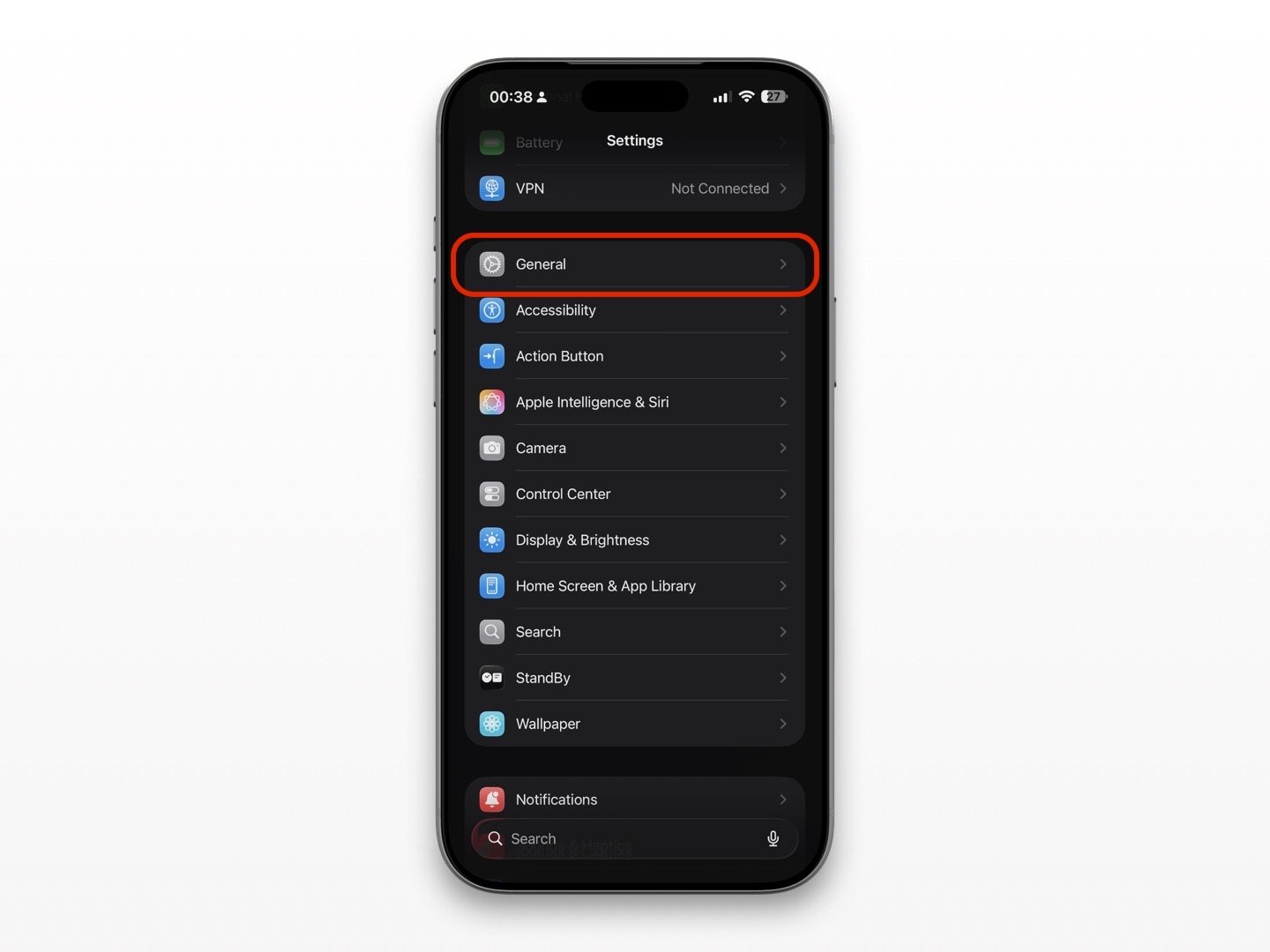
Tap General.
-
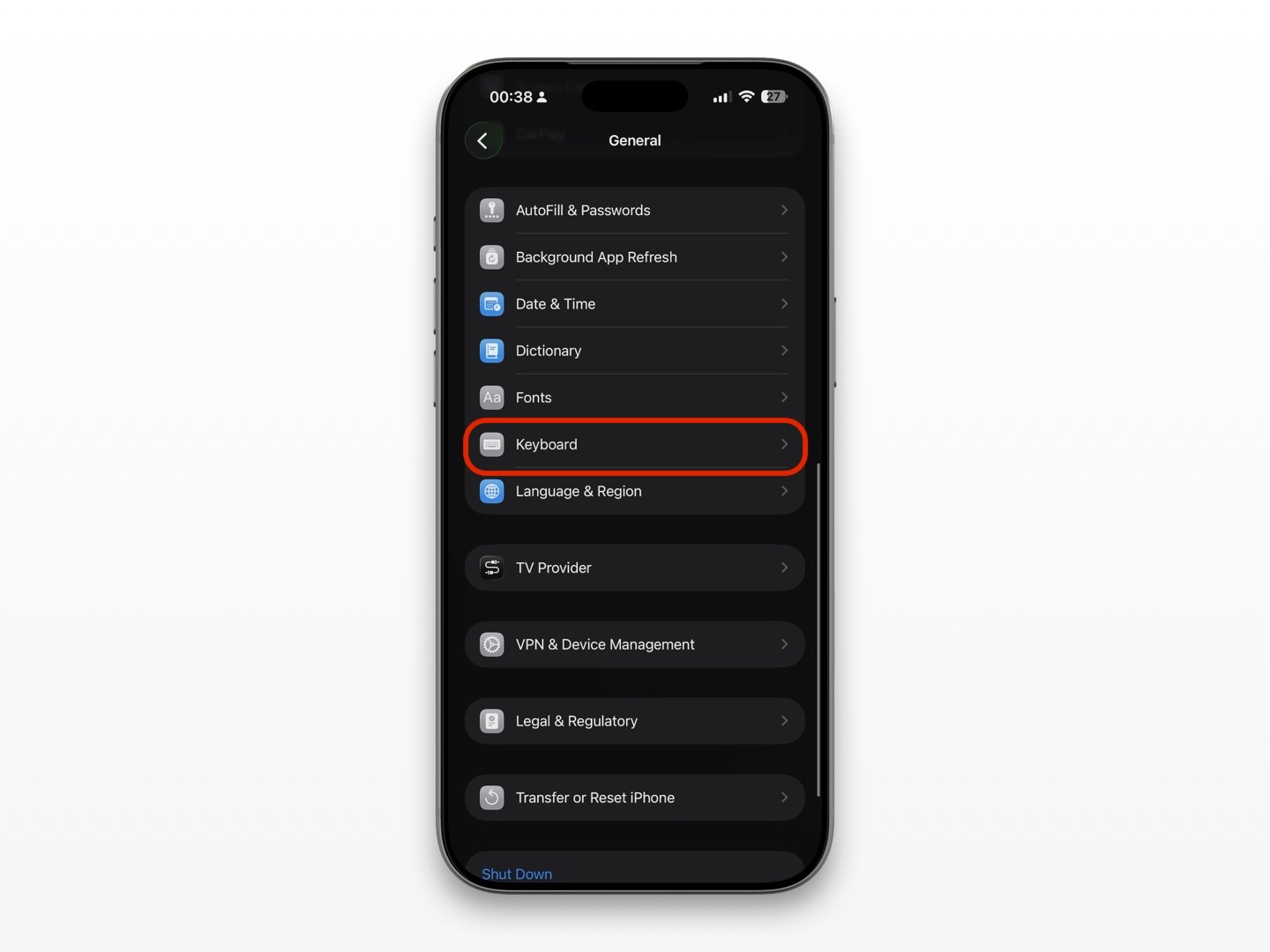
Tap Keyboard.
-
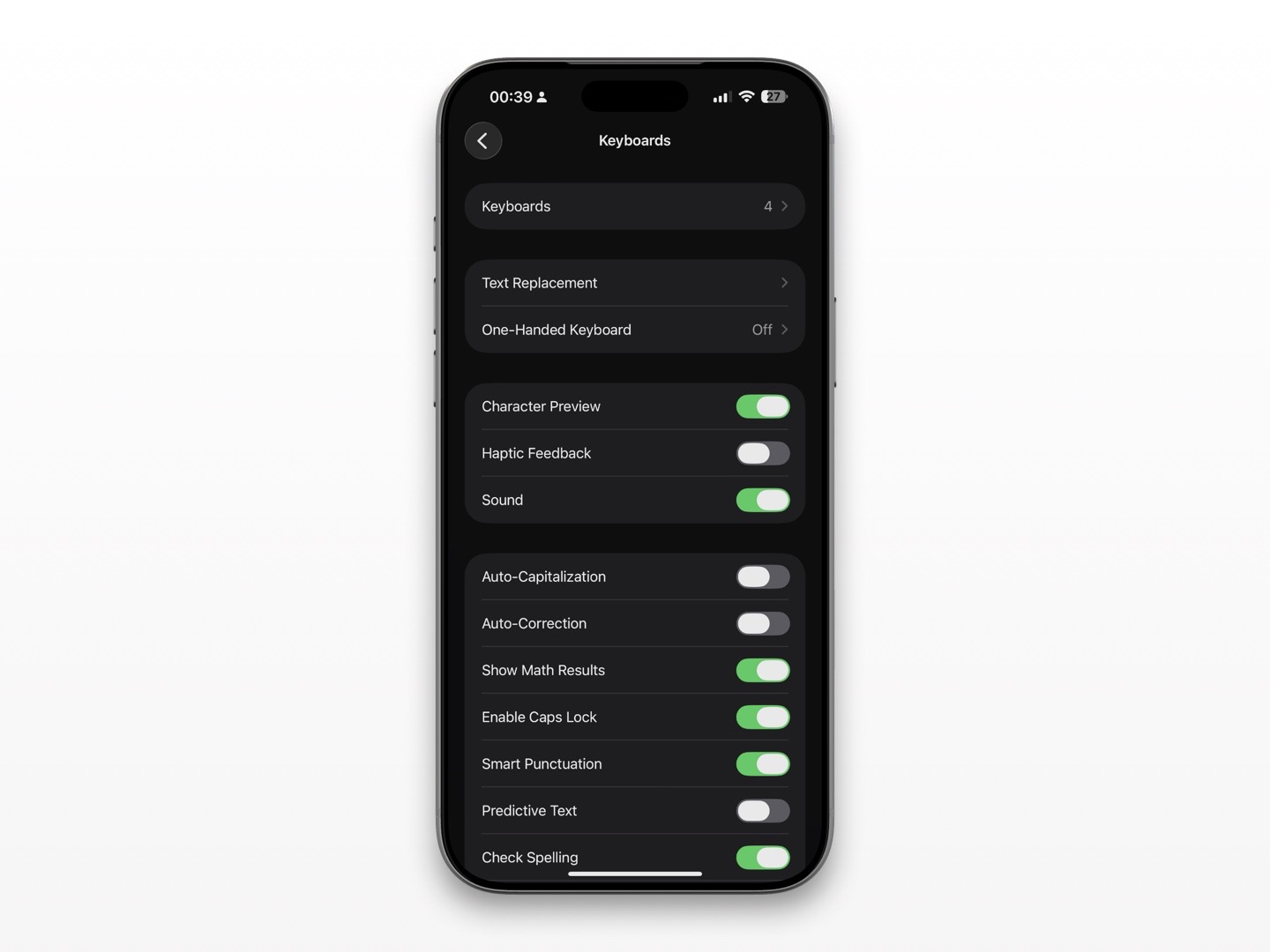
Tap Keyboards.
-
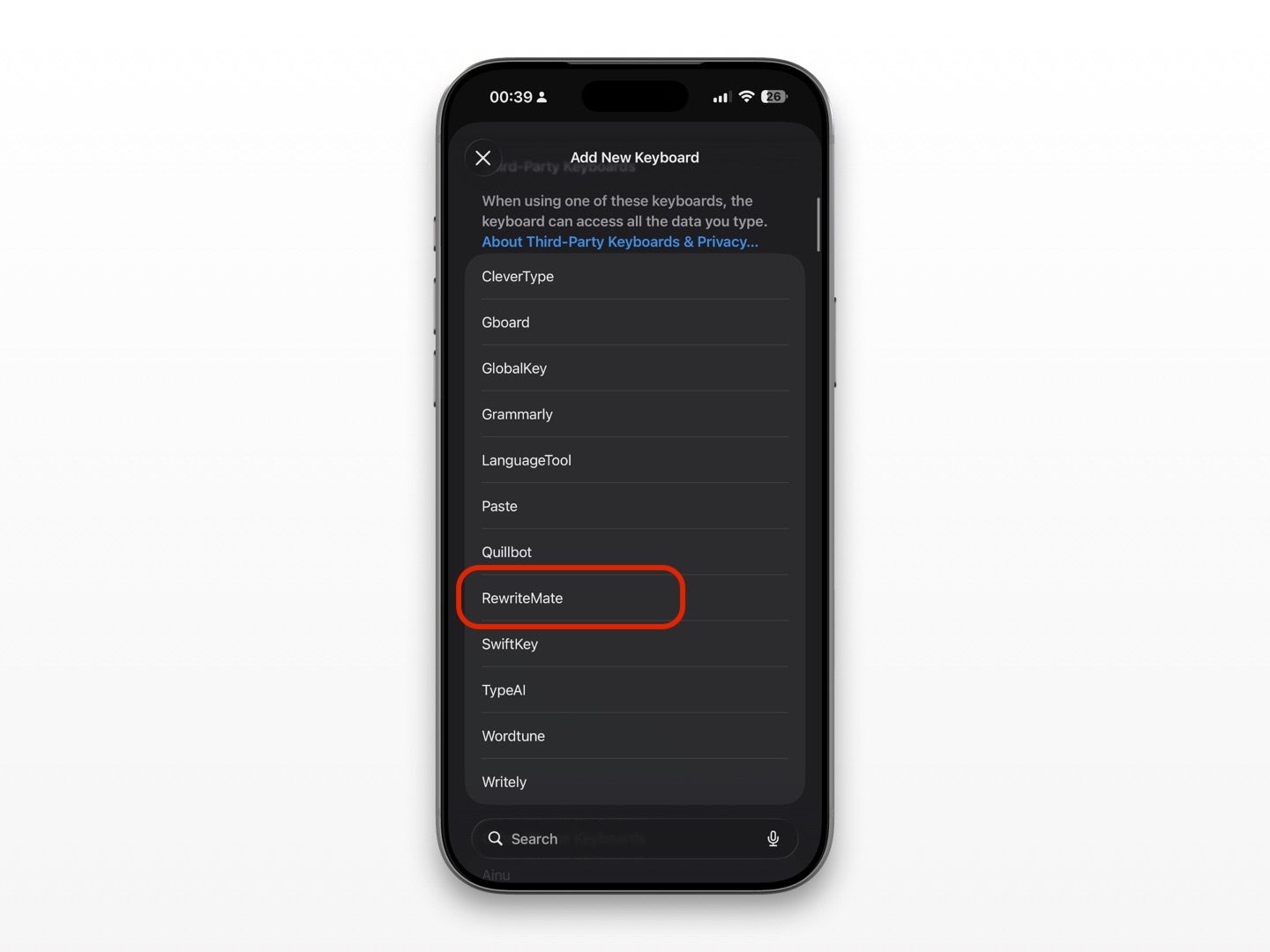
Select the third-party keyboard you want to manage (RewriteMate)
-
Turn on Allow Full Access.
-
Read the iPhone permission alert, then tap Allow if you are comfortable proceeding.
If you do not see the keyboard in the list, add it first.
How to add the keyboard before enabling Full Access
- Go to Settings > General > Keyboard > Keyboards.
- Tap Add New Keyboard.
- Find the app under Third-Party Keyboards.
- Tap its name to add it.
- Tap the keyboard’s name in the list, then review the Allow Full Access option.
Apple manages installed keyboards from the Keyboard settings area. Apple’s iPhone guide also explains where to add or change keyboards.
How to switch to your third-party keyboard
Turning on Full Access does not automatically make the keyboard appear in every text field. After setup:
- Open an app where you can type, such as Notes, Messages, or Mail.
- Tap in a text field to open the keyboard.
- Tap and hold the globe key, or tap it repeatedly.
- Select your preferred keyboard.
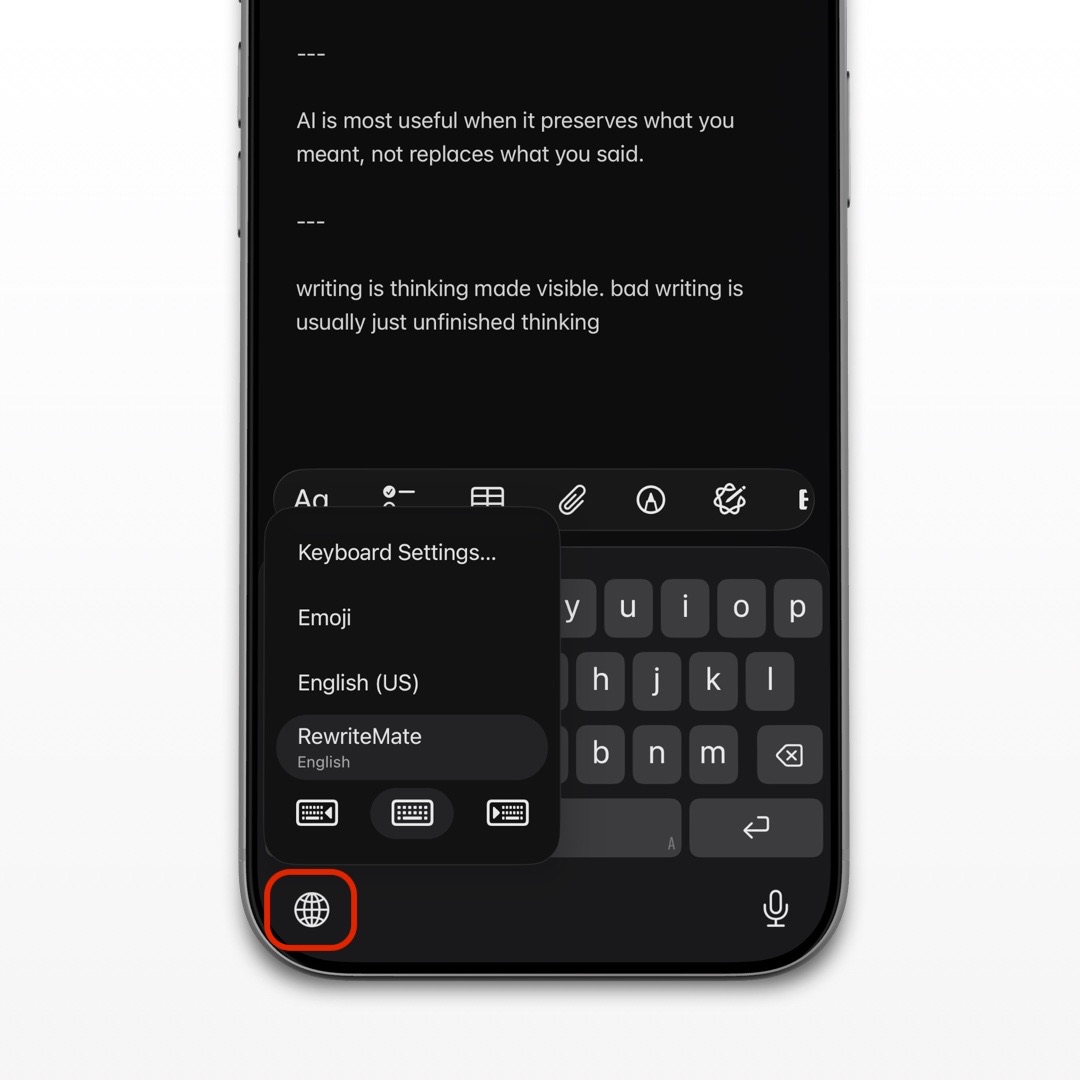
If the keyboard is installed but missing when you type, confirm it is still listed under Settings > General > Keyboard > Keyboards. Then try removing and adding it again.
Should you enable Allow Full Access?
Only enable Full Access for keyboard apps you trust and whose privacy information you have reviewed.
A keyboard sits close to the text you write, so the decision deserves more care than enabling a casual app feature. Before allowing access, look for clear answers from the developer about:
- What data the keyboard processes
- Whether text is sent to a server
- Whether data is stored, retained, or used to improve services
- Whether the keyboard offers an account, deletion controls, or privacy settings
- Which features stop working if Full Access is off
A well-designed keyboard should explain why it needs the permission in plain language. If the explanation feels vague or you do not need the extra features, leave Full Access off.
When an AI keyboard may need Full Access
AI writing features often depend on a connected service. If you want to rewrite a sentence, make an email more professional, change the tone of a message, or generate a reply, the keyboard may need permission to communicate with that service.
For example, with RewriteMate, you might use an AI writing tool to:
- Turn a rough text into a clearer message
- Make a work reply more concise
- Soften the tone of an iMessage
- Correct grammar before sending an email
- Rewrite a sentence while staying in the app where you are typing
Before enabling Full Access, review the keyboard’s own permission explanation and privacy policy. Use it when the features are useful to you—not just because the toggle is available.
Full Access vs Full Keyboard Access: do not mix them up
These two iPhone settings sound similar, but they are different.
| Setting | What it is for | Where to find it |
|---|---|---|
| Allow Full Access | Enables additional features for a specific third-party software keyboard | Settings > General > Keyboard > Keyboards > [keyboard name] |
| Full Keyboard Access | An accessibility feature for controlling iPhone with a connected physical keyboard | Settings > Accessibility > Keyboards |
Apple describes Full Keyboard Access as a way to control an iPhone with keyboard shortcuts when using an external physical keyboard. It is not the setting you need to enable AI, grammar, or language features in a third-party on-screen keyboard.
What to do if Allow Full Access is missing
If you cannot find the option, work through this checklist.
Make sure the keyboard is installed
The option only appears after the keyboard has been added under Settings > General > Keyboard > Keyboards.
Open the keyboard app first
Some keyboard apps require a short setup process before their extension becomes available in Settings. Open the app from your Home Screen and follow its onboarding prompts.
Update the app
Open the App Store, tap your profile picture, and look for an update. Keyboard apps may add compatibility fixes or improve their setup flow through app updates.
Restart your iPhone
If the keyboard was just installed or updated, restarting can clear a temporary setup issue.
Remove and re-add the keyboard
Go to Settings > General > Keyboard > Keyboards, tap Edit, remove the keyboard, then add it again. Return to the keyboard’s settings page and check for the toggle.
What to do if Full Access is enabled but a feature still does not work
Full Access does not resolve every keyboard issue. If a feature still fails after you enable it, try the following.
- Test the keyboard in Notes. If it works in Notes but not another app, the issue may be specific to that app or text field.
- Switch away and back. Use the globe key to select another keyboard, then return to the third-party keyboard.
- Toggle Full Access off and on. Microsoft specifically recommends this reset step when SwiftKey asks users to enable Full Access again. See its support instructions.
- Update the keyboard app and iOS. Apple recommends checking for app updates and updating iPhone software when an app is not working as expected. Read Apple’s troubleshooting steps.
- Contact the keyboard developer. Include your iPhone model, iOS version, keyboard app version, and the app where the problem happens.
Write better everywhere
Rewrite, rephrase, and refine text instantly without switching apps.
Why Apple’s keyboard may still appear sometimes
Even after you set up a third-party keyboard, iPhone may use Apple’s built-in keyboard in certain sensitive fields. You may notice this when entering a password or dealing with a protected sign-in flow.
That does not necessarily mean Full Access has been disabled or your keyboard is broken. Test the keyboard in a regular text field, such as a new note or a message draft, before troubleshooting further.
A safer setup checklist for third-party keyboards
Use this quick checklist before enabling Full Access:
- Download the keyboard from its official App Store listing.
- Read the developer’s explanation of what Full Access enables.
- Review the privacy policy for text handling and data retention.
- Keep iOS and the keyboard app updated.
- Use a unique, strong password and let iPhone use its secure password fields where applicable.
- Disable Full Access later if you stop using the keyboard or no longer need its connected features.
- Remove keyboard apps you no longer trust or use.
You can turn the permission off at any time by returning to Settings > General > Keyboard > Keyboards, selecting the keyboard, and switching off Allow Full Access.
FAQs
Is Allow Full Access safe for a keyboard on iPhone?
It can be appropriate for a keyboard app you trust, but the decision depends on the developer’s privacy practices and the features you need. Read the permission explanation and privacy policy before enabling it.
Do I need Full Access to use a third-party keyboard?
Not always. Basic typing may work without it. However, connected features such as search, AI rewriting, translations, or cloud-based suggestions may require Full Access.
Why is my iPhone warning me before I enable Full Access?
The warning is there because keyboards handle text input. Apple wants you to make an informed decision before granting a keyboard additional capabilities.
Can I turn off Allow Full Access later?
Yes. Go to Settings > General > Keyboard > Keyboards, tap the keyboard’s name, then turn off Allow Full Access.
Why can’t I find Allow Full Access for my keyboard?
First make sure the keyboard is installed under Settings > General > Keyboard > Keyboards. If it is installed, open the keyboard app, update it, restart your iPhone, or remove and add the keyboard again.
Is Full Keyboard Access the same as Allow Full Access?
No. Full Keyboard Access is an accessibility setting for using a physical external keyboard to control iPhone. Allow Full Access applies to a specific third-party software keyboard.
Set up the features you actually want
Allow Full Access can make a third-party keyboard more useful, especially if you want connected writing tools without switching away from Messages, Mail, or Slack. But it should be a deliberate choice: install the keyboard, understand what the setting enables, review the developer’s privacy information, and turn it on only when the benefits make sense for you.
If you want to refine messages where you already type, try RewriteMate after completing its keyboard setup.
Related articles
Keep reading

Third-Party Keyboard Not Showing Up on iPhone? 8 Fixes That Work
Fix a third-party keyboard that is missing, won't open, or keeps switching back to the Apple keyboard on iPhone with these practical troubleshooting steps.

Do AI Keyboards Read Everything You Type? What iPhone Users Should Know
AI keyboards can process text to provide writing help, but what they can access and send depends on iPhone permissions, the keyboard’s design, and the provider’s privacy practices.
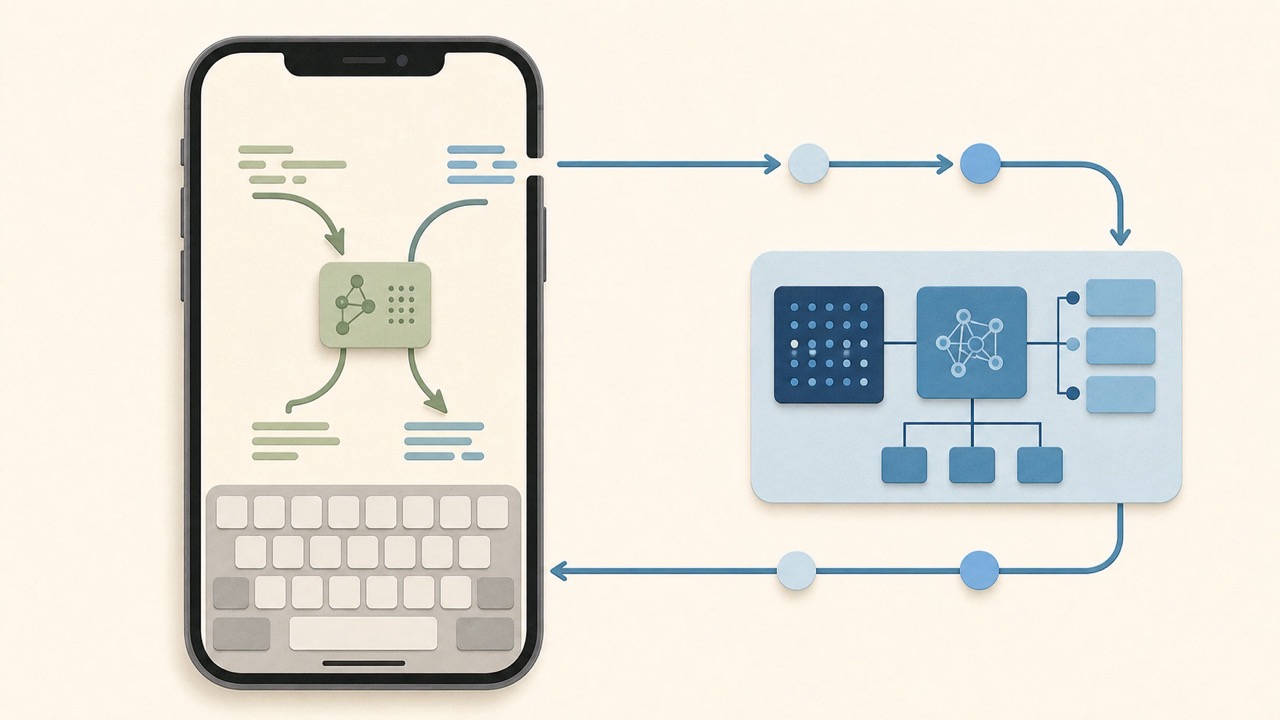
On-Device vs Cloud AI Keyboards: What’s the Difference?
Understand how on-device and cloud AI keyboards process text on iPhone, what the privacy and performance trade-offs are, and what to check before choosing one.

Felix Tran
RewriteMate Dev & Editorial Lead
Write about everyday workflows, systems that help ideas move faster, from first draft to finished work.