August 27, 2026
How to Reply to an Email Professionally From Your iPhone
To reply to an email professionally from your iPhone, start with the answer or decision, add only the context the recipient needs, and end with a clear next step. Before sending, check names, dates, attachments, and tone.
A professional email does not need to sound overly formal. It needs to be easy to understand, respectful, and complete enough that the recipient knows what happens next.
Use a simple five-part email structure
Most professional replies can follow this pattern:
- Greeting
- Direct answer or acknowledgement
- Relevant context
- Clear action or question
- Closing
For example:
Hi Maya,
Thanks for sending the revised proposal. I reviewed the pricing section and the scope now looks correct.
Please send the final PDF when it is ready, and I’ll share it with the client.
Best,
Alex
You do not need every part for every email. A short reply to a colleague may only need a direct answer and next step. A customer or client reply may need more context.
Reply to an email in Mail on iPhone
In Apple Mail, open the message, tap the reply control, then choose Reply, Reply All, or Forward as appropriate.
Apple notes that replies can include text from the original sender to clarify what you are responding to. Apple’s Mail reply guide has the current controls and options.
Before you begin writing, decide whether the email needs:
- A direct reply to one person
- A reply to everyone included in the conversation
- A separate email to avoid adding people unnecessarily
- A call or meeting because the topic is too complicated for email
Reply All is useful when everyone needs the same information. It is not useful when your answer is only relevant to the original sender.
Put the important point first
People often read email on their phones between tasks. Avoid making them search through a long introduction to find your answer.
Instead of:
Hi, hope you are doing well. I wanted to follow up on the meeting we had last week and say that I have been thinking about the next steps. I believe we can probably move forward, but I wanted to check a few things first.
Try:
Hi, we can move forward with the proposed timeline. Before I confirm it, could you clarify whether the design review is included in the current scope?
The second version is more professional because it makes the decision and question clear immediately.
Choose the right tone for the recipient
Professional does not mean identical. Your tone should match the relationship and situation.
| Situation | Tone to aim for |
|---|---|
| Manager or senior stakeholder | Clear, concise, respectful |
| Client or customer | Helpful, specific, reassuring without unsupported promises |
| Colleague | Friendly, direct, collaborative |
| Job application or interview | Polished, appreciative, formal but natural |
| Delayed response or mistake | Accountable, factual, solution-focused |
| Sensitive disagreement | Calm, specific, non-accusatory |
A message to a close teammate can be brief:
Thanks, I’ll update the deck and send it before noon.
A message to a new client may need more detail:
Thank you for the feedback. I’ll incorporate the requested changes and send an updated version by Thursday afternoon.
Professional email examples you can adapt
Confirming receipt
Hi Jordan,
Thanks for sending this. I received the files and will review them today. I’ll let you know if I have any questions.
Best,
Sam
Asking for clarification
Hi Priya,
Before I begin, could you confirm which version of the brief should be used? I see two different deadlines in the thread.
Thank you,
Sam
Following up
Hi Priya,
Following up on my note below about the approval. Could you let me know whether you expect to have feedback by Friday?
Best,
Sam
Declining or setting a boundary
Hi Priya,
I’m not able to complete this by today because I’m finishing the client report. I can deliver it tomorrow afternoon, or we can reassign it if it is urgent.
Best,
Sam
Correcting an error
Hi Priya,
I noticed that the attachment in my previous email was the earlier version. I’ve attached the corrected file here. Sorry for the confusion.
Best,
Sam
Each example states the key point without adding unnecessary explanation.
Edit your reply before you send it
A quick review catches most mobile-email mistakes.
Use this checklist:
- Is the recipient correct?
- Did you choose Reply instead of Reply All?
- Is the main answer in the first paragraph?
- Are dates, times, names, and numbers correct?
- Did you answer every question in the original email?
- Are attachments included?
- Is the request or next step clear?
- Does the tone match the relationship?
- Could a shorter sentence say the same thing?
One extra read is especially important when you are replying quickly from a phone. Autocorrect can change names and key terms, and a brief message can sound sharper than you intend.
Use short paragraphs and lists on iPhone
A long wall of text is hard to scan on a small screen. Break complex replies into short paragraphs or a small list.
Instead of:
We finished the first phase, the client needs to confirm the final copy, the design team still needs two images, and we need legal approval before publishing, so I think we should wait until Friday.
Try:
The first phase is complete. Before publishing, we still need:
- Final client copy approval
- Two design images
- Legal review
I recommend publishing on Friday once those items are confirmed.
Apple Mail supports composing and formatting messages on iPhone. Apple’s Mail compose guide covers the current editing options.
Use AI as an editing pass, not an autopilot
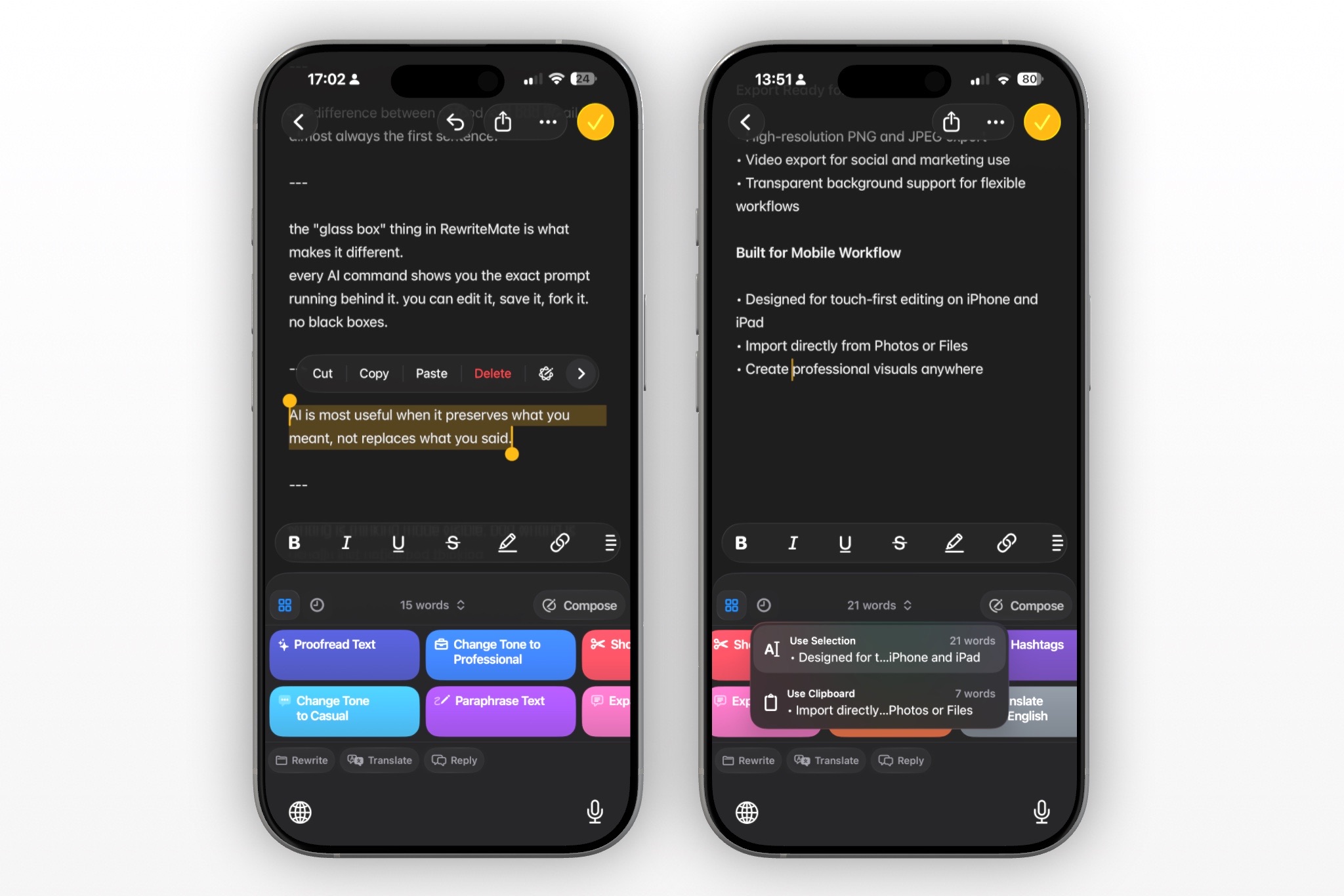
If you have Apple Intelligence enabled, Writing Tools can help you rewrite a draft to sound more professional, friendly, or concise. Apple says Writing Tools can revise selected text in those tones. Apple’s Writing Tools guide explains the available options.
An AI keyboard such as RewriteMate can also help you edit while you are writing your reply on iPhone.
Start with your own draft, then ask for one specific improvement:
- “Make this email professional and concise. Keep the deadline unchanged.”
- “Fix grammar only. Do not change my meaning.”
- “Rewrite this as a warm client reply without adding promises.”
- “Make this clearer and keep it under 100 words.”
- “Turn this into a short email with one direct question.”
Specific instructions produce better edits than simply asking AI to “make it better.”
Review every AI rewrite
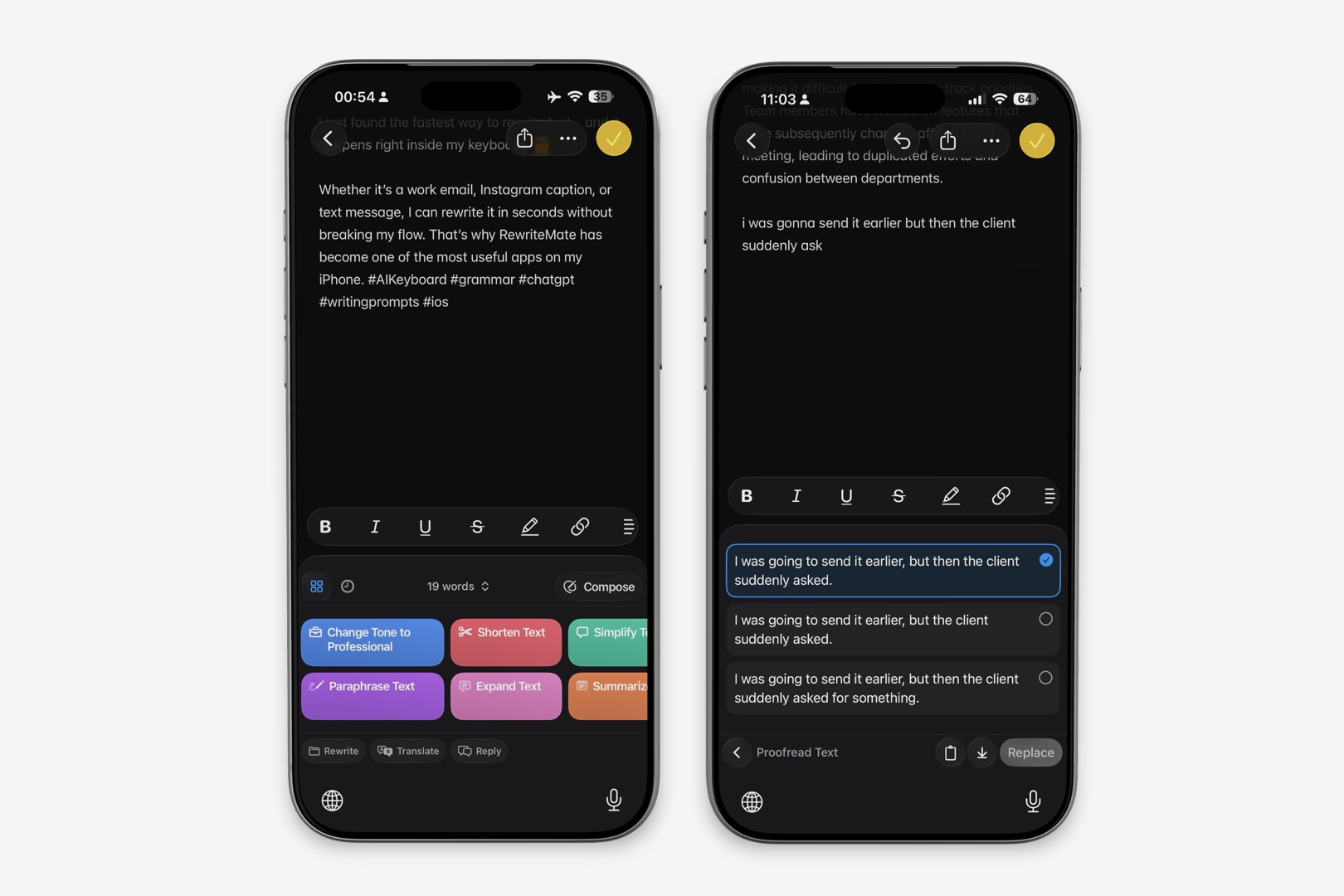
Do not send an AI-generated email without checking it first.
Confirm that it has not:
- Changed a date, price, deadline, or name
- Added a promise you cannot keep
- Removed a critical condition
- Made the email sound more formal than your normal voice
- Included sensitive information that should not be processed by an AI tool
For confidential work, legal, HR, financial, medical, security, or customer information, follow your organization’s policies before using any AI writing service.
Avoid these common professional-email mistakes
Over-apologizing
One direct apology is enough when you made an error:
I’m sorry for sending the incorrect attachment. The corrected file is attached.
Avoid adding several apologies or lengthy excuses. Focus on the fix.
Being too vague
“Let me know what you think” is fine for a casual discussion, but it is weak when you need a decision.
Try:
Please confirm whether you approve the final copy by Thursday so I can schedule publication.
Making the email too formal
Phrases such as “Please be advised” or “I hope this message finds you well” are not always wrong, but they can make a short phone reply sound impersonal.
Plain language is usually clearer:
Thanks for the update. I’ll review the file this afternoon.
Forgetting the next step
A good professional reply makes it clear who does what next. If your email ends without an action, deadline, or question, the thread may stall.
A fast professional-email workflow on iPhone
Use this routine when you need to reply quickly:
- Read the original email once for the actual request.
- Decide whether your answer is yes, no, an update, a question, or a follow-up.
- Write the first sentence with that answer.
- Add only the context needed to support it.
- State the next action, owner, or deadline.
- Proofread the final version.
- Check recipients and attachments.
- Send.
This takes less time than writing a vague reply, then sending several clarification emails afterward.
Frequently asked questions
How do I make an email sound professional on iPhone?
Use a clear greeting, put the main answer first, use short paragraphs, and end with a specific next step. Proofread names, dates, grammar, and attachments before sending.
Is it okay to send work emails from an iPhone?
Yes. A professional email can be sent from any device. What matters is clarity, accuracy, tone, and whether the message contains all the information the recipient needs.
Should I use Reply All for a professional email?
Use Reply All only when everyone on the thread needs your response. If the information is relevant to one person, choose Reply instead.
How can I make a short email sound less rude?
Add a brief acknowledgement, use a polite request, and make the next step clear. For example, replace “Send this today” with “Could you send this today if possible?”
Can AI write a professional email for me?
AI can help create or revise a draft, but you should provide the facts, check the final wording, and take responsibility for any promises or decisions in the email.
What should I do if I sent an email with a mistake?
Send a short correction promptly. Identify the error, provide the corrected information or attachment, and avoid overexplaining.
Professional email is clear email
A professional iPhone email does not need complicated language or a long template. Lead with the point, provide the necessary context, and make the next step obvious.
Try RewriteMate when you want a quick grammar, clarity, or tone pass from your iPhone keyboard, then review the result and send the version that still sounds like you.
Related articles
Keep reading
How to Tell a Client You Need More Time Professionally
A clear way to request more time from a client without making excuses, overpromising a new date, or leaving the next step unclear.
10 Best ChatGPT Prompts for Rewriting Emails
Discover 10 copy-and-paste ChatGPT prompts for rewriting emails professionally, politely, and clearly. Save time and improve every email with AI.
I Write 40 Messages a Day on My iPhone. This keyboard help me sounds better in all of them.
Most AI writing tools fix your grammar but erase your voice. This is how I built a setup that makes every message sound like me — without switching apps or starting over.

Felix Tran
RewriteMate Dev & Editorial Lead
Write about everyday workflows, systems that help ideas move faster, from first draft to finished work.