August 22, 2026
How to Rewrite a Text Message With AI on iPhone
To rewrite a text message with AI on iPhone, write a rough draft first, then use an AI writing tool to improve its tone, clarity, length, or grammar. Review the result before sending so names, dates, promises, and your personal voice remain accurate.
The best rewrite is rarely the most formal one. It is the version that says what you mean clearly for the person receiving it.
You can use Apple’s built-in Writing Tools on compatible iPhones, or use an AI keyboard such as RewriteMate when you want writing help while typing in different apps.
Start with the message you actually mean
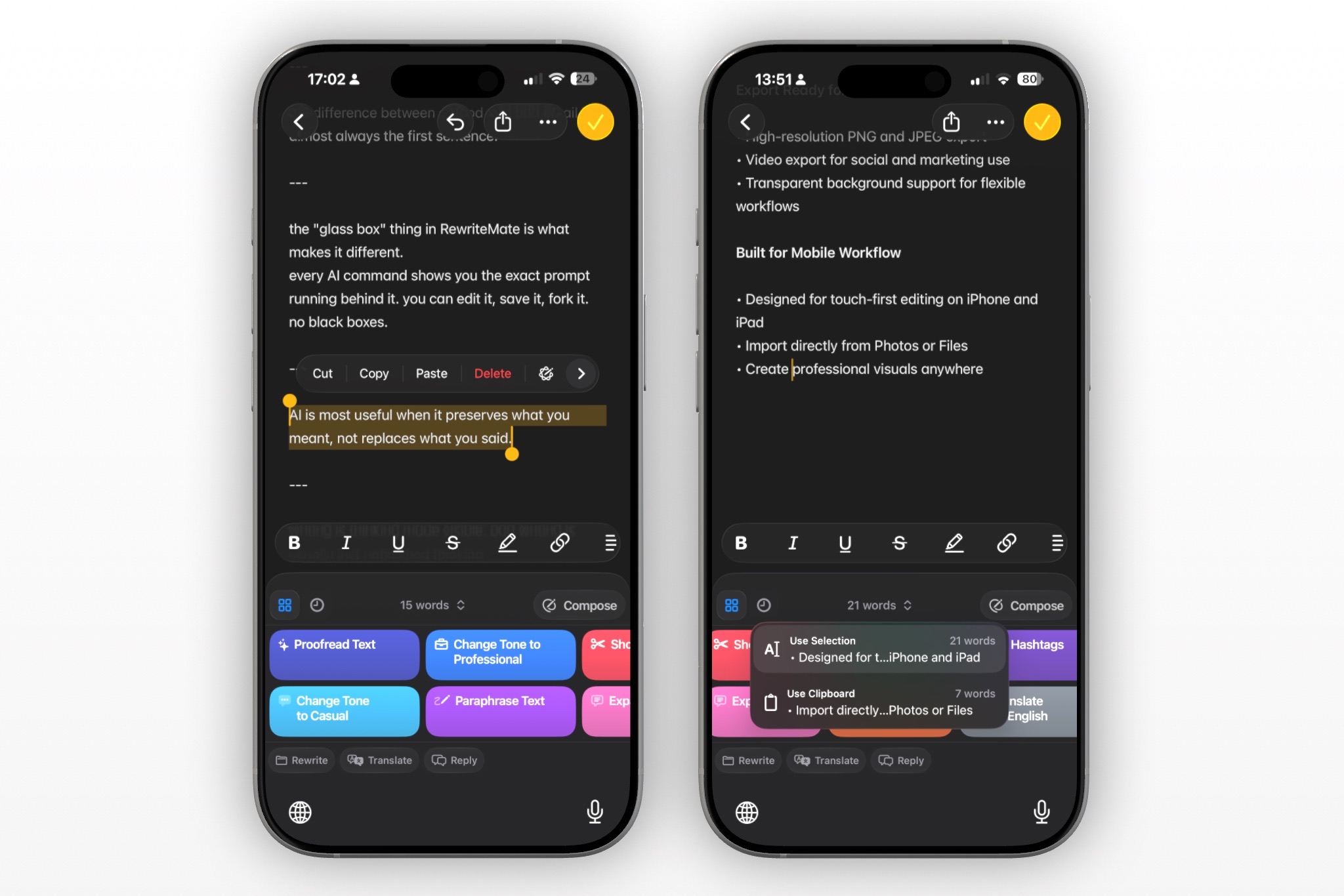
AI works best as an editor, not a mind reader. Before asking it to rewrite anything, include the information the recipient needs:
- What happened or what you need
- The relevant timing
- The action you are asking for
- Any important context or constraint
- The tone you want
For example, this draft gives AI enough to work with:
Hey, I cannot make the 3pm meeting because my appointment is taking longer. Can we move it to tomorrow morning? Sorry.
This prompt is too vague:
Make this better.
This one is much more useful:
Rewrite this as a friendly, professional message. Keep the meeting time and ask to move it to tomorrow morning. Do not make excuses or add new details.
Giving a clear instruction helps the rewrite stay useful instead of becoming generic or overly polished.
Choose the right way to rewrite text on iPhone
There are two common approaches.
| Method | Best for | What to know |
|---|---|---|
| Apple Writing Tools | Rewriting selected text in supported places on a compatible iPhone | Apple offers options to proofread, rewrite, and adjust text to be friendlier, more professional, or more concise. |
| AI keyboard | Rewriting while you type across the apps where the keyboard is available | Useful when you want a keyboard-based workflow and more specific rewrite instructions. |
Apple says its Writing Tools can rewrite, proofread, and summarize text, with tone options including Friendly, Professional, and Concise. Availability depends on your device, language, region, and Apple Intelligence setup. Apple’s Writing Tools guide has the current compatibility and usage details.
If you are sending a message in Messages, Mail, Slack, a dating app, or another app, the key question is not which tool sounds smartest. It is which workflow lets you check the final message carefully before it goes out.
How to rewrite a message with Apple Writing Tools
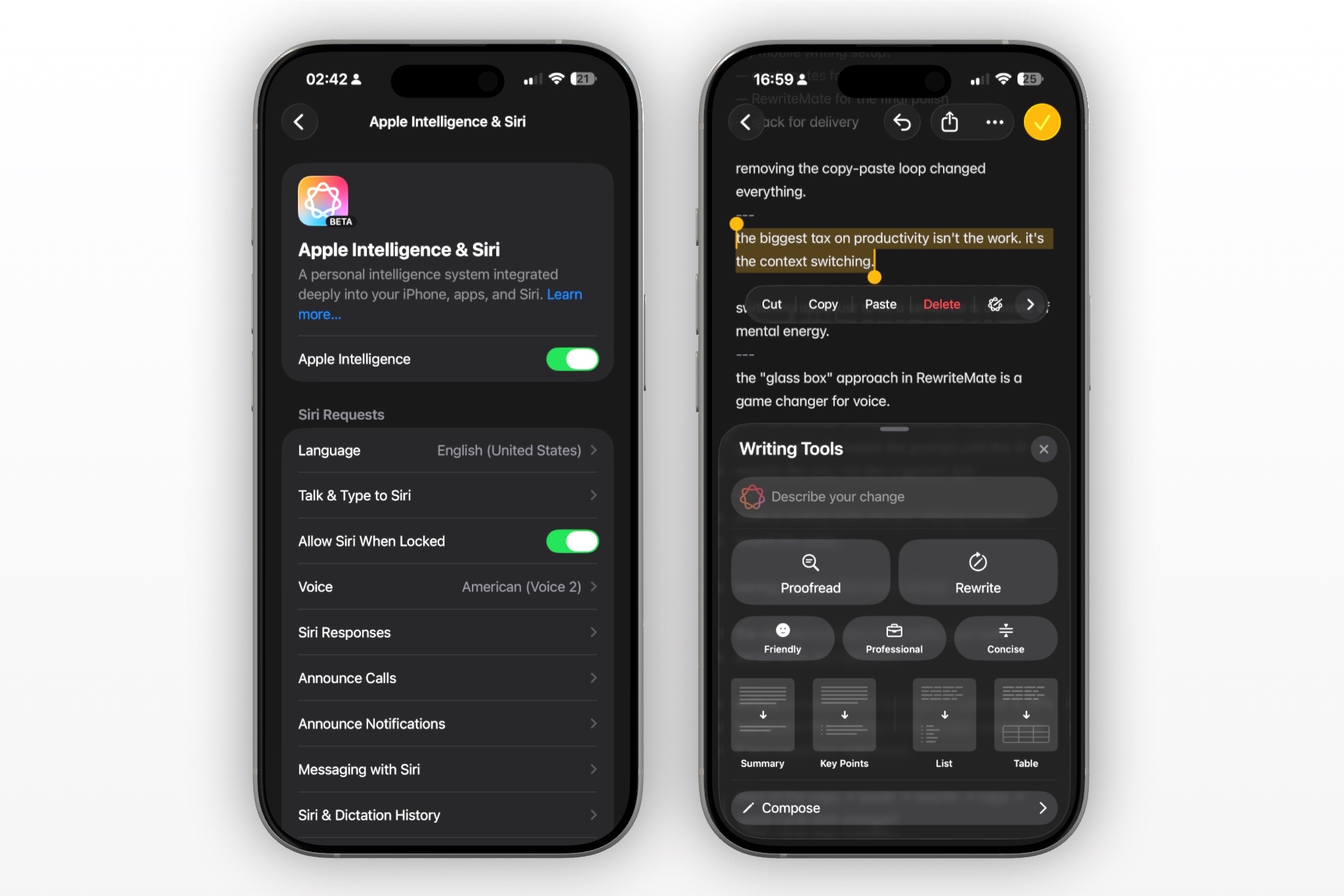
If your iPhone supports Apple Intelligence and Writing Tools are available in the app, the basic process is straightforward.
- Draft your message in your own words.
- Select the text you want to improve.
- Open Writing Tools from the editing or formatting controls.
- Choose Rewrite, or select a tone such as Friendly, Professional, or Concise.
- Compare the suggestion with your original.
- Accept, revise, or discard it before sending.
Apple notes that Writing Tools may let you copy rewritten versions of text in read-only contexts, too. Its iPhone User Guide is the best reference when the controls look different on your device.
When Apple’s preset tones are enough
Preset rewriting works well for quick, low-stakes edits:
- Shortening a long update
- Fixing obvious grammar or punctuation
- Making a casual note more professional
- Softening a blunt message
- Cleaning up a thank-you message
For a message with more nuance, a specific instruction usually produces a better result. “Friendly” can mean different things when you are writing to a manager, client, close friend, or someone you have just met.
How to rewrite messages with an AI keyboard
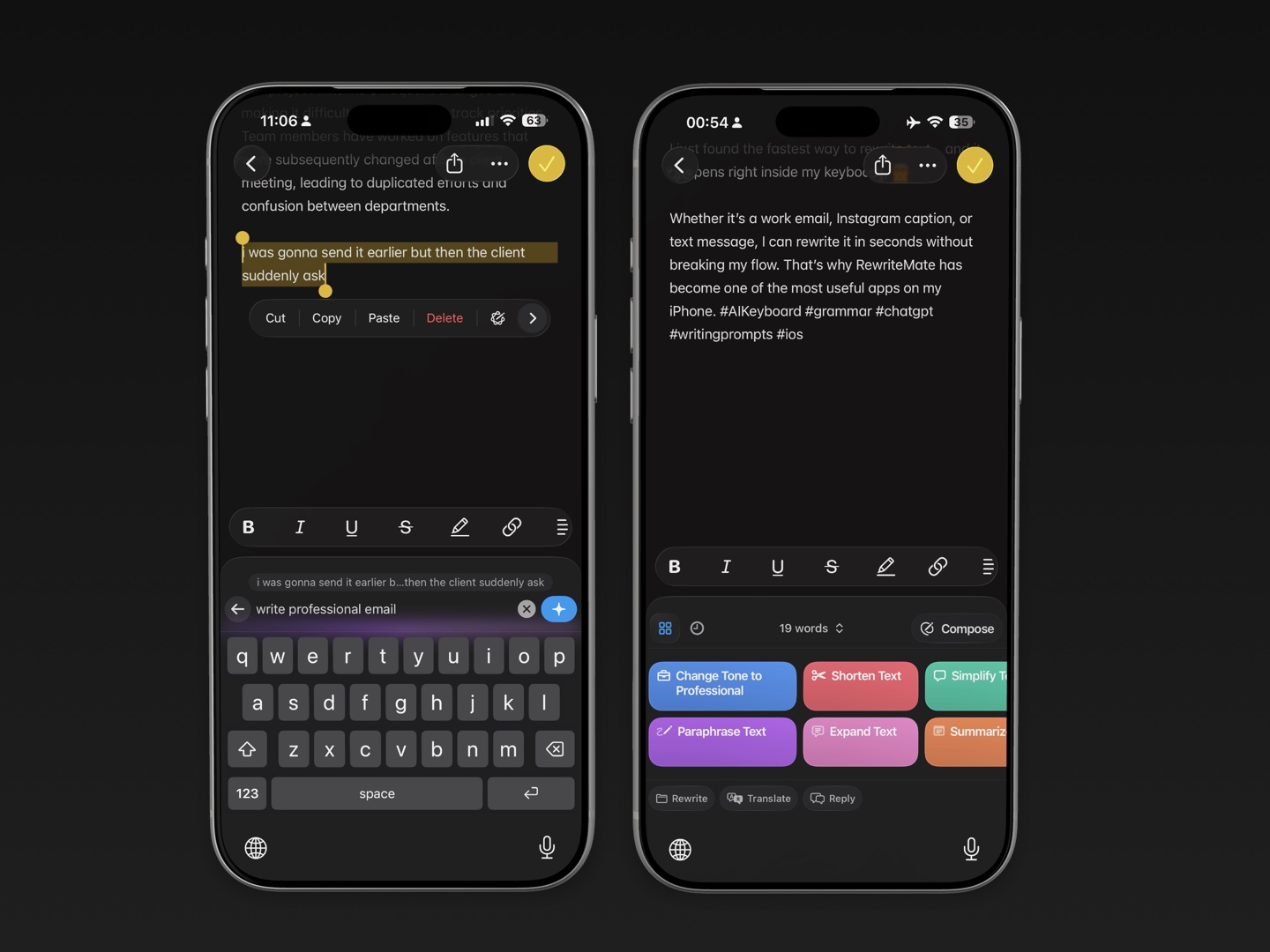
An AI keyboard is useful when you want help without moving text between your messaging app and a separate writing app.
With RewriteMate, start with a rough draft, then ask for the particular change you need: clearer wording, a warmer tone, fewer words, corrected grammar, or a more direct request. The goal is to revise your message where you are already writing, then decide what to send.
Try instructions like these:
- “Make this warm and concise. Keep all dates and names unchanged.”
- “Rewrite this to sound confident, not demanding.”
- “Fix grammar only. Do not change my wording unless it is unclear.”
- “Turn this into a short text message with one clear question.”
- “Make this more professional but keep it natural and not overly formal.”
- “Keep my casual tone, remove repetition, and do not add promises.”
Specific constraints matter. They tell the tool what must not change.
Match the rewrite to the situation
The same original message can need very different edits depending on the recipient.
| Situation | Goal | Example instruction |
|---|---|---|
| Rescheduling | Be clear and considerate | “Make this polite and direct. Offer two new times.” |
| Work update | Make progress and next steps easy to scan | “Rewrite as a concise update with status, blocker, and next step.” |
| Customer reply | Be helpful without making unsupported promises | “Make this empathetic and clear. Keep the stated policy unchanged.” |
| Dating message | Sound interested, not scripted | “Make this playful and natural. Keep it short and do not use clichés.” |
| Family group chat | Reduce confusion | “Make this simple and friendly. Put the time and location first.” |
Here is how that looks in practice.
Example: asking to reschedule
Rough draft
Sorry, I just realized I might not be able to get there at 6 because something came up. Could we maybe do another day?
Clearer rewrite
I need to reschedule tonight. Would Tuesday or Wednesday at 6 work for you instead?
The second version is not “better” because it is more formal. It is better because it names the action and offers a practical next step.
Example: a professional follow-up
Rough draft
Hi, just checking if you saw my last message. I really need this soon.
Clearer rewrite
Hi Maya, following up on my message from yesterday about the draft. Could you let me know whether you expect to have feedback by Friday?
This keeps the request polite while making the needed response specific.
Example: softening a blunt message
Rough draft
This is wrong. You need to fix it.
Clearer rewrite
I found an issue in the latest version: the total on line 4 does not match the source file. Could you take a look and update it when you have a chance?
A softer rewrite should not hide an important problem. It should identify the issue without making assumptions about the person who made it.
Keep your message from sounding like AI
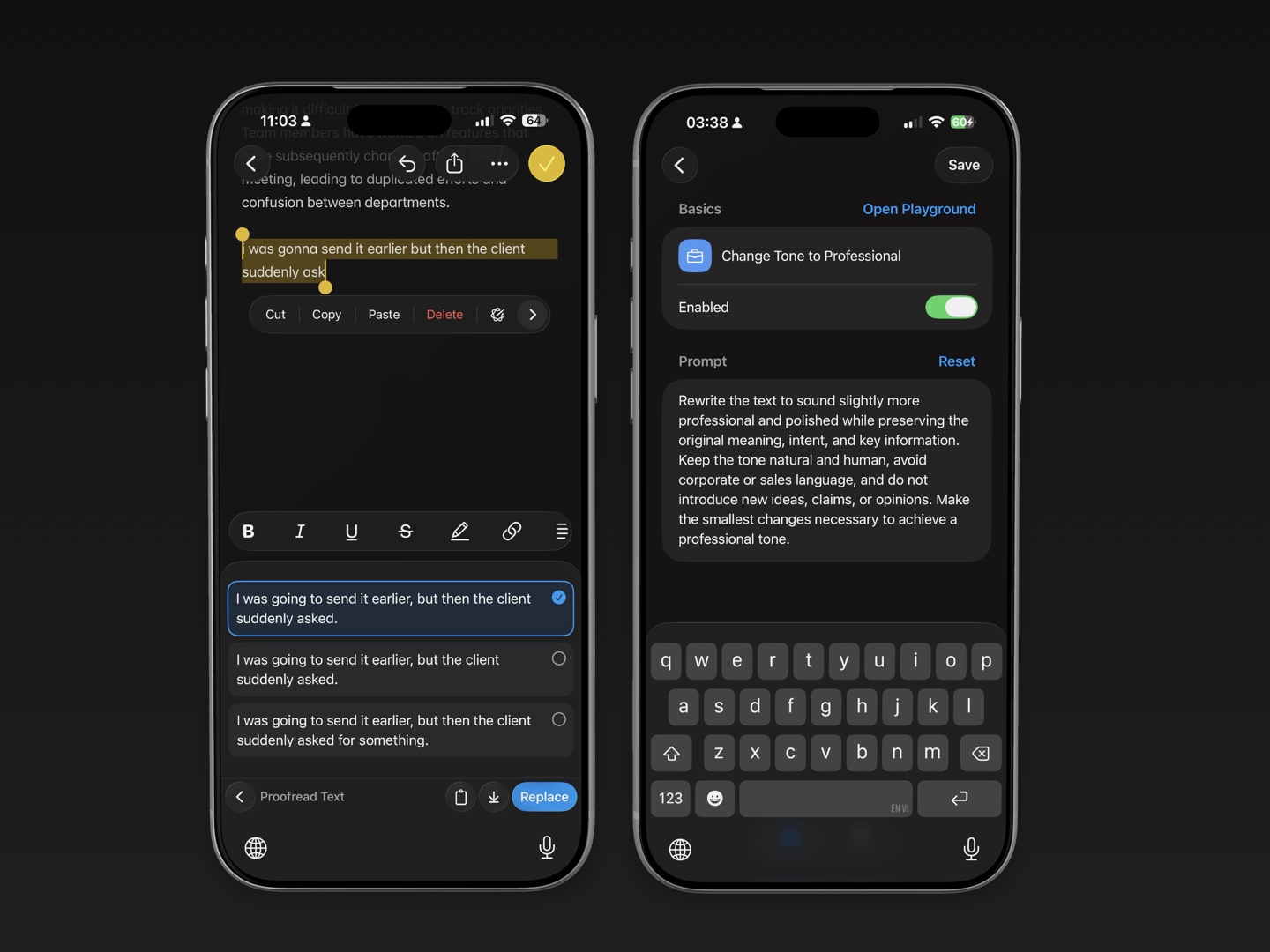
A rewrite can be grammatically perfect and still feel unlike you. Watch for these common signs that it needs another pass:
- It uses words you would never say.
- It becomes much longer than the original.
- It adds enthusiasm, apologies, or certainty you did not intend.
- It removes a necessary detail to sound concise.
- It turns a simple text into an email-like paragraph.
- It makes a personal message sound vague or corporate.
Read the message once as the recipient. Then ask: “Would I understand exactly what is needed?” and “Would I believe this person wrote it?”
If the answer to either question is no, edit it.
Use a simple message checklist before you send
Before accepting an AI rewrite, check these six things:
- Facts: Are names, times, places, prices, and links correct?
- Intent: Does it say what you actually want to ask, offer, or decide?
- Tone: Is it warm enough for the relationship without becoming overly apologetic?
- Length: Can the recipient understand it on a quick read?
- Commitments: Did AI add a deadline, promise, or claim you cannot support?
- Privacy: Should this information be shared with an AI tool at all?
That last point matters most for sensitive personal, financial, medical, legal, HR, or confidential work messages. Follow your organization’s rules and use your judgment before processing sensitive text with any AI service.
Rewrite for clarity, not perfection
You do not need to run every message through AI. A quick text such as “I’m outside” or “Sounds good, see you then” does not need editing.
AI is most useful when a message feels difficult for a real reason:
- You are trying to be direct without sounding harsh.
- You need to shorten a rambling draft.
- English is not your first language.
- You are replying while busy and want a second pass for clarity.
- You know the point but cannot find the right tone.
- You need to turn notes into a readable update.
Use it to reduce friction, not to erase your personality.
A practical RewriteMate workflow
A simple workflow can keep your messages accurate and natural:
- Type your honest first draft.
- Decide on one goal: shorter, warmer, clearer, more confident, or more professional.
- Give RewriteMate a focused instruction.
- Compare the result with your draft.
- Restore any words, details, or personality that the rewrite removed.
- Send only after checking the final version yourself.
For recurring situations, save a few reliable instructions in your notes or custom commands. For example, you might use one for concise work updates, one for tactful follow-ups, and one for friendly but direct scheduling messages.
The message should still sound like you. AI can help with phrasing; you remain responsible for the meaning.
Frequently asked questions
Can AI rewrite a text message on any iPhone?
It depends on the tool. Apple Writing Tools require a compatible device and Apple Intelligence availability. An AI keyboard may offer a different workflow, but you should check its current App Store listing, permissions, and supported apps before relying on it.
How do I make a text message sound more professional?
Lead with the main point, include the needed action or question, and remove filler. Ask AI to make the tone professional while preserving the facts, then edit the result so it still sounds natural.
Can AI make my message friendlier without changing the meaning?
It can help, especially when you tell it what must stay unchanged. Review every suggestion, because a friendlier rewrite can accidentally weaken a boundary, change urgency, or add language you did not mean.
What is the best prompt for rewriting a text message?
Use a short, specific prompt: “Rewrite this as a friendly, concise text. Keep the date, request, and casual tone unchanged.” Add any limits that matter, such as “Do not add an apology” or “Keep it under two sentences.”
Should I use AI to reply to a work message?
AI can be useful for a first revision, but do not send the output blindly. Confirm details, avoid entering confidential information unless permitted, and make sure the message reflects your actual decision or commitment.
Why does an AI rewrite sound too formal?
Many rewrite tools default to polished language. Ask for “natural,” “conversational,” or “casual but clear,” and include an example of your normal style if the tool supports it. Then trim any wording you would not normally use.
Does rewriting a message with AI make it less authentic?
Not if you use it as an editor. Start with your own point of view, preserve the facts and feelings that matter, and make final edits yourself. The tool should make your message easier to understand, not speak for you.
Write the message, then make it easier to send
The fastest way to rewrite a text message with AI on iPhone is to begin with a real draft and ask for one precise improvement. Whether you use Apple Writing Tools or RewriteMate, clear instructions and a final human review make the difference.
Try RewriteMate when you want writing help directly from your iPhone keyboard, then keep the version that still sounds like you.
Related articles
Keep reading
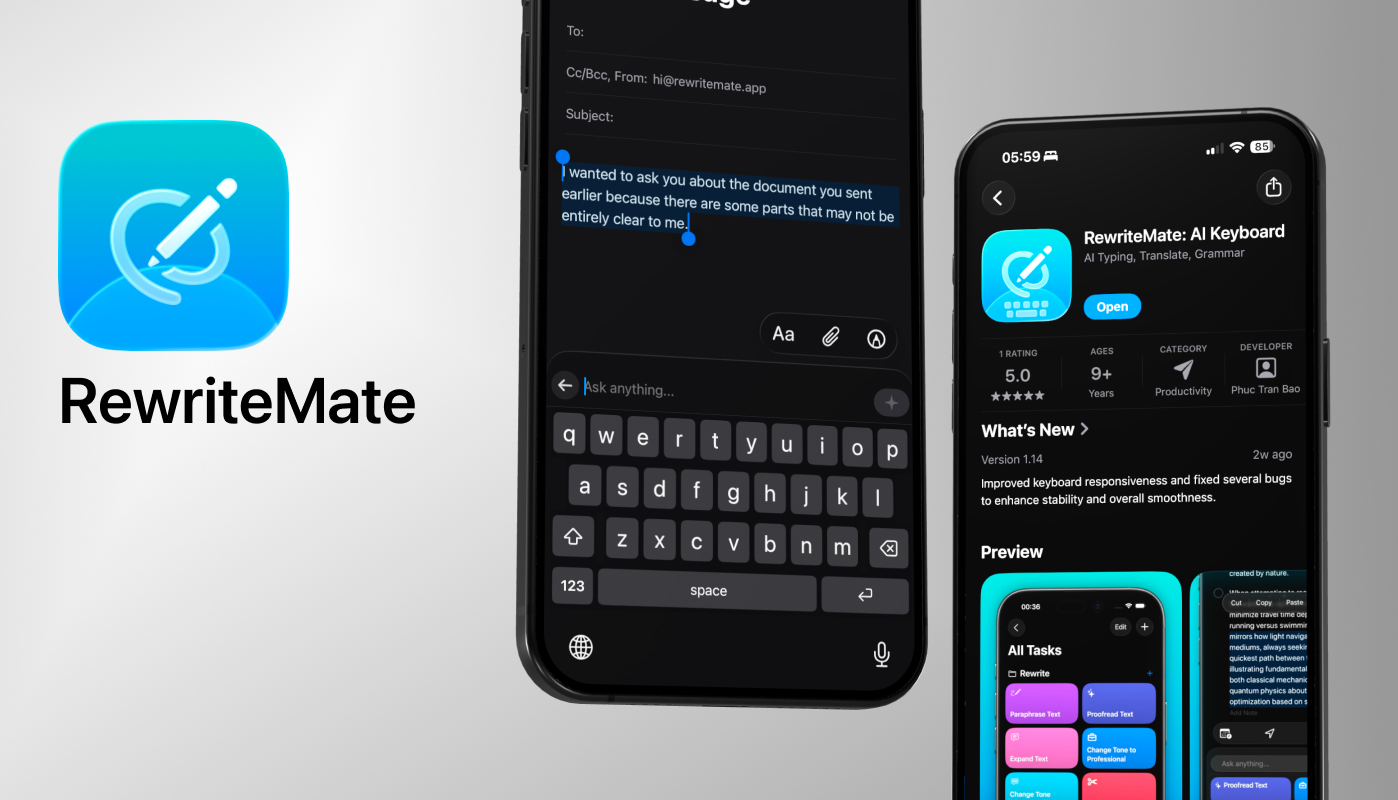
How to Make Your iPhone Messages Sound More Professional Instantly
Stop sending awkward texts. Learn how to polish your iPhone messages in seconds with tone adjustment and smart rewriting.
Grammarly Alternative iPhone: RewriteMate vs Grammarly
A head-to-head comparison of the best AI writing keyboards for iOS, highlighting why custom prompts beat locked presets.

Best AI Keyboard for Online Dating: Better Tinder and Hinge Messages
Use an AI keyboard to write more natural Tinder and Hinge openers, improve replies, and keep your voice intact without copying chats into another app.

Felix Tran
RewriteMate Dev & Editorial Lead
Write about everyday workflows, systems that help ideas move faster, from first draft to finished work.