September 5, 2026
How to Stop iPhone Autocorrect From Changing Names
The most reliable way to stop iPhone autocorrect from changing a name is to add the correct spelling to Text Replacement. If the problem continues, check your keyboard settings, remove any incorrect replacement, or reset the keyboard dictionary as a last resort.
Autocorrect is designed to fix likely typos. That works well for common words, but it can be frustrating with names, nicknames, brand names, technical terms, bilingual phrases, and uncommon spellings.
The fastest fix: add the name to Text Replacement
Text Replacement adds words and phrases to your personal keyboard dictionary. It is especially useful when your iPhone repeatedly changes the same name to a more common word.
To add a name:
-
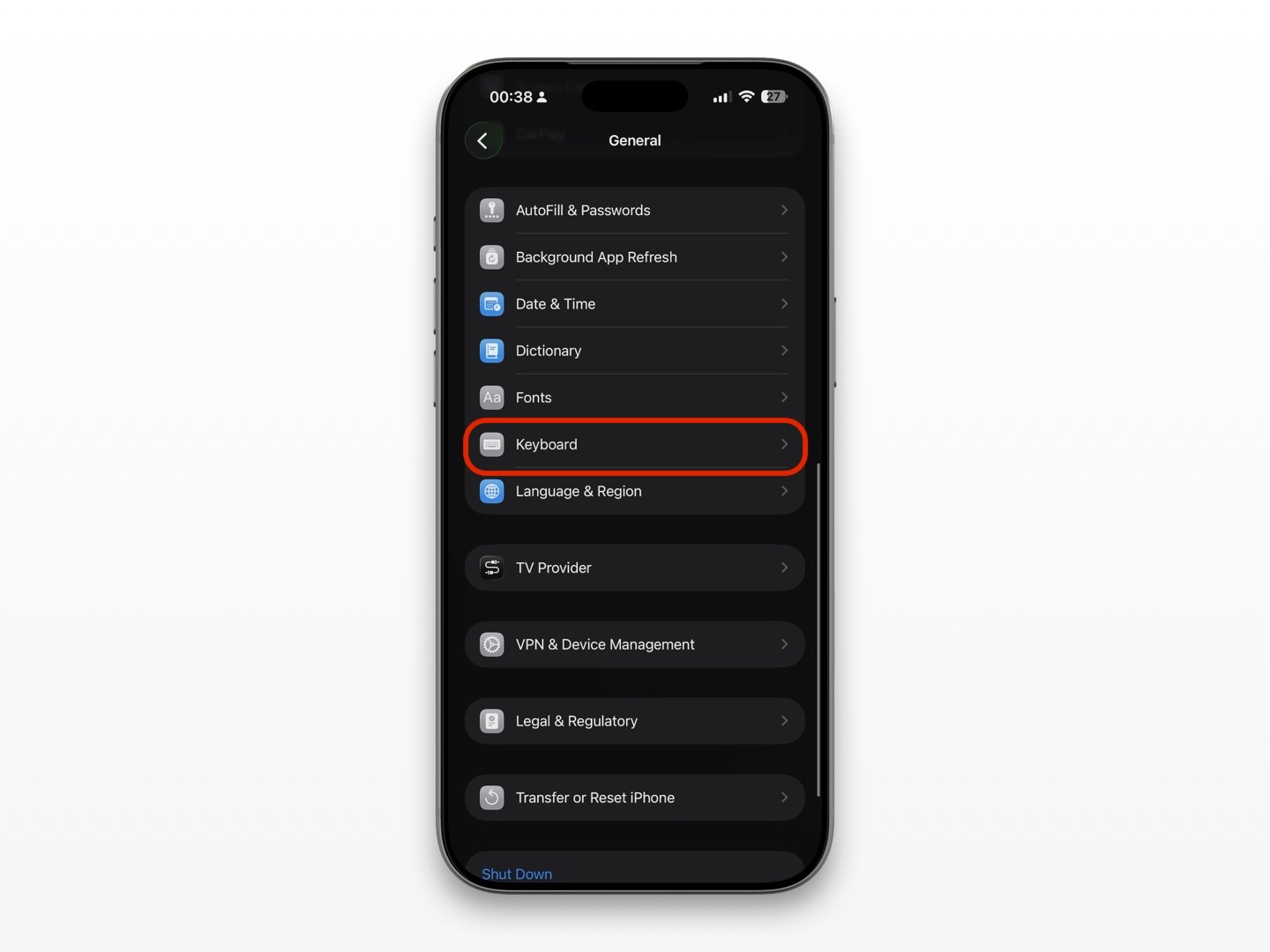
Open Settings.
-
Tap General.
-
Tap Keyboard.
-
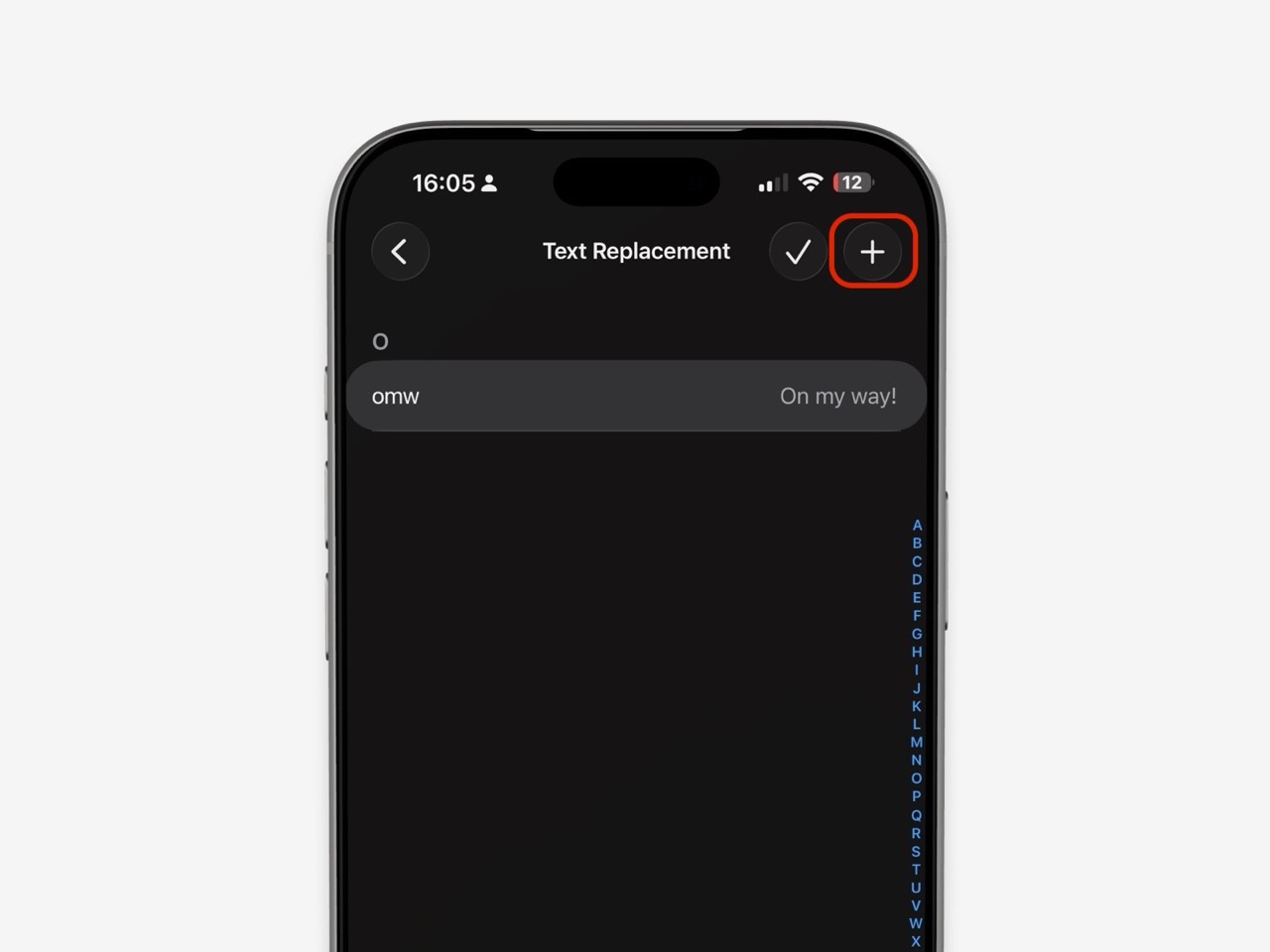
Tap Text Replacement.
-
Tap the plus button.
-
Enter the correct name in the Phrase field.
-
Optionally add a shortcut.
-
Tap Save.
For example, if your iPhone keeps changing “Aly” to “All,” add:
| Field | What to enter |
|---|---|
| Phrase | Aly |
| Shortcut | Leave blank, or add a shortcut you will remember |
Apple says Text Replacement entries become part of your personal dictionary and can automatically expand a shortcut into a phrase or word. Apple’s Text Replacement guide explains the current setup steps.
Use the correct spelling as both the phrase and shortcut
If a name is being changed aggressively, try this additional workaround:
- Set the Phrase to the correct name.
- Set the Shortcut to the same spelling that your iPhone keeps changing.
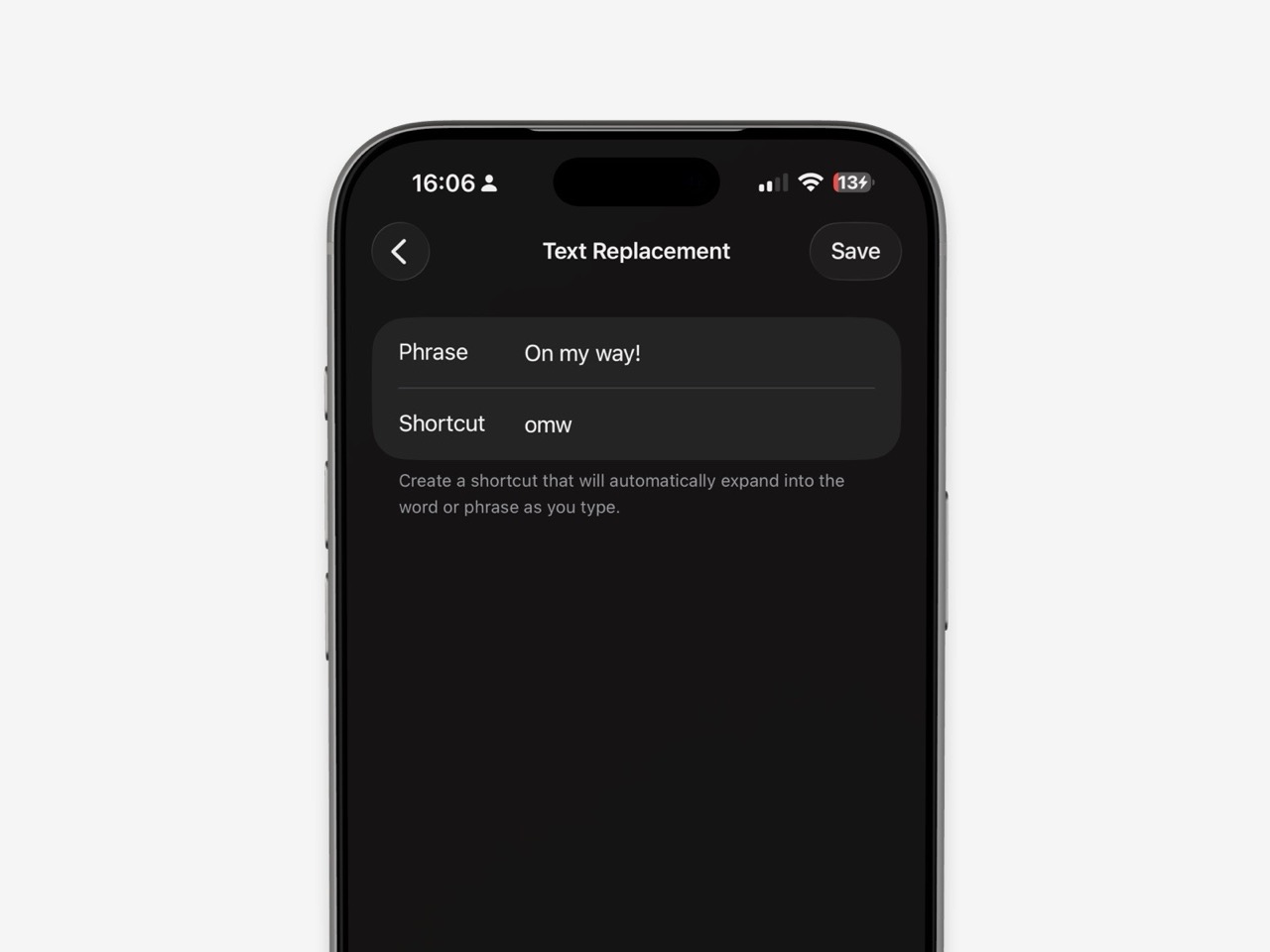
For example, if iPhone changes “Mika” to “Mike,” you could use:
| Field | What to enter |
|---|---|
| Phrase | Mika |
| Shortcut | Mika |
This tells your iPhone exactly what should appear when you type that sequence.
You can also use this approach for:
- Family members’ names
- Client names
- Company names
- Product names
- Place names
- Nicknames
- Industry abbreviations
- Words from another language
Check for an incorrect Text Replacement
Sometimes an old shortcut is causing the issue.
For example, you may have created a shortcut years ago that changes a short name, acronym, or abbreviation into the wrong word. If that entry still exists, autocorrect may appear to be at fault when the problem is actually Text Replacement.
To review your list:
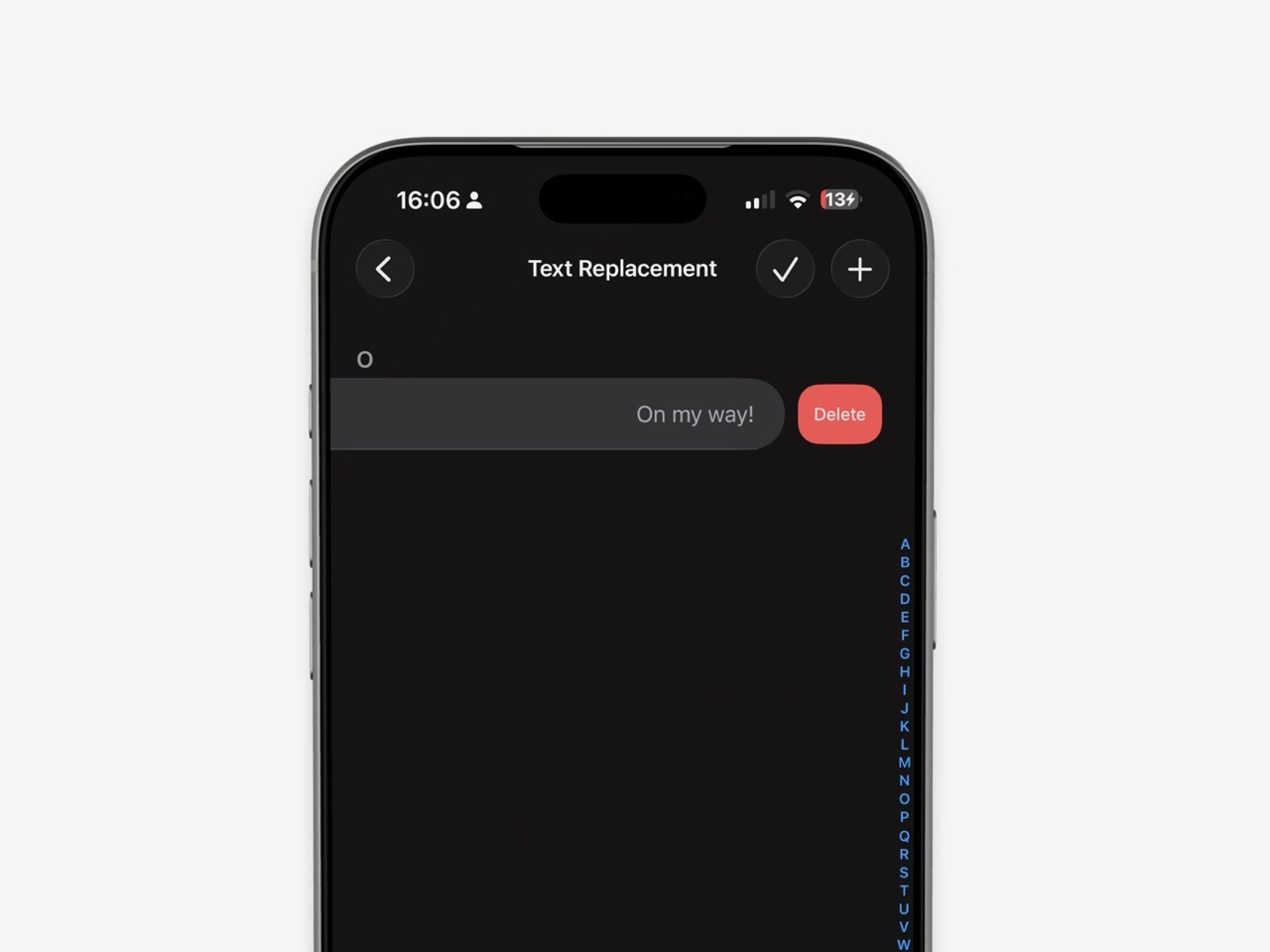
- Go to Settings > General > Keyboard > Text Replacement.
- Look for the name or incorrect word.
- Swipe left on an unwanted entry.
- Tap Delete.
- Test the name in Messages, Notes, or Mail.
This is worth checking before turning off autocorrect entirely.
Reject the correction while typing
When iPhone suggests the wrong replacement, do not immediately accept it.
Depending on the keyboard and iOS version, you may be able to:
- Tap the original word in the suggestion area.
- Tap the close control next to a correction.
- Delete the changed word and retype it.
- Choose the correct spelling from a quoted or suggested option.
Apple explains that Auto-Correction uses the keyboard dictionary to spellcheck words and automatically correct likely misspellings. Apple’s Auto-Correction guide also covers Predictive Text and Text Replacement.
Repeatedly rejecting the same unwanted correction may help, but Text Replacement is the more dependable fix for important names.
Turn off Auto-Correction without losing every typing aid
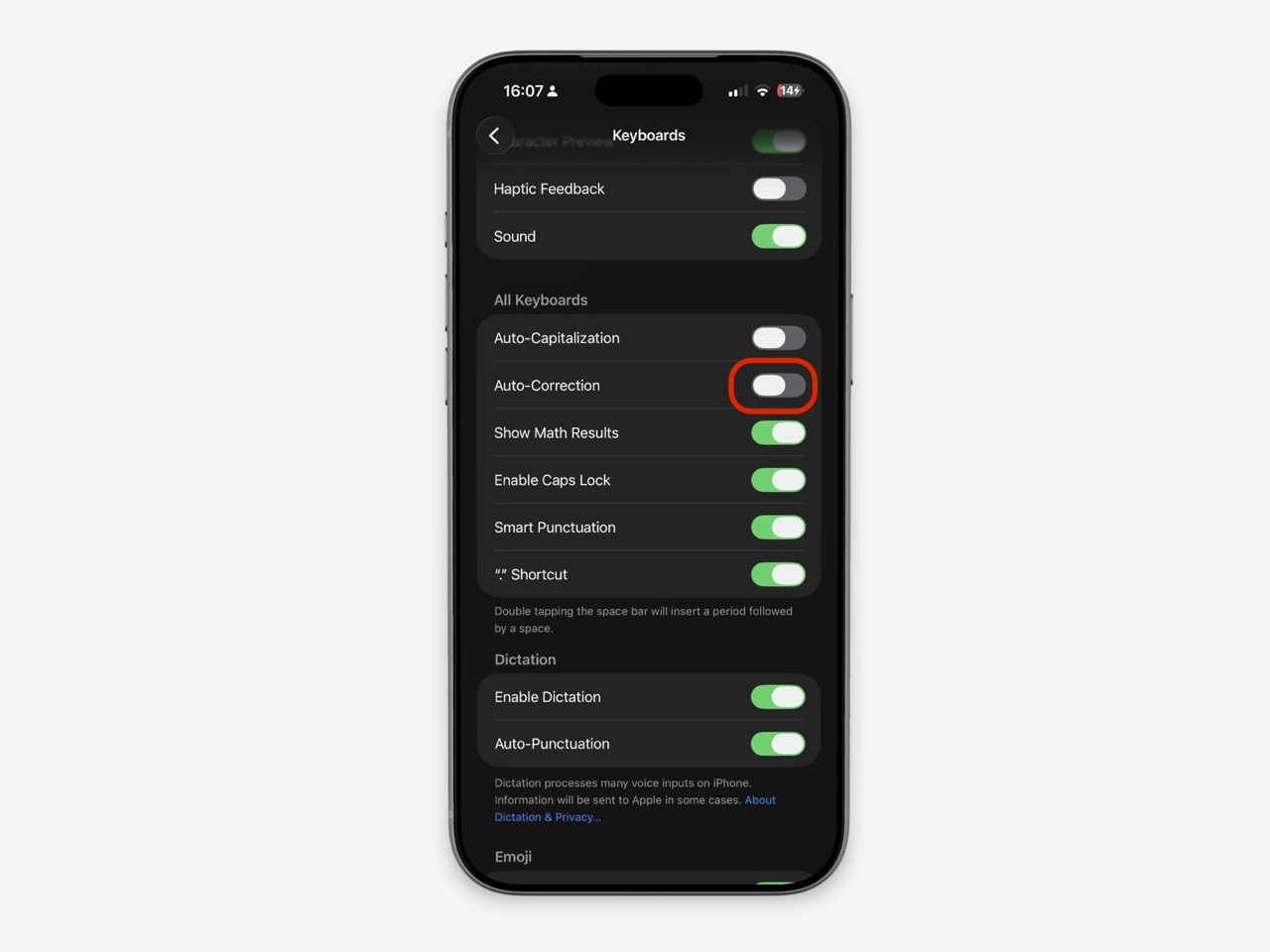
If your iPhone changes too many names or correct words, turn off Auto-Correction temporarily and see whether that solves the issue.
- Open Settings.
- Tap General.
- Tap Keyboard.
- Turn off Auto-Correction.
You can keep other options enabled, such as Check Spelling or Predictive Text, if they are still useful to you.
| Setting | What it does |
|---|---|
| Auto-Correction | Replaces words iPhone believes are misspelled |
| Check Spelling | Flags possible spelling issues |
| Predictive Text | Suggests words, emoji, and likely next text |
| Auto-Capitalization | Capitalizes words automatically where appropriate |
| Smart Punctuation | Changes punctuation formatting in supported contexts |
Turning off Auto-Correction is a reasonable choice if the cost of fixing unwanted changes is higher than the benefit of automatic typo corrections.
Turn off Predictive Text if suggestions cause the problem
Predictive Text is different from Auto-Correction. It suggests words, emoji, and likely next phrases as you type.
Apple notes that predictive suggestions are not available for every language. Its predictive-text guide explains how suggestions work on iPhone.
If the suggestion bar distracts you or leads to accidental word choices:
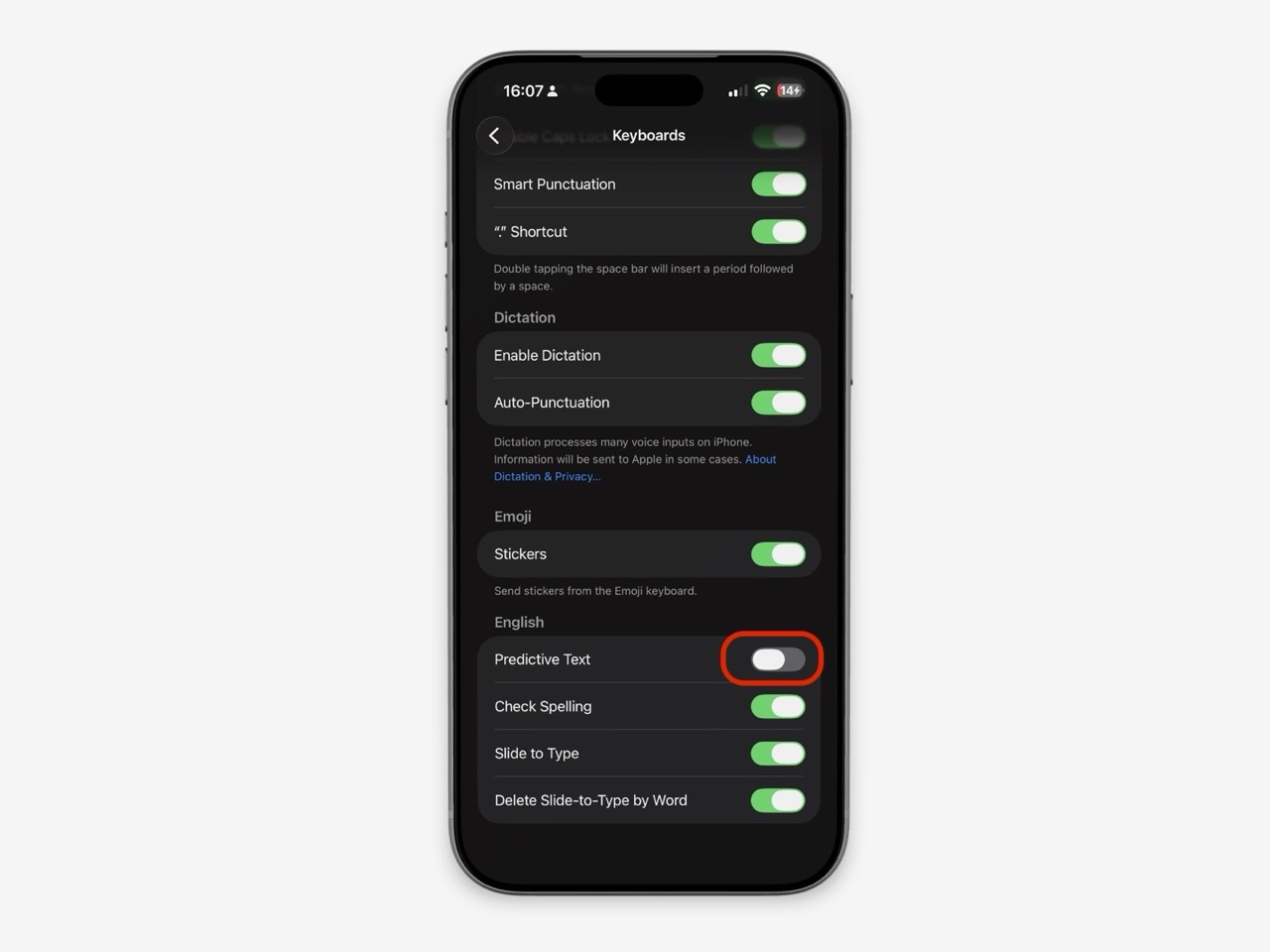
- Go to Settings > General > Keyboard.
- Turn off Predictive Text.
- Keep Auto-Correction on if you still want spelling fixes.
This gives you a middle ground: spelling support without the constant next-word suggestions.
Add the correct person to Contacts
Saving a person in Contacts can help keep their information organized, but it is not a guaranteed autocorrect fix.
Still, it is a sensible step for names you use frequently:
- Open Contacts.
- Add or edit the person’s contact.
- Enter their name with the correct spelling and capitalization.
- Save the contact.
- Test the name in a new message.
If your iPhone still changes the name, use Text Replacement as the direct solution.
Check the keyboard language you are using
Autocorrect behavior can change when you have multiple keyboard languages enabled.
If you type in English and another language, make sure you are using the right keyboard before entering a name. A keyboard set to another language may interpret the spelling differently and suggest an unwanted replacement.
To review active keyboards:
- Go to Settings > General > Keyboard > Keyboards.
- Remove keyboards you do not use.
- Keep the languages you need.
- While typing, touch and hold the Globe or Emoji key to choose the correct keyboard.
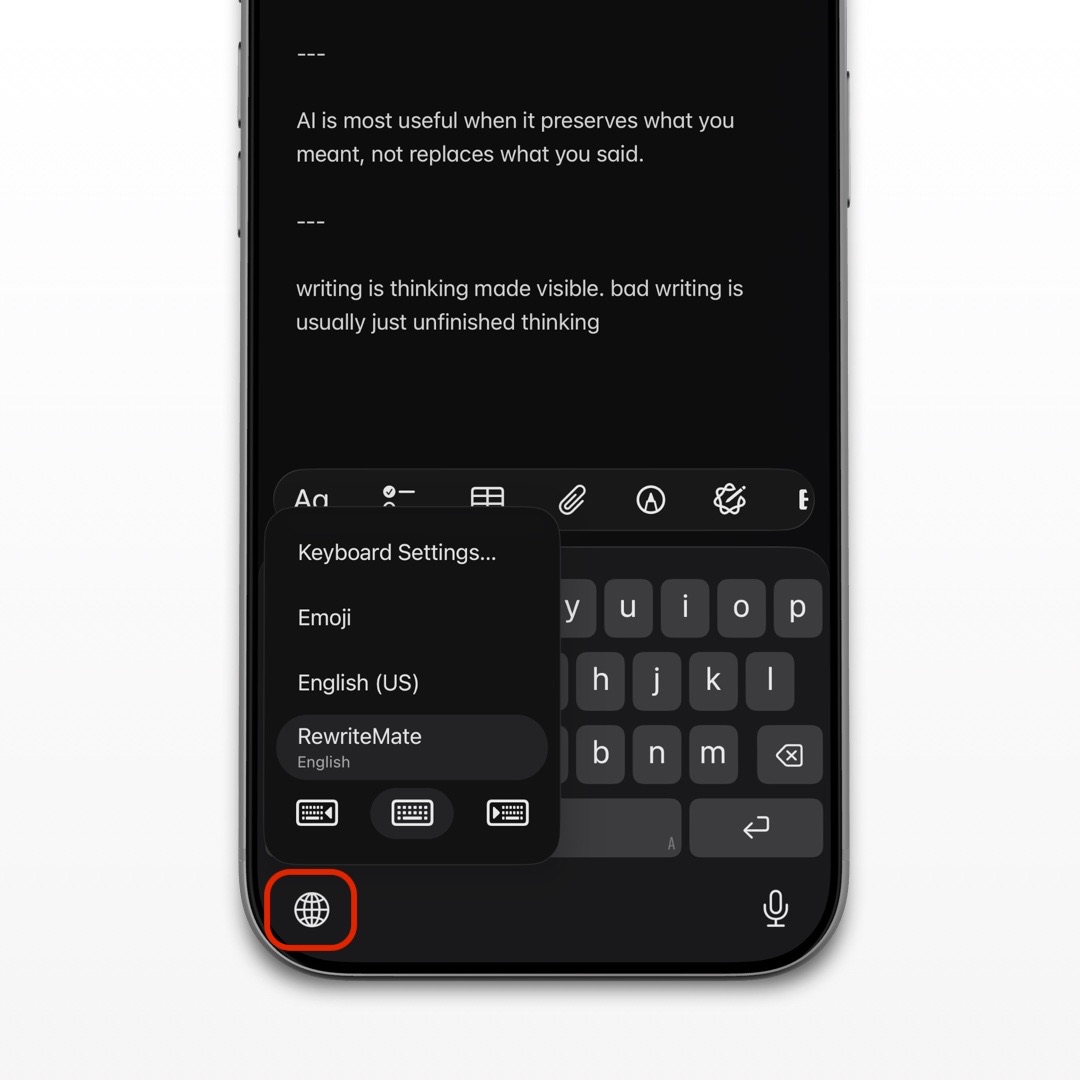
Apple’s keyboard management guide explains how to add, remove, and switch keyboards.
Reset the keyboard dictionary if autocorrect has learned too many bad patterns
If autocorrect changes many names and ordinary words incorrectly, the keyboard dictionary may have learned too many unwanted patterns.
Resetting the dictionary is a broader fix. It removes learned words and keyboard suggestions, so use it only after trying Text Replacement and keyboard-setting changes.
The typical path is:
- Open Settings.
- Tap General.
- Tap Transfer or Reset iPhone.
- Tap Reset.
- Choose Reset Keyboard Dictionary.
- Enter your passcode if asked.
- Confirm the reset.
Afterward, your iPhone will need time to relearn your typing habits. You may lose helpful learned words, names, and suggestions, so add important names back through Text Replacement after the reset.
Do not confuse autocorrect with an AI keyboard rewrite
Autocorrect, predictive text, and an AI keyboard are different tools.
Autocorrect changes likely spelling mistakes while you type. An AI keyboard such as RewriteMate can help you proofread, rewrite, or adjust tone after you have drafted a message.
Use autocorrect for a quick typo. Use a proofreading or rewrite tool when the entire sentence needs work.
For example:
Autocorrect problem
I’ll ask Jon to send the files.
If iPhone changes “Jon” to “John,” Text Replacement is the appropriate fix.
Writing problem
I am just writing to ask if maybe Jon can send the files when he gets a chance.
If you want this clearer and more professional, a focused RewriteMate instruction can help:
Make this concise and professional. Keep the name and request unchanged.
The result might be:
Could Jon send the files when he has a chance?
Always check the final message before sending, especially when names, deadlines, or commitments matter.
Prevent name mistakes in work messages
Name errors can be awkward in any message, but they matter more in customer, client, and workplace communication.
Use these habits:
- Add frequent names to Text Replacement.
- Check the recipient name before sending an email.
- Read names one final time in proposals, invoices, and meeting notes.
- Avoid relying solely on voice dictation for uncommon names.
- Use an AI proofreading tool for sentence clarity, not as the only check for names.
- Keep company names, product names, and acronyms in a note for quick copy-and-paste if needed.
A five-second review can prevent a message from addressing the wrong person or misspelling a name that matters.
Write better everywhere
Rewrite, rephrase, and refine text instantly without switching apps.
Frequently asked questions
Why does my iPhone keep changing names?
Autocorrect uses a keyboard dictionary to identify likely misspellings. If a name is uncommon or resembles a more common word, iPhone may replace it. Add the correct spelling to Text Replacement for a more reliable fix.
Can I stop autocorrect for only one name?
Yes. Add the correct name to Text Replacement instead of disabling Auto-Correction for every word.
Will adding someone to Contacts stop autocorrect?
It may help in some cases, but it is not guaranteed. Text Replacement is more direct because it adds the correct spelling to your personal dictionary.
How do I undo a wrong autocorrect on iPhone?
Tap the original suggested word when available, delete and retype the word, or reject the correction before continuing to type. If the same error keeps returning, add the correct spelling to Text Replacement.
Should I turn off Auto-Correction?
Turn it off if it creates more mistakes than it prevents. You can still use Check Spelling or other writing tools without automatic word replacement.
What happens when I reset the keyboard dictionary?
It removes learned keyboard words and suggestions. Your iPhone will relearn your typing patterns over time, so save important names in Text Replacement afterward.
Can RewriteMate stop Apple autocorrect from changing names?
RewriteMate can help proofread and rewrite text, but Apple’s built-in autocorrect settings and Text Replacement control how Apple’s keyboard changes names. Add important names to Text Replacement first.
Make your iPhone learn the names that matter
The best fix is usually simple: add the correct name to Text Replacement, remove any conflicting shortcut, and keep Auto-Correction enabled only if it helps more than it hurts.
Use RewriteMate when you need a full grammar or tone edit after writing. For names, Text Replacement gives you the control that autocorrect often lacks.
Related articles
Keep reading

How to Clean Up a Voice-Dictated Message on iPhone With AI
Learn how to dictate a message on iPhone, correct transcription mistakes quickly, and use AI to make the final text clearer without losing your voice.

How to Rewrite a Text Message With AI on iPhone
Learn how to use AI to rewrite a text message on iPhone while keeping the facts, context, and voice that make the message yours.

Third-Party Keyboard Not Showing Up on iPhone? 8 Fixes That Work
Fix a third-party keyboard that is missing, won't open, or keeps switching back to the Apple keyboard on iPhone with these practical troubleshooting steps.

Felix Tran
RewriteMate Dev & Editorial Lead
Write about everyday workflows, systems that help ideas move faster, from first draft to finished work.