August 26, 2026
How to Switch Keyboards Fast on iPhone: Globe Key Shortcuts
The fastest way to switch keyboards on iPhone is to touch and hold the Globe or Emoji key while typing, then tap the keyboard you want. If you use only a few keyboards, tapping the key can cycle through them.
This works for Apple’s keyboard, emoji, additional language keyboards, and enabled third-party keyboards such as RewriteMate.
The quick way to switch keyboards
While you are typing in any app:
- Find the Globe key or Emoji key near the bottom of the keyboard.
- Touch and hold it.
- A list of enabled keyboards appears.
- Tap the keyboard you want to use.
Apple’s current iPhone guide gives the same instruction: while typing, touch and hold the Emoji or Switch Keyboard key, then choose a keyboard from the list. Apple’s keyboard guide is the best source if the icon or menu looks different on your iPhone.
Tap once to cycle through keyboards
If you have only two or three keyboards enabled, a single tap on the Globe key can be faster than opening the full list.
For example, you might cycle between:
- Apple’s English keyboard
- RewriteMate
- Emoji
The exact order depends on the keyboard list in your iPhone settings. If you have many language and third-party keyboards enabled, touching and holding the key is usually more efficient because you can choose directly.
Add a keyboard before trying to switch to it
A keyboard must be installed and enabled before it will appear in the Globe-key menu.
To add an Apple language keyboard:
- Open Settings.
- Tap General.
- Tap Keyboard.
- Tap Keyboards.
- Tap Add New Keyboard.
- Choose the language or keyboard layout you want.
To add a third-party keyboard such as RewriteMate:
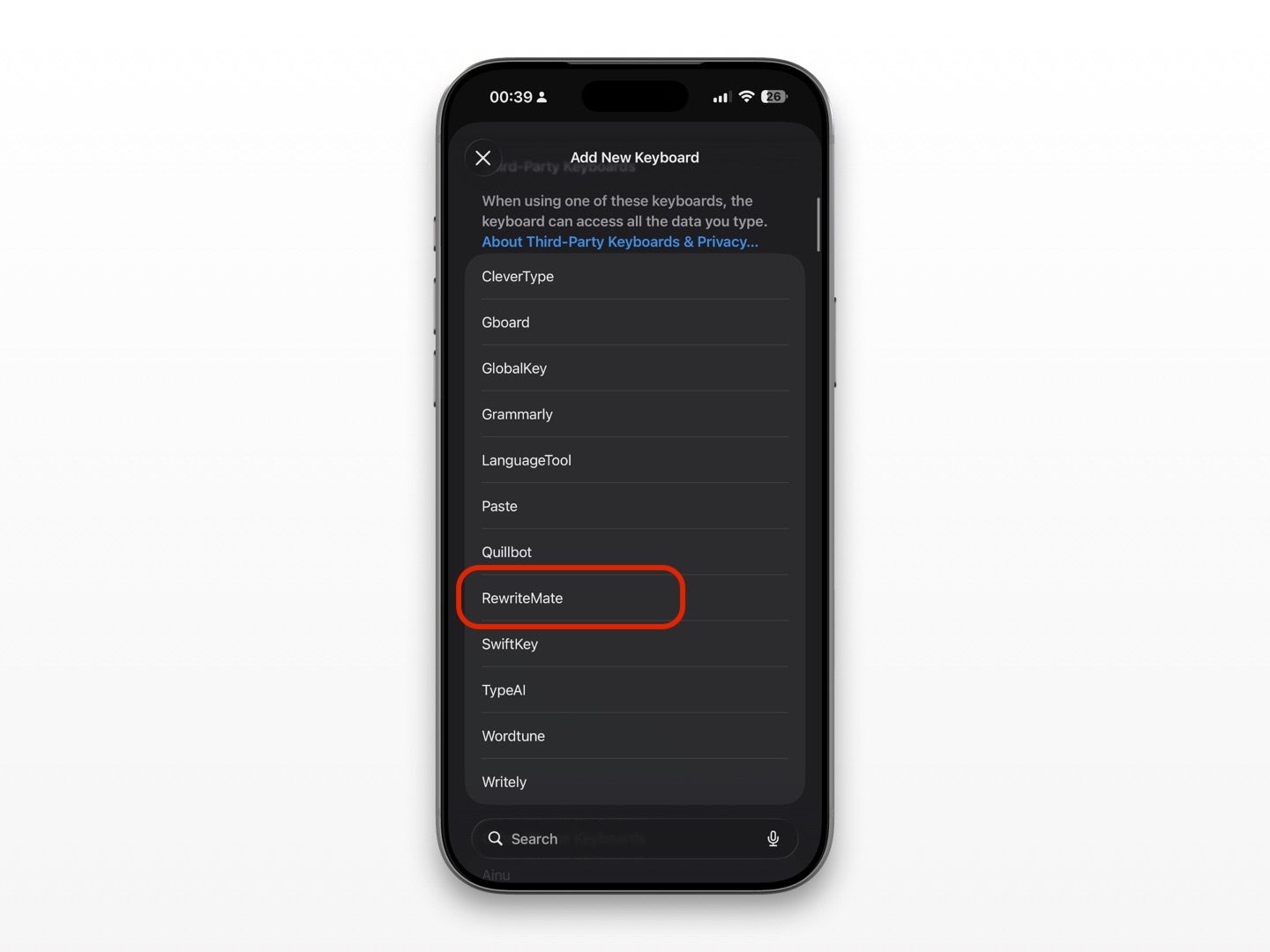
- Install the keyboard app from the App Store.
- Open Settings > General > Keyboard > Keyboards.
- Tap Add New Keyboard.
- Select the keyboard from the third-party keyboard section.
- Complete any permission or setup steps the app explains.
- Return to an app with a text field and use the Globe key to switch to it.
Apple notes that third-party keyboards can be added or removed from the keyboard settings area. Its iPhone guide also reflects the current iOS settings structure for keyboards.
Put your most-used keyboards first
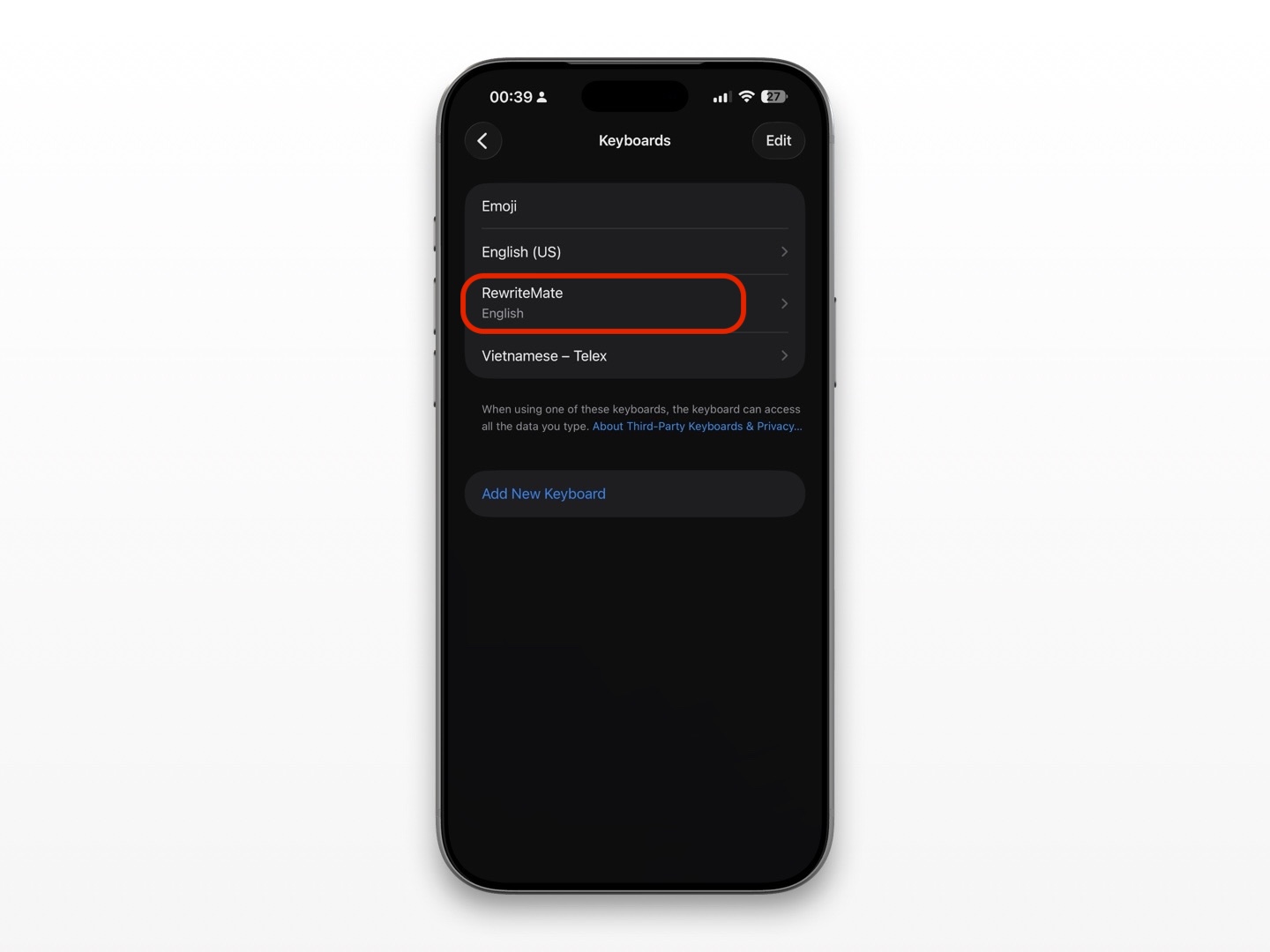
Keyboard order matters when you use the one-tap Globe-key shortcut. Place the keyboards you use most near the top of the list so they are easier to reach.
To reorder keyboards:
- Go to Settings > General > Keyboard > Keyboards.
- Tap Edit.
- Drag the reorder handle next to a keyboard.
- Tap Done.
A simple setup might look like this:
| Keyboard | Why keep it enabled |
|---|---|
| Apple keyboard | Everyday typing and iPhone-specific features |
| RewriteMate | Rewriting, proofreading, and tone changes while typing |
| Emoji | Quick reactions and visual context |
| Second language keyboard | Multilingual messages and accurate character layouts |
If you rarely use a keyboard, consider removing it. Fewer enabled keyboards make the Globe-key cycle faster and reduce accidental switches.
Switch to RewriteMate while you type
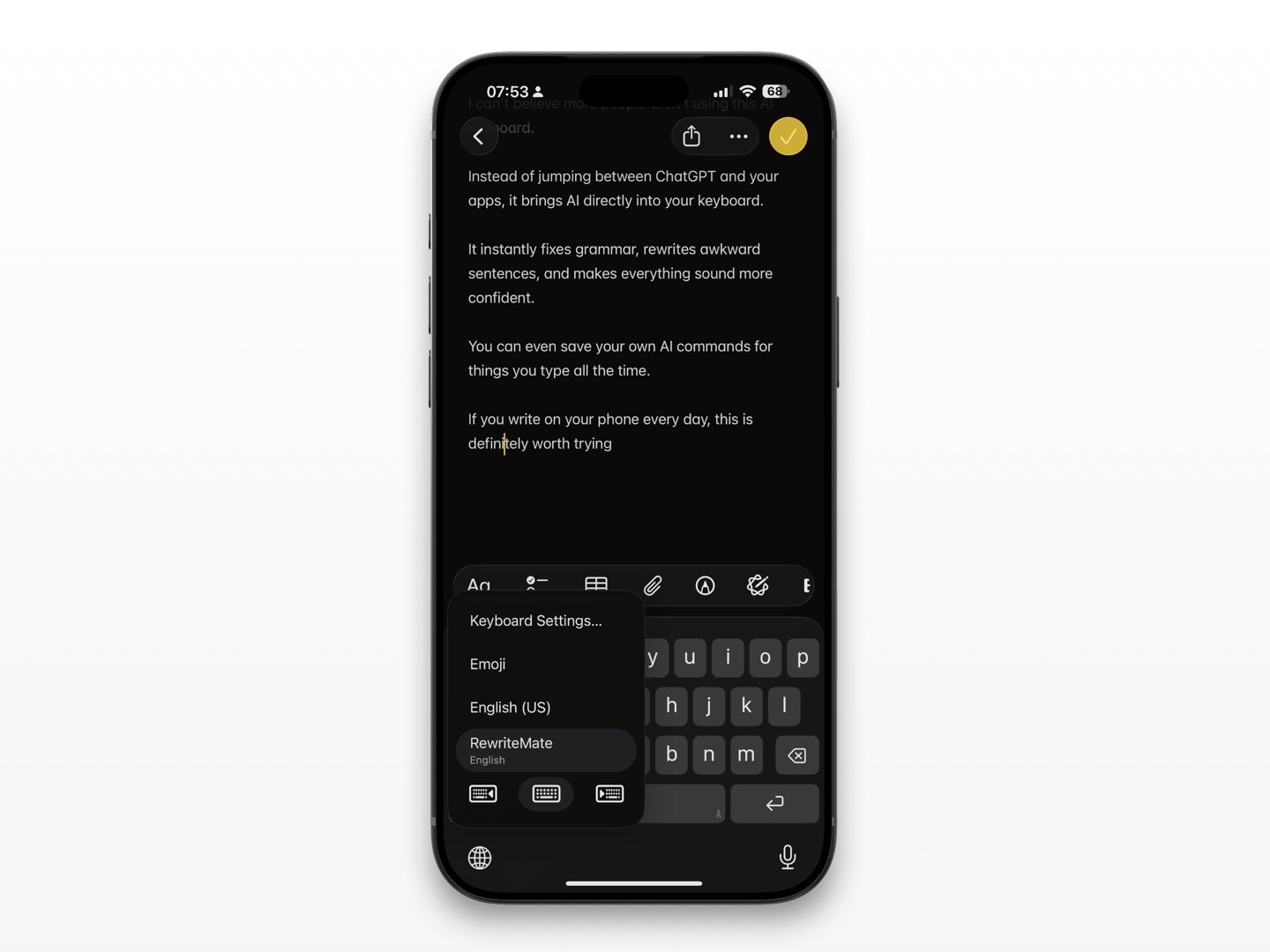
After RewriteMate is enabled, you can switch to it from almost any text field where third-party keyboards are allowed.
A practical workflow is:
- Start writing a message in Messages, Mail, Slack, or another app.
- Touch and hold the Globe key.
- Select RewriteMate.
- Draft your message in your own words.
- Use a focused instruction to revise it, such as “make this concise and professional” or “fix grammar only.”
- Review the final message before sending.
You do not need to stay on one keyboard all day. Use Apple’s keyboard when it is the fastest fit for what you are doing, then switch to RewriteMate when you want help refining the message.
Why the Globe key may not appear
The Globe key is normally shown when iPhone has more than one keyboard available. If you only have one enabled keyboard, you may see an Emoji key instead, or no obvious keyboard switcher.
Try these fixes:
Add a second keyboard
Open Settings > General > Keyboard > Keyboards and confirm that at least two keyboards are enabled. Adding Emoji or another language keyboard can make the switcher available.
Look for the Emoji key
On newer iOS versions, the switcher may appear as an Emoji key instead of a Globe icon. Touch and hold it to see the available keyboards.
Check the app’s text field
Some apps use secure text fields for passwords or other sensitive entries. iPhone may limit third-party keyboard use in those fields. Switch back to Apple’s keyboard when necessary.
Restart the app
If the keyboard list does not update after you add a new keyboard, close and reopen the app where you are typing. If that does not help, restart your iPhone and check the keyboard list again.
Confirm the third-party keyboard is enabled
Installing an app does not always enable its keyboard extension automatically. Return to Settings > General > Keyboard > Keyboards and make sure the keyboard appears in the active list.
Globe key tips for multilingual typing
The Globe key is especially helpful if you write in more than one language.
Instead of changing your iPhone’s primary language every time you need a different keyboard, add the language keyboards you use and switch as needed. Apple says that when you add a keyboard for another language, that language is also added to the preferred language order, which can affect how apps and websites display text. Apple’s keyboard settings documentation explains this relationship.
For a smoother multilingual setup:
- Keep only the language layouts you actively use.
- Place your primary language first.
- Use touch-and-hold instead of repeated taps when choosing among several languages.
- Check which layout is active before typing names, addresses, or passwords.
- Add emoji only if you use it often enough to justify an extra stop in the cycle.
How to switch keyboard languages faster
If you regularly move between two languages, the fastest approach is usually a single tap on the Globe key. If you use three or more keyboards, touch and hold the key and select the language by name.
For example:
- One tap can move from English to Vietnamese.
- Another tap can move to Emoji.
- A touch-and-hold lets you jump directly back to English without cycling through each keyboard.
This is useful for bilingual messages, translated drafts, and checking spelling in the correct language.
Use the right keyboard for the task
No single keyboard is ideal for every job.
| Task | Keyboard approach |
|---|---|
| Quick reply | Use the keyboard you already have open |
| Emoji reaction | Switch to Emoji with the Globe or Emoji key |
| Bilingual message | Switch directly to the relevant language keyboard |
| Polish a work update | Switch to RewriteMate for a rewrite or grammar pass |
| Password entry | Use Apple’s keyboard if third-party keyboards are unavailable |
| Long message with multiple points | Draft first, then switch to the keyboard that helps you edit clearly |
The Globe key becomes more useful when you treat your keyboards as a small toolkit rather than a permanent default.
Write better everywhere
Rewrite, rephrase, and refine text instantly without switching apps.
Keep security and privacy in mind
Third-party keyboards may request permissions such as Full Access to provide certain features. Read the keyboard developer’s privacy information and permission explanation before enabling it.
You can review or remove a keyboard at any time:
- Open Settings > General > Keyboard > Keyboards.
- Tap Edit.
- Tap the remove button next to the keyboard.
- Confirm the removal.
You can also switch back to Apple’s keyboard instantly from the Globe-key menu. This is useful if you are entering sensitive information or simply prefer Apple’s keyboard for a particular task.
Frequently asked questions
How do I switch keyboards on iPhone without the Globe key?
Touch and hold the Emoji key if it appears in place of the Globe key. If neither option shows, check whether you have more than one keyboard enabled in Settings > General > Keyboard > Keyboards.
Why does my iPhone keep switching keyboards?
This often happens when you have several keyboards enabled and accidentally tap the Globe key. Remove keyboards you do not use and reorder the remaining ones to make switching more predictable.
Can I set a third-party keyboard as my default on iPhone?
You can enable a third-party keyboard and switch to it quickly with the Globe key. Some situations, including secure fields, may return you to Apple’s keyboard for security reasons.
How do I add RewriteMate to my iPhone keyboard list?
Install RewriteMate, then go to Settings > General > Keyboard > Keyboards > Add New Keyboard and select it. Once it is enabled, touch and hold the Globe key while typing to choose it.
What does the Globe key do on iPhone?
The Globe key lets you switch between enabled keyboards, including language keyboards, emoji, and third-party keyboards. Touch and hold it to select a keyboard from a list.
Why can’t I use a third-party keyboard in a password field?
iPhone may restrict third-party keyboards in secure text fields to protect sensitive information. Use Apple’s built-in keyboard for those fields.
Make keyboard switching part of your writing workflow
The Globe key is a small shortcut that can save time throughout the day. Add only the keyboards you actually use, put the important ones first, and touch and hold the key whenever you need to jump directly to a specific option.
Try RewriteMate when you want to refine a message without leaving the app where you are typing, then switch back whenever another keyboard better fits the task.
Related articles
Keep reading
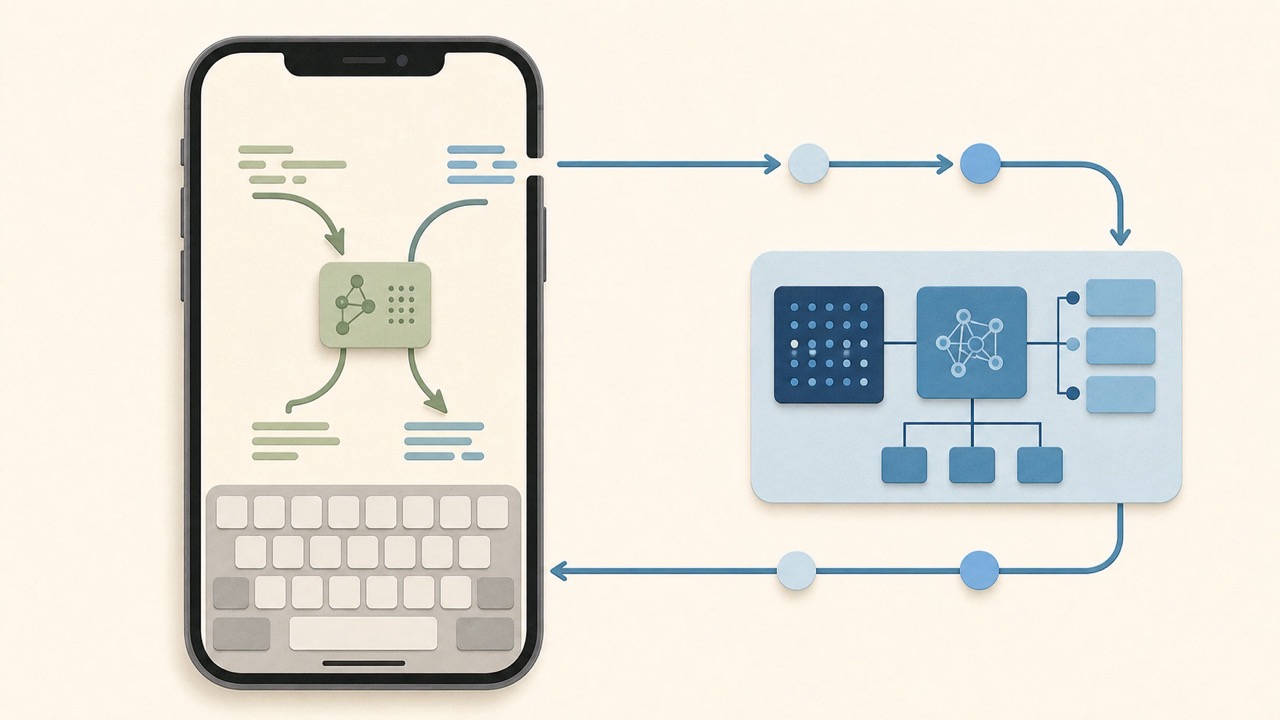
On-Device vs Cloud AI Keyboards: What’s the Difference?
Understand how on-device and cloud AI keyboards process text on iPhone, what the privacy and performance trade-offs are, and what to check before choosing one.

Do AI Keyboards Read Everything You Type? What iPhone Users Should Know
AI keyboards can process text to provide writing help, but what they can access and send depends on iPhone permissions, the keyboard’s design, and the provider’s privacy practices.

Third-Party Keyboard Not Showing Up on iPhone? 8 Fixes That Work
Fix a third-party keyboard that is missing, won't open, or keeps switching back to the Apple keyboard on iPhone with these practical troubleshooting steps.

Felix Tran
RewriteMate Dev & Editorial Lead
Write about everyday workflows, systems that help ideas move faster, from first draft to finished work.