August 25, 2026
How to Turn On Apple Intelligence and Writing Tools on iPhone
To turn on Apple Intelligence, open Settings, tap Apple Intelligence & Siri, then choose the option to turn on Apple Intelligence. Once it is enabled on a compatible iPhone, you can use Writing Tools by selecting text in a supported app and choosing Writing Tools.
If you cannot find the Apple Intelligence setting, the most likely reasons are device compatibility, iOS version, language or regional availability, or an incomplete setup. Apple Intelligence cannot be enabled by a setting alone on unsupported iPhones.
Before you start: check whether your iPhone supports Apple Intelligence
Apple Intelligence is not available on every iPhone. Apple also notes that availability can vary by model, language, and region. Check Apple’s current Apple Intelligence availability and setup guide before troubleshooting.
In practical terms, check these first:
- Your iPhone model is compatible with Apple Intelligence.
- Your iPhone is updated to a supported version of iOS.
- Your iPhone language and Siri language are supported.
- Apple Intelligence is available in your region.
- You have enough available storage and a stable connection for the initial setup.
Do not rely on unofficial methods that claim to unlock Apple Intelligence on an unsupported iPhone. They can create security, stability, or update problems and do not change Apple’s hardware requirements.
How to turn on Apple Intelligence on iPhone
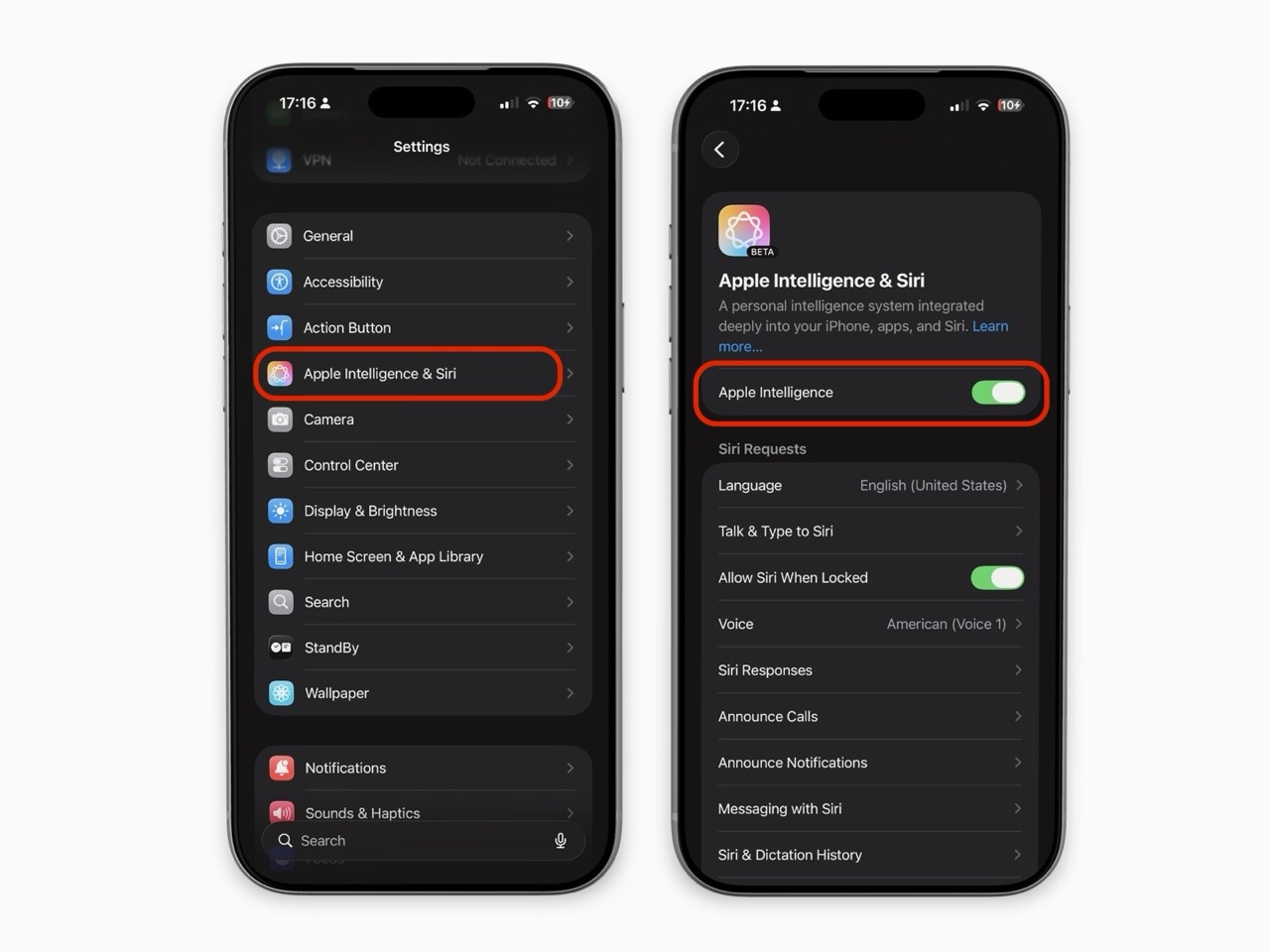
The wording can differ slightly across iOS versions, but the general setup is simple.
- Open the Settings app.
- Tap Apple Intelligence & Siri.
- Look for Apple Intelligence or Turn On Apple Intelligence.
- Tap the option and follow the on-screen setup steps.
- Keep your iPhone connected to Wi-Fi and power if it needs to download additional resources.
- Return to the same Settings area to confirm Apple Intelligence is enabled.
After setup, you may see Apple Intelligence features in Siri, Writing Tools, Mail, Messages, Notes, notification features, and other supported places. The exact features depend on your iPhone, iOS version, language, and region.
If the Apple Intelligence option is missing
Work through this checklist:
| What to check | What to do |
|---|---|
| iPhone model | Verify that your model supports Apple Intelligence. |
| iOS version | Go to Settings > General > Software Update and install the latest available update. |
| Language | Check the supported languages listed by Apple and make sure your device settings match. |
| Region | Confirm the feature is currently available where you use the device. |
| Storage | Free up space if the setup cannot finish. |
| Connection | Use a reliable Wi-Fi connection during initial setup. |
| Work-managed device | Ask your IT administrator whether device-management restrictions apply. |
Apple’s documentation is the source of truth here because feature availability changes as Apple expands language, region, and operating-system support.
How to turn on Apple Writing Tools
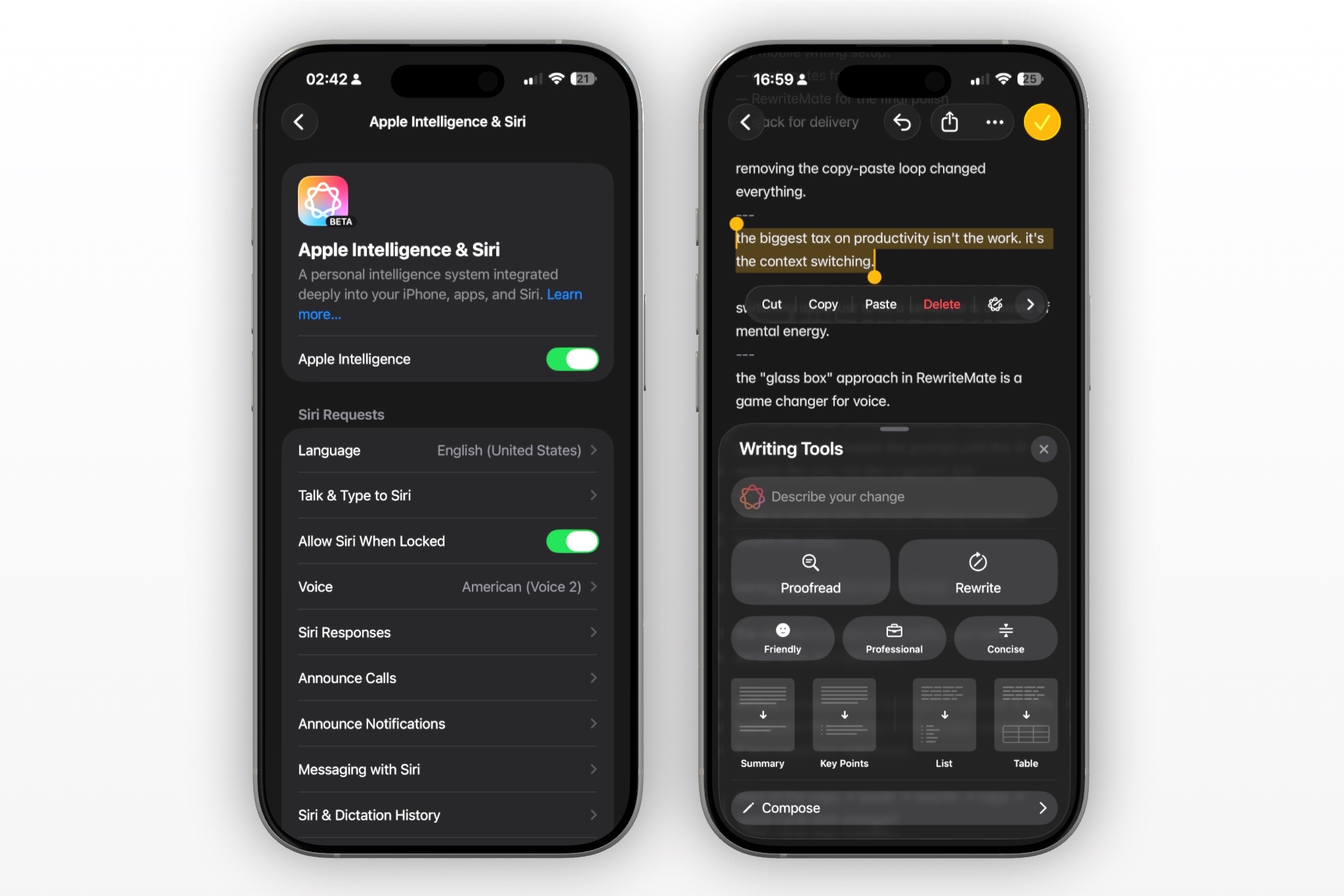
Writing Tools are part of Apple Intelligence, not a separate keyboard setting you can enable independently.
After Apple Intelligence is active:
- Open an app where you can write or edit text.
- Type a draft or select existing text.
- Open the editing controls that appear.
- Tap Writing Tools.
- Choose an action such as proofreading, rewriting, summarizing, or adjusting the tone.
- Review the suggested text before replacing your original.
Apple says Writing Tools can proofread, summarize, and rewrite text to be more professional, friendly, or concise. Apple’s Writing Tools support article also explains that the feature can work in many places you type, including third-party apps.
The key word is “many,” not “every.” An app may handle text selection or editing controls differently, and some fields may not support every Writing Tools action.
How to use Writing Tools to improve a message
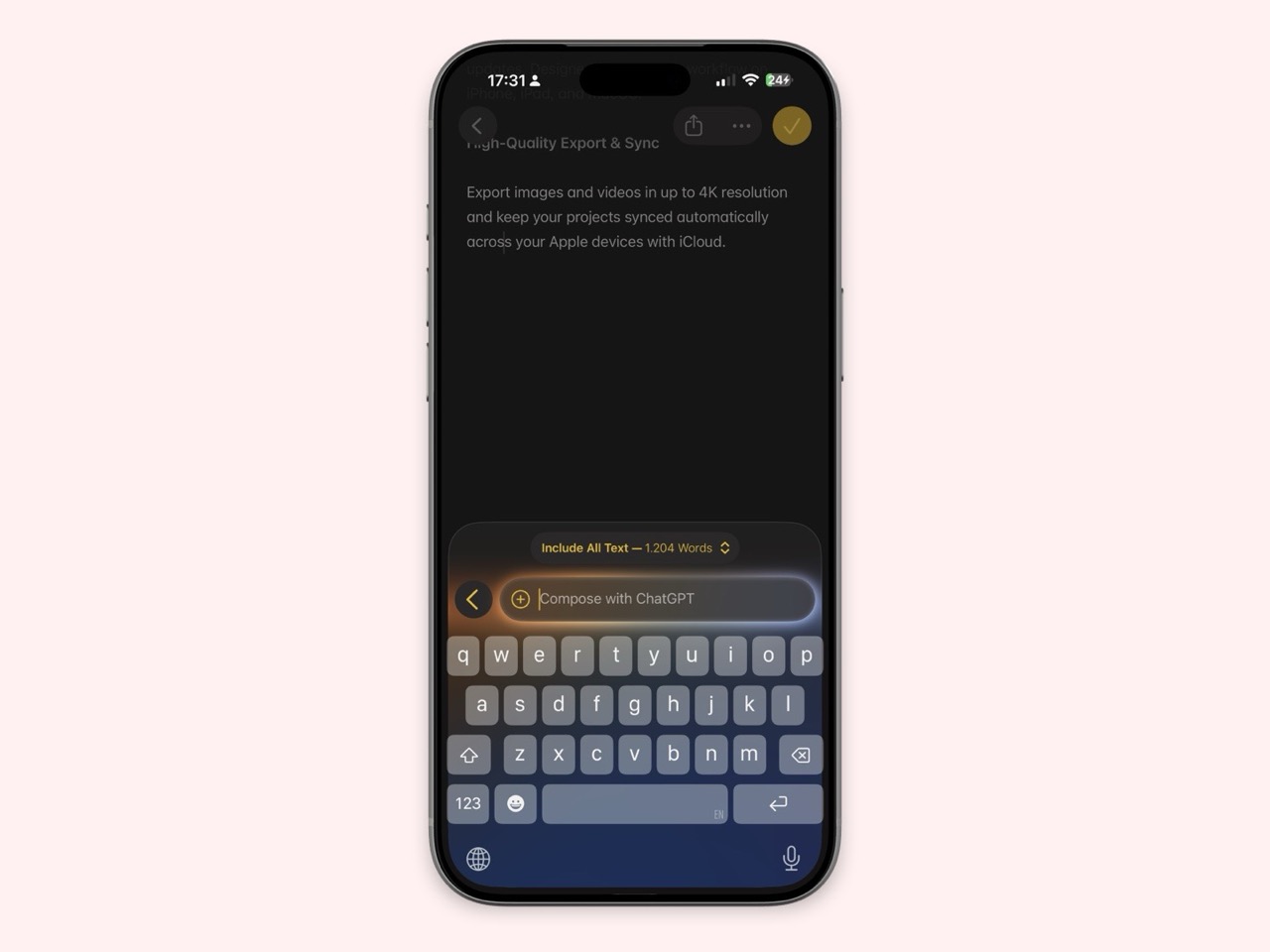
Writing Tools are most useful when you already know what you want to say but need help refining it.
For example, start with this draft:
Hey, I cannot make the meeting today because my appointment is taking longer. Can we move it to tomorrow? Sorry.
After selecting the text, you could use Writing Tools to make it more concise or professional. Then compare the result with the original before sending.
A good final version might be:
I need to reschedule today’s meeting. Would tomorrow work for you instead?
The best rewrite is not always the most formal one. It is the one that keeps the facts, intent, and tone appropriate for the person receiving it.
When to use each Writing Tools option
| Option | Useful for |
|---|---|
| Proofread | Fixing grammar, spelling, and punctuation while keeping your wording mostly intact |
| Rewrite | Getting a different version of the same message |
| Friendly | Softening a message that feels too abrupt |
| Professional | Polishing a work or customer-facing message |
| Concise | Shortening an update, request, or long note |
| Summary | Turning longer text into a shorter overview |
If the output sounds unlike you, do not accept it automatically. Adjust the wording, restore details that matter, or keep your original draft.
Why Writing Tools may not appear in an app
If Apple Intelligence is on but Writing Tools are not showing, test the feature in a standard editable field first, such as a note or email draft.
Then check:
- Did you select text before opening the edit menu?
- Are you in a field that allows text editing?
- Is the app updated?
- Does the app provide a different editing menu or toolbar?
- Is Apple Intelligence still enabled in Settings?
- Are your device and Siri languages set to a supported configuration?
Apple’s iPhone User Guide notes that Writing Tools can be accessed from text-selection controls and may also work with read-only text in some contexts through a copy action. The official guide is useful when the controls look different than expected.
Apple Writing Tools vs an AI keyboard
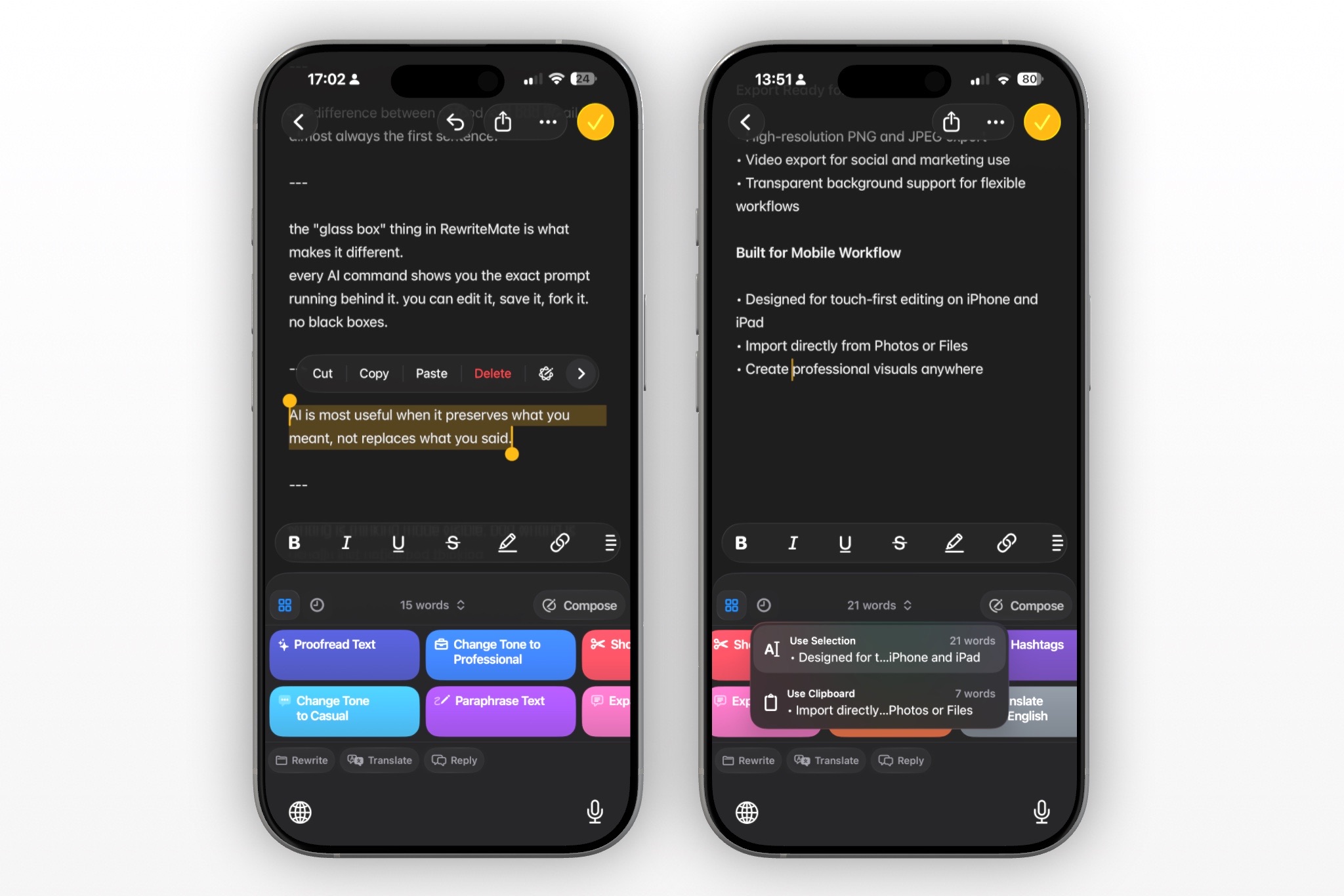
Apple Writing Tools and an AI keyboard solve a similar problem: improving words on your iPhone. Their workflows are different.
| Apple Writing Tools | AI keyboard such as RewriteMate |
|---|---|
| Built into Apple Intelligence | Installed as a third-party keyboard |
| Requires a compatible iPhone and supported setup | Can be an option when built-in Apple Intelligence is unavailable |
| Works by selecting text and opening Writing Tools | Designed to provide writing help from the keyboard workflow |
| Offers Apple’s built-in rewrite and tone options | Useful when you want more specific rewrite instructions |
| Availability depends on Apple’s current device, language, and regional support | Availability depends on the app, its permissions, and its supported workflow |
Neither option is automatically right for everyone.
Apple Writing Tools may suit you if your iPhone supports Apple Intelligence and you prefer the built-in experience. RewriteMate may be a useful alternative if you want a keyboard-based writing workflow, need help in the apps where you write, or have an older iPhone that cannot run Apple Intelligence.
Use RewriteMate as an Apple Intelligence alternative
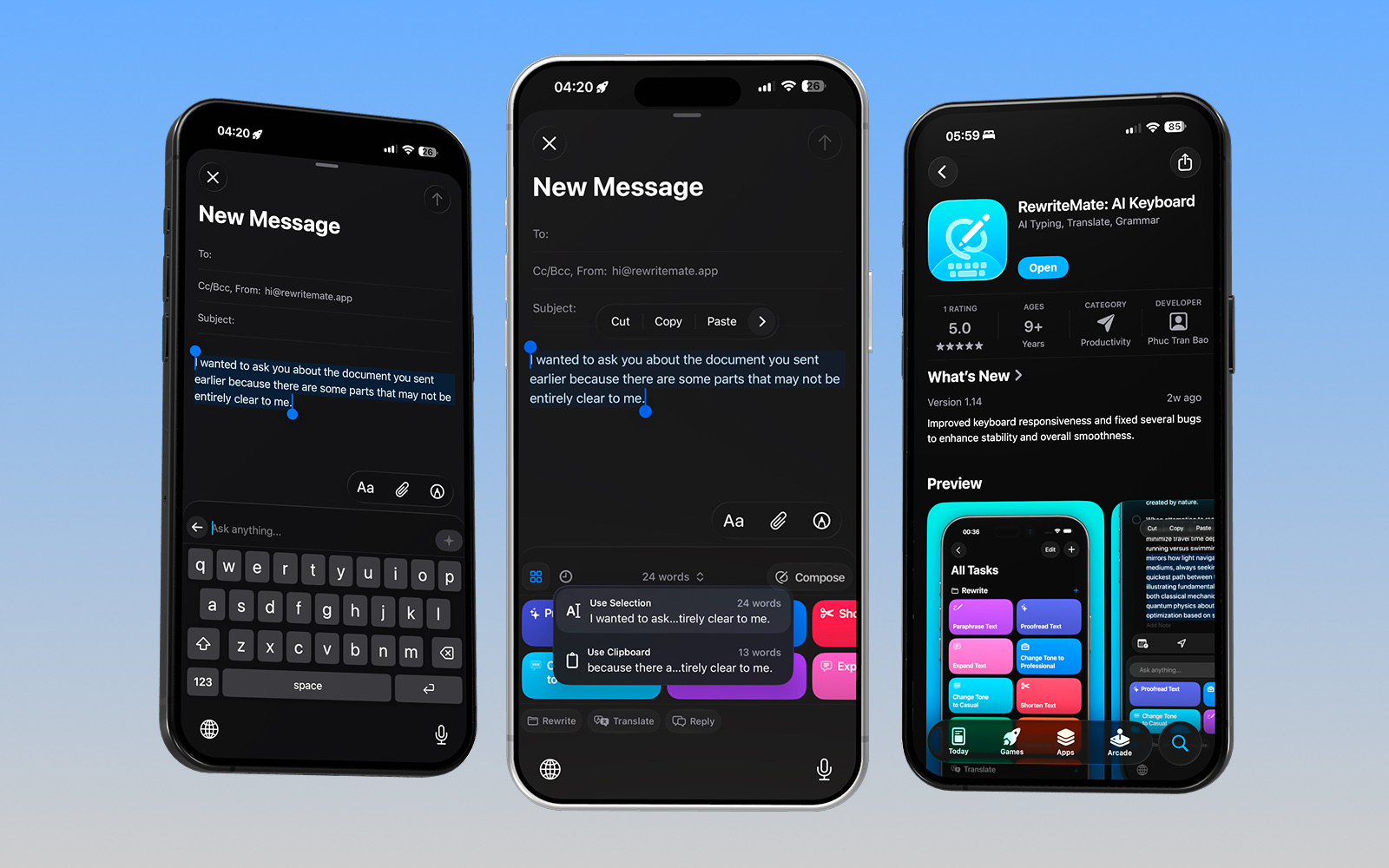
If Apple Intelligence is not available on your iPhone, an AI keyboard can still help with everyday writing tasks such as rephrasing a text, shortening a long message, changing tone, proofreading, or translating a draft.
With RewriteMate, begin with your own draft and request one specific change:
- “Make this message professional and concise.”
- “Fix grammar only. Keep my wording and meaning.”
- “Rewrite this to sound friendly, but do not add details.”
- “Turn this into a clear Slack update with a next step.”
- “Shorten this text message without removing the date.”
The goal is not to let AI speak for you. It is to make your message easier to understand while preserving the information and voice that make it yours.
Always review the final rewrite
Whether you use Apple Writing Tools or RewriteMate, check the final text before sending.
Confirm that it has not changed:
- Names, dates, times, prices, or links
- The level of urgency
- Your actual decision or promise
- Sensitive personal or work information
- The tone you intend for the recipient
For confidential HR, legal, medical, financial, security, or customer information, follow your organization’s policy before processing text with any AI tool.
Write better everywhere
Rewrite, rephrase, and refine text instantly without switching apps.
Frequently asked questions
Where is Apple Intelligence in iPhone Settings?
On compatible iPhones, look in Settings > Apple Intelligence & Siri. The exact label can vary with your iOS version and setup state.
Can I turn on Apple Intelligence on an iPhone 14 or older?
No setting can add Apple Intelligence to an unsupported iPhone. Check Apple’s current compatibility list. If your device is not eligible, consider a separate writing tool such as RewriteMate for AI-assisted rewrites and proofreading.
Is Apple Writing Tools a separate app?
No. Writing Tools are part of Apple Intelligence. You access them while editing or selecting text in supported apps rather than opening a standalone Writing Tools app.
Why are Writing Tools not showing on my iPhone?
Check that Apple Intelligence is enabled, your iPhone is compatible and updated, your language and region are supported, and you are selecting editable text in an app that supports the feature.
Can Apple Writing Tools rewrite a text message?
You can use Writing Tools to revise text where the feature is available. Draft or select the message, open Writing Tools, choose a rewrite option, then review the result before sending.
Does Apple Intelligence work in every app?
No. Apple says Writing Tools work in many places you type, including third-party apps, but support can vary by app and text field.
What is the best Apple Intelligence alternative for writing on iPhone?
The best choice depends on your workflow. If you want AI help from a keyboard while typing in different apps, RewriteMate is worth considering. If you have a compatible iPhone and prefer built-in tools, Apple Writing Tools may be enough for basic rewrites and proofreading.
Turn on the feature you have, then choose the workflow you prefer
Apple Intelligence and Writing Tools can make quick edits easier on a compatible iPhone. Start by confirming compatibility, enabling Apple Intelligence in Settings, and testing Writing Tools with a short draft.
If Apple Intelligence is unavailable or the workflow does not fit how you write, try RewriteMate as a keyboard-based alternative for polishing messages without leaving the app where you are typing.
Related articles
Keep reading
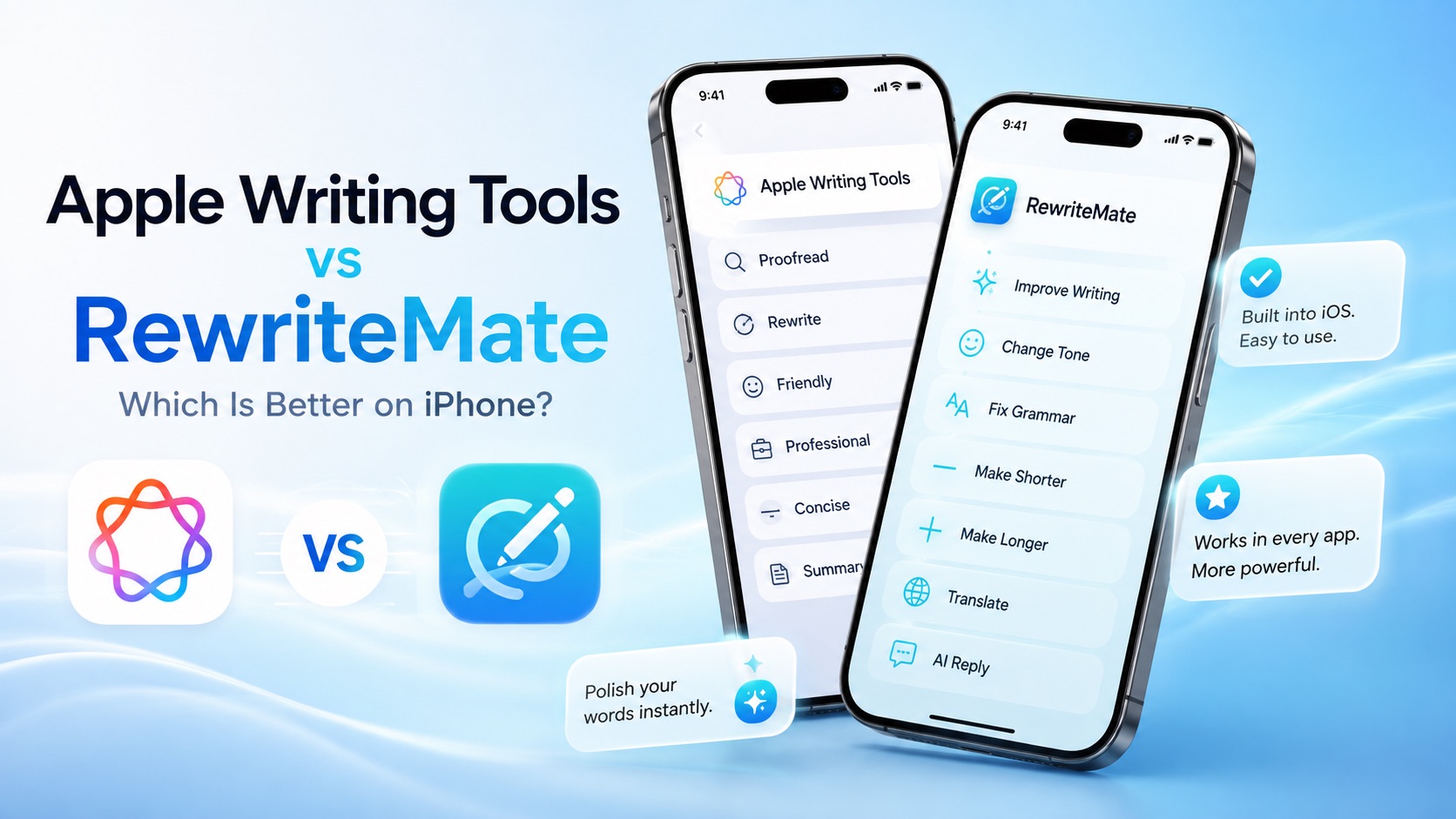
Apple Writing Tools vs RewriteMate: Which Is Better on iPhone?
Compare Apple Writing Tools and RewriteMate to see which AI writing solution is best for iPhone. Learn the differences in AI rewriting, keyboard workflow, customization, privacy, and everyday productivity.
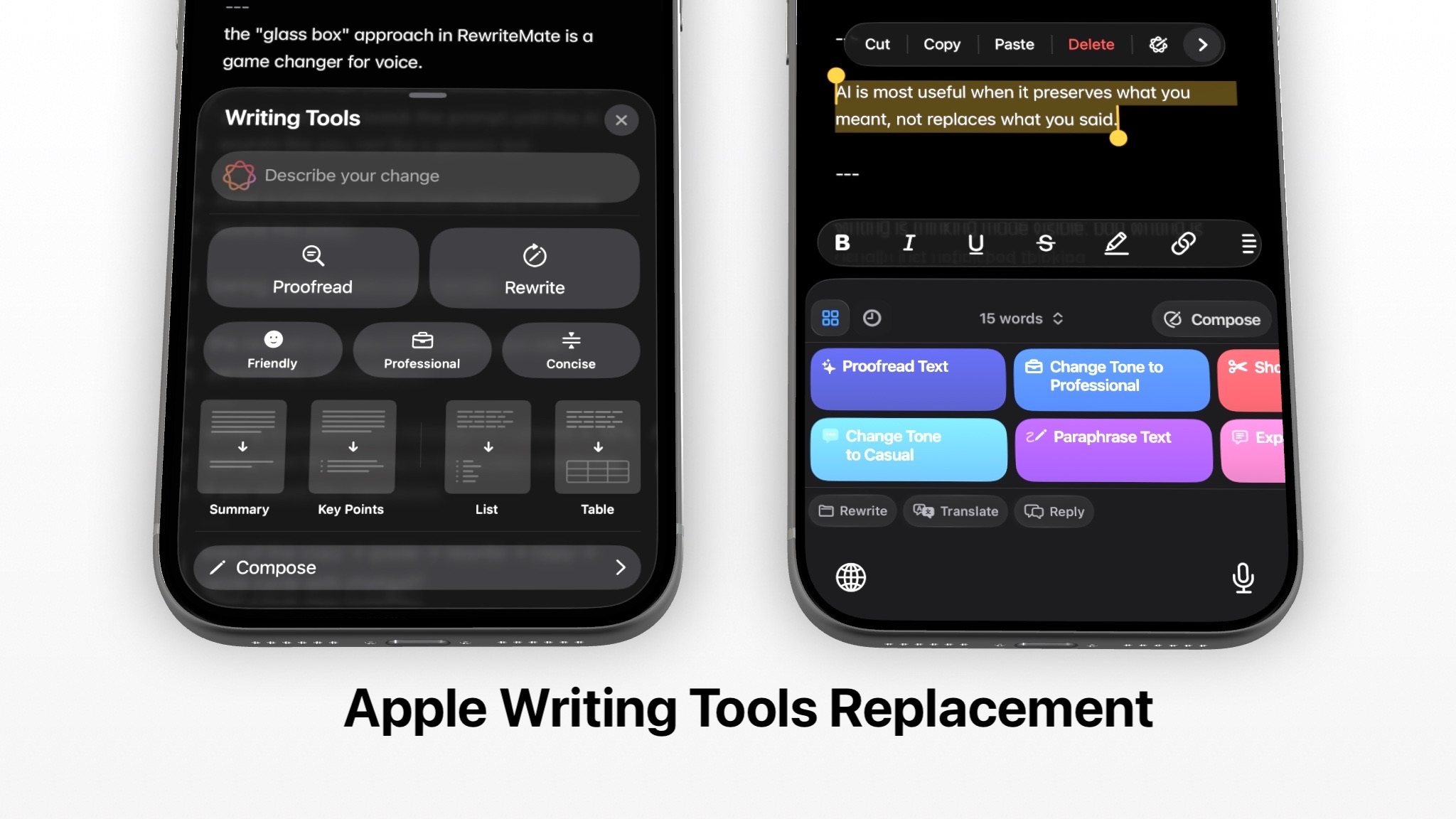
Apple Intelligence Skipped Your iPhone. Here's What I Use.
Millions of iPhone 13 and 14 users were locked out of AI writing tools. There are better workarounds than copy-pasting into Notes.
Best CleverType Alternative for iPhone
Compare CleverType alternatives for iPhone based on the writing workflow you need: grammar correction, tone changes, custom prompts, built-in Apple tools, and keyboard-based editing.

Felix Tran
RewriteMate Dev & Editorial Lead
Write about everyday workflows, systems that help ideas move faster, from first draft to finished work.