August 13, 2026
Best AI Keyboard for Non-Native English Speakers on iPhone
The best AI keyboard for a non-native English speaker is one that helps you check grammar, make wording sound natural, adjust tone, and translate when needed—without forcing you to copy every message into another app.
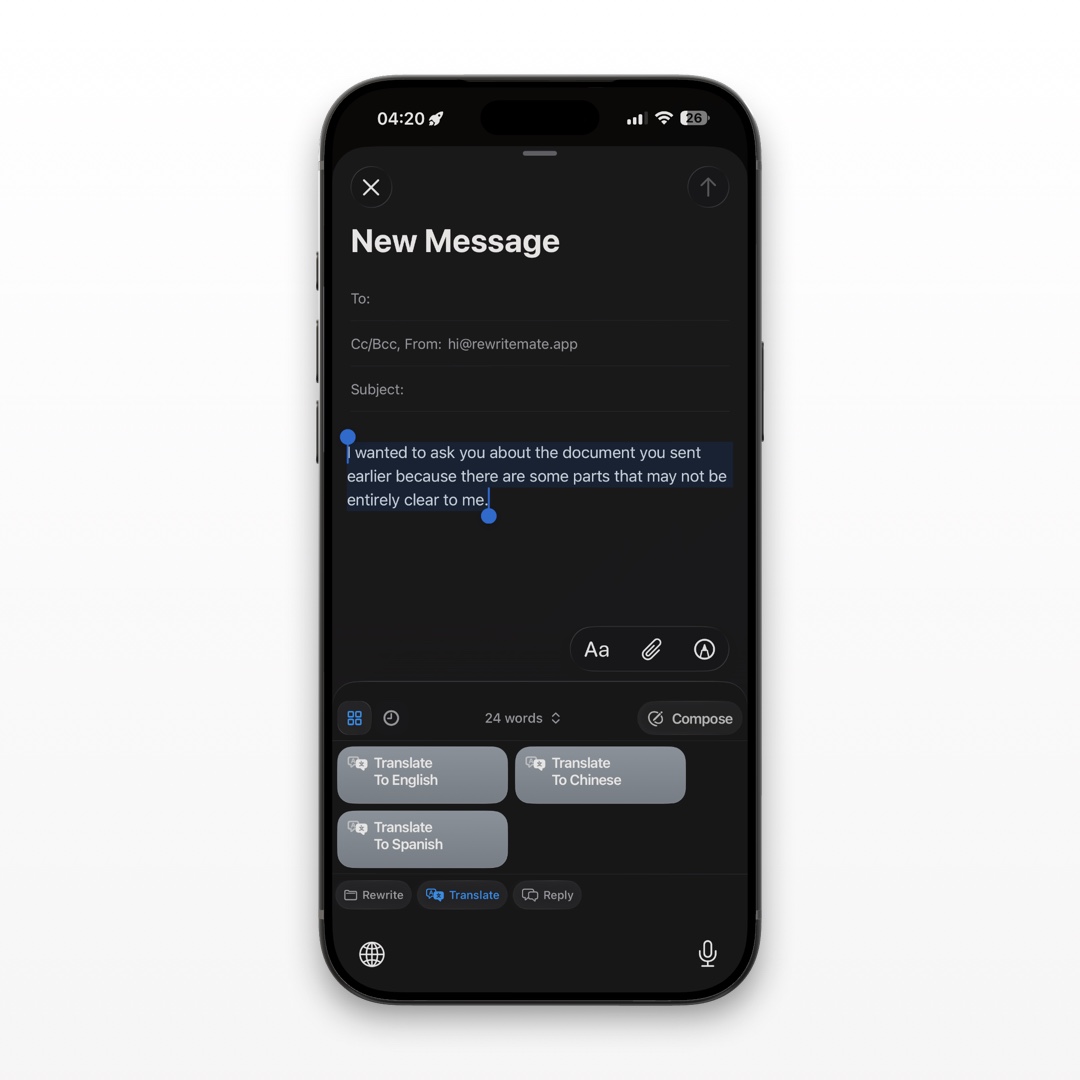
A normal spell checker can catch a typo. But writing in a second language often involves bigger questions: Is this phrase polite? Does this sentence sound natural? Is the tone too direct for work? An AI keyboard can help with those questions in the moment, whether you are replying in WhatsApp, writing an email, or sending a Slack message.
What non-native English speakers need from an AI keyboard
Not every writing tool solves the same problem. If English is not your first language, the useful features go beyond autocorrect.
Look for an AI keyboard that can help you with:
| Need | Helpful keyboard feature |
|---|---|
| Misspelled words | Spelling and grammar checks |
| Awkward sentence structure | Rewrite suggestions |
| A message that sounds too direct | Tone adjustment |
| A phrase you understand in your first language but cannot express naturally in English | Translation or rewrite support |
| A long or unclear work message | Concise rewrite |
| Writing in multiple languages | Language keyboard support and easy switching |
| Editing inside chats and email | Keyboard-level tools that work where you type |
The goal is not to erase your voice or make every message overly formal. It is to give you a reliable second look before you send something important.
Why autocorrect alone is not enough
Autocorrect is useful for typing mistakes, but it cannot always tell whether a sentence communicates what you mean.
Consider these examples:
- “Please send me it today” may be understandable, but “Please send it to me today” is more natural.
- “I want you finish this” needs more than a spelling correction.
- “You did not reply me” may sound too direct or use the wrong phrasing depending on the context.
- “Can you explain me?” can become “Can you explain it to me?”
These are not always simple errors. They involve word order, prepositions, tone, and context.
Apple’s predictive text can suggest words and phrases as you type, but availability varies by language. Apple’s predictive text guide notes that inline predictions are not supported in every language.
An AI rewrite tool can be useful when you need help with the full sentence, rather than just the word currently under your cursor.
The best workflow: write first, improve second
A common mistake is trying to make every sentence perfect before typing it. That slows conversations down and can make writing feel stressful.
A more practical workflow is:
- Write your message naturally.
- Read it once for meaning.
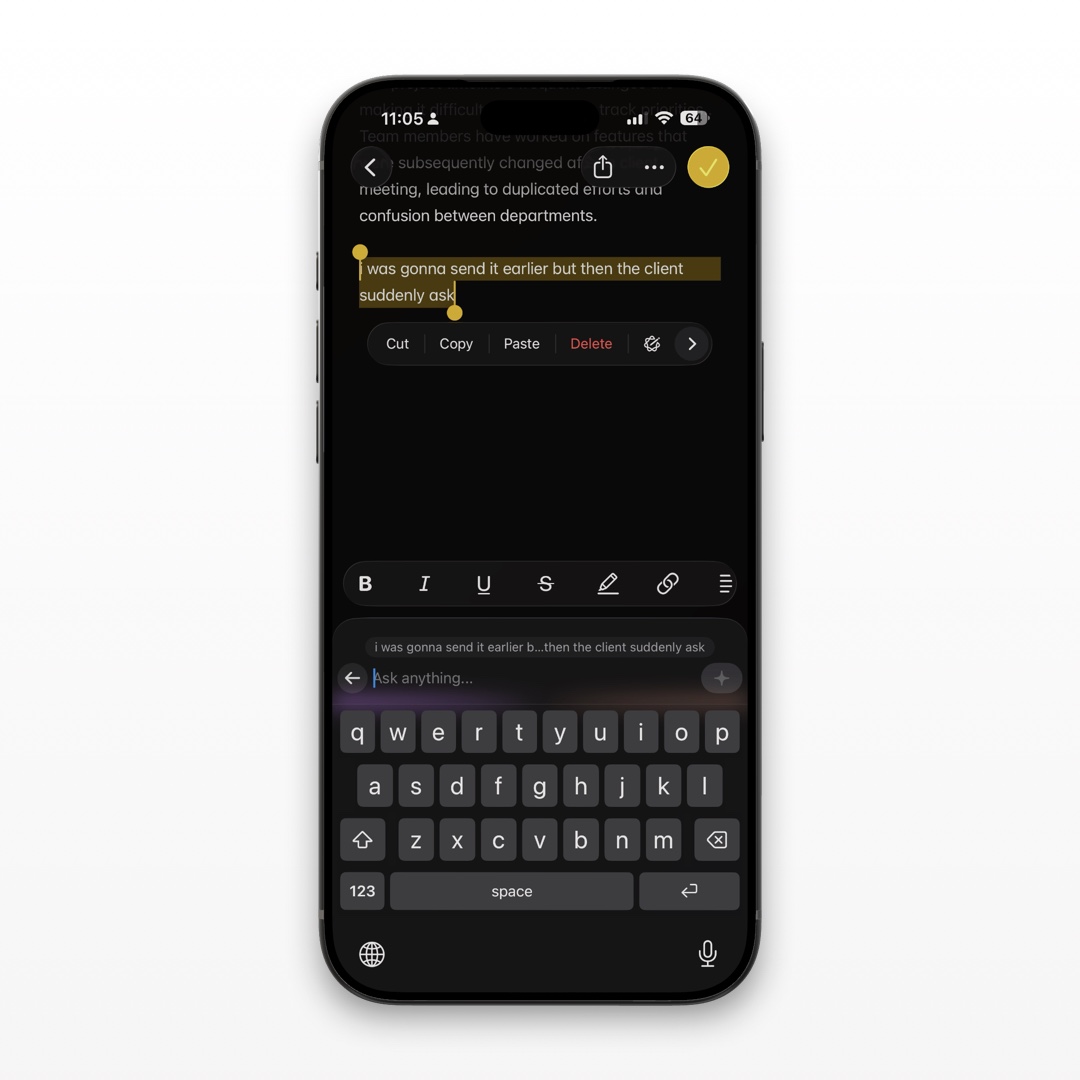
- Use an AI keyboard to check grammar, rewrite it, or adjust the tone.
- Compare the suggestion with your intended meaning.
- Edit or send.
This keeps you in control. The AI should help you communicate, not decide what you want to say.
For short, casual messages, you may only need a quick grammar check. For a client email, job application, or work update, a professional or concise rewrite can be more useful.
Features to prioritize
Grammar that considers the sentence
Good grammar support should help with more than isolated spelling mistakes. It should catch issues such as:
- Missing articles, such as “a” or “the”
- Verb tense inconsistencies
- Incorrect prepositions
- Word order that follows your first language instead of natural English
- Singular and plural mismatches
- Repeated or unnecessary words
No automated tool is perfect. Review suggestions carefully, especially when you are discussing technical work, legal matters, finances, names, or dates.
Rewrite options that preserve your meaning
A rewrite feature is most useful when it gives you a clearer version of what you already wrote.
For example, you might type:
I will send the document tomorrow because today I have many tasks.
A natural rewrite could be:
I’ll send the document tomorrow, as I’m tied up with other tasks today.
The second version is not automatically “better” in every situation. It is simply one option. If you are writing to a close colleague, your original message may be more appropriate.
Choose an AI keyboard that lets you review the rewrite before replacing your text.
Tone controls for different situations
The same sentence can sound right or wrong depending on where you send it.
Useful tone options include:
- Professional
- Friendly
- Concise
- Polite
- Confident
- Casual
For example, “Send me the report today” can become:
- “Could you please send me the report today?”
- “When you have a moment, could you send the report over today?”
- “Please send the report by the end of today.”
Each version has a different level of urgency and formality. Tone controls help you choose intentionally instead of relying on a phrase you are unsure about.
Use your iPhone’s language keyboard alongside an AI keyboard
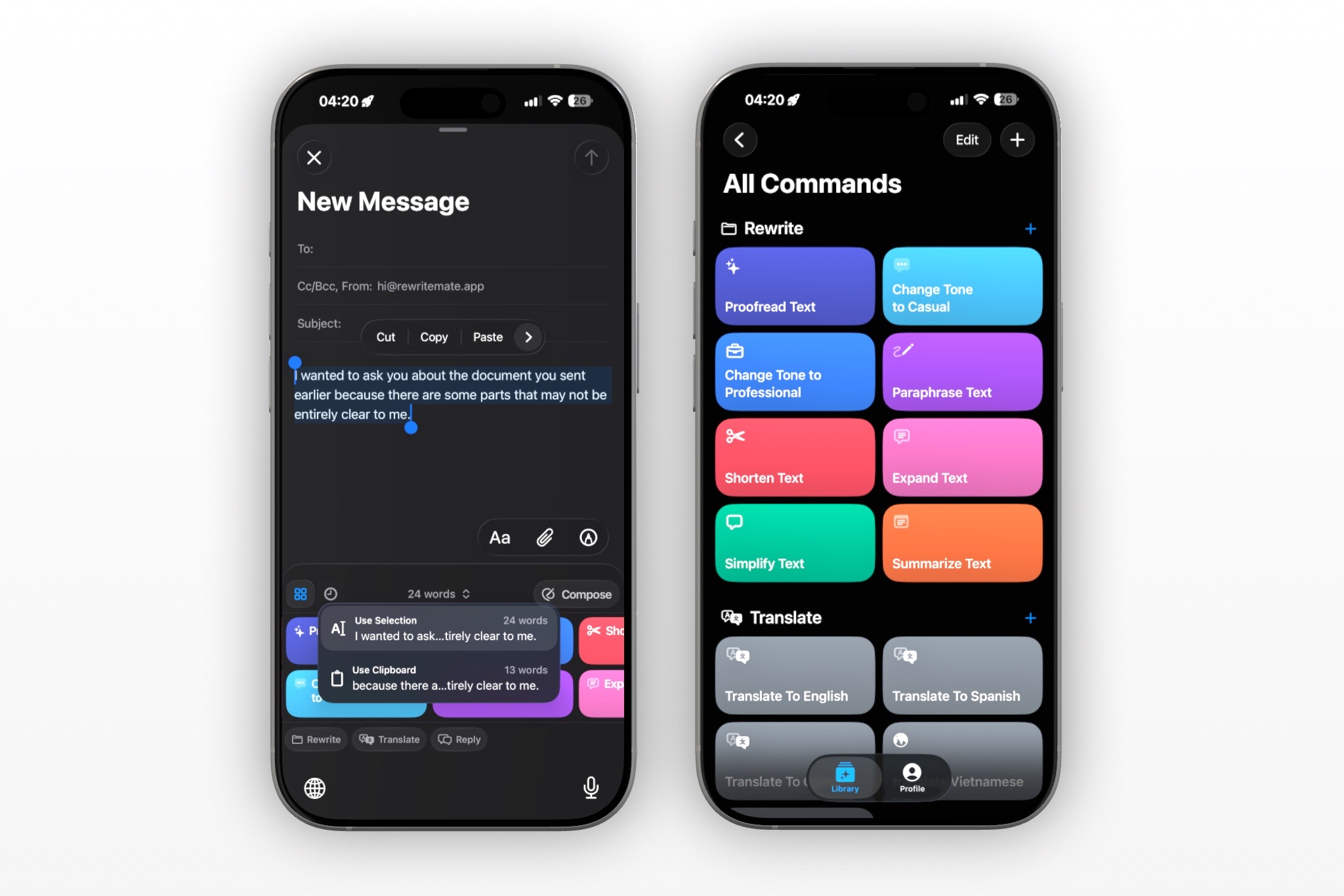
An AI keyboard does not replace your language keyboard. In many cases, you will use both.
Apple supports predictive typing across many languages, and its current feature-availability page lists multilingual typing support for a range of language combinations. Check Apple’s current keyboard language availability.
If you use more than one language:
- Go to Settings > General > Keyboard > Keyboards.
- Tap Add New Keyboard.
- Add the languages you write in.
- Add your third-party AI keyboard.
- Use the globe key to switch while typing.
For a faster setup, keep only the keyboards you actually use. A long keyboard list makes it slower to move from your native-language layout to English, emoji, or an AI writing keyboard.
For step-by-step help, see Third party keyboard not showing up on iphone.
When translation helps and when it does not
Translation is useful when you know exactly what you want to say in your first language but need a starting point in English.
For example, you can translate a short thought, then use a rewrite tool to make the English sound more natural for its context.
A good process is:
- Translate the idea.
- Check whether names, dates, numbers, and technical terms stayed correct.
- Rewrite for the right tone.
- Read the final sentence as if you were the recipient.
Avoid translating sensitive information unless you understand the keyboard provider’s privacy practices and are comfortable with how the text is handled.
Also, do not assume a direct translation captures cultural expectations. A phrase that is normal in one language may sound overly formal, unusually direct, or unclear in English.
RewriteMate for everyday English writing on iPhone
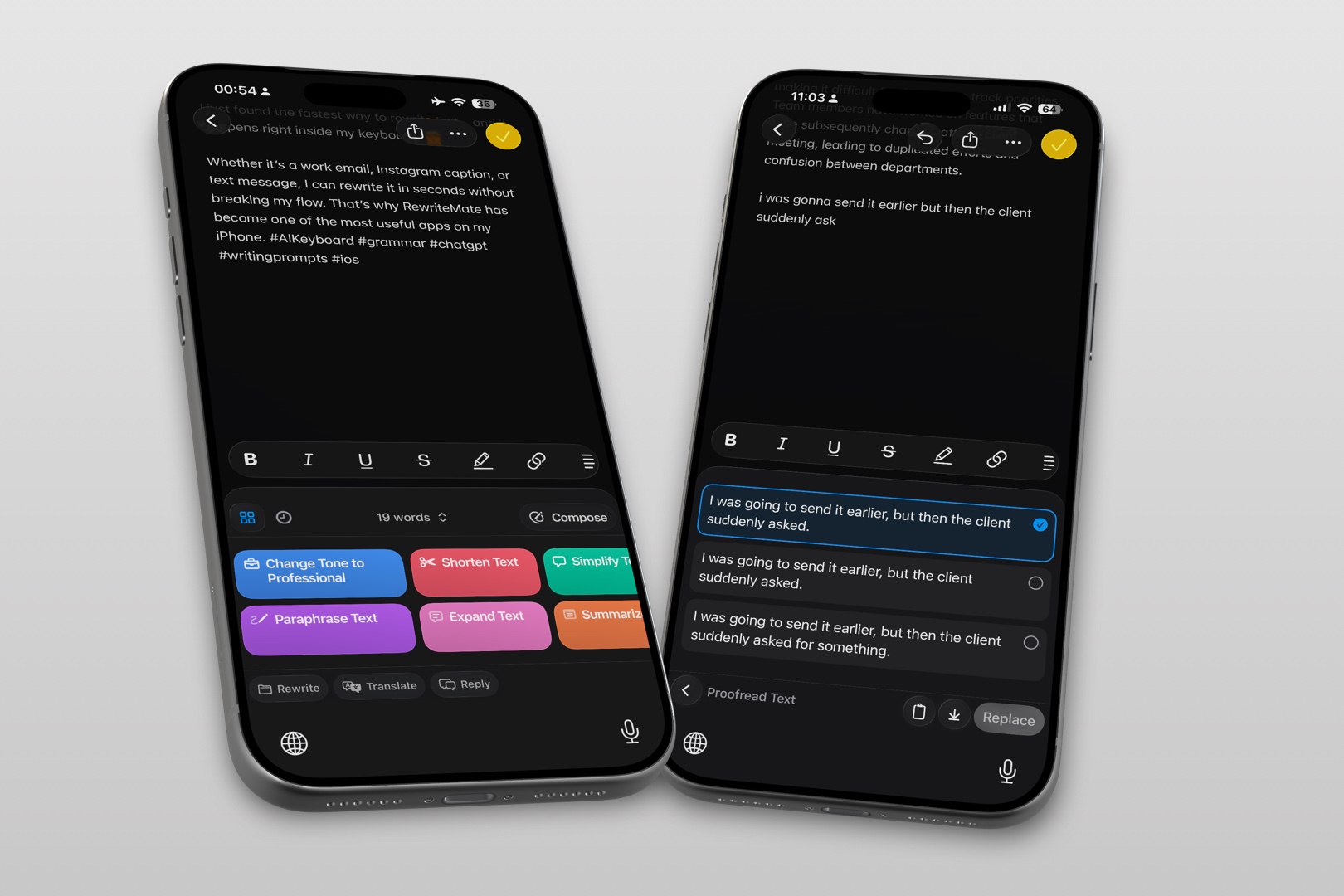
RewriteMate is designed for people who want writing help without leaving the app where they are typing.
You can use it when you want to:
- Make a message sound more natural
- Check grammar before sending an email
- Turn a rough idea into a clear English sentence
- Make a work update more professional
- Shorten a long message
- Adjust a sentence to sound friendlier or more confident
The most useful habit is to start with your own draft. Then ask RewriteMate to improve clarity or tone, compare the result, and keep the version that still sounds like you.
That approach is faster than moving text between a chat app, a browser, and a separate AI tool—and it helps you learn from the changes you choose.
A simple prompt framework for clearer rewrites
If your keyboard lets you enter custom instructions, avoid vague requests such as “fix this.” Give the tool a small amount of context.
Try prompts like:
- “Correct the grammar but keep my meaning.”
- “Make this friendly and natural for a coworker.”
- “Rewrite this as a concise professional email.”
- “Make this less direct but still clear.”
- “Use simple English and keep the tone warm.”
- “Check whether this sounds natural to a native English speaker.”
- “Keep my wording where possible; fix only mistakes.”
These instructions help prevent a rewrite from becoming too formal, too generic, or unlike your usual writing style.
How to avoid sounding overly AI-written
AI can make a message smoother, but you should still make it yours.
Before sending a rewritten message, check:
- Does it say what I actually mean?
- Is the tone right for this person?
- Are any words too formal for the situation?
- Did it change important details, dates, names, or numbers?
- Would I say this out loud?
A short message often needs only a small edit. Do not accept a long rewrite if your original sentence was already clear.
For personal conversations, keep the phrases and details that make the message sound like you. For work, use the AI to improve structure and clarity—not to add empty formality.
Privacy: what to check before using an AI keyboard
Because a keyboard works where you type, choose carefully.
Before enabling an AI keyboard’s connected features, review:
- The app’s privacy policy
- Its explanation of what data is processed
- Whether text is sent to a server for AI features
- Whether the app lets you control or delete stored data
- Why it requests Allow Full Access
Some AI features require a network connection to process a rewrite or translation. Others may work differently. Do not assume every keyboard has the same privacy model.
If the keyboard asks for Full Access, read the prompt and the developer’s documentation before accepting. You can learn the setup steps in How to Enable Allow Full Access for a Keyboard on iPhone.
Use an AI keyboard to learn, not just correct
An AI keyboard can also be a learning tool if you look at the changes instead of immediately replacing your text.
When a suggestion appears, ask:
- What changed?
- Was it grammar, wording, or tone?
- Would this phrase work in another message?
- Is there a simpler way to express the same idea?
Over time, you may notice patterns. Perhaps you frequently omit articles, use a direct translation from your first language, or write emails that need a clearer opening. Those patterns are more valuable than any single correction.
Keep a small note with phrases you use often, such as:
- “Could you please let me know?”
- “Thanks for your help with this.”
- “I wanted to follow up on…”
- “Would you be available to…?”
- “Please let me know if you have any questions.”
Your iPhone also supports text replacements, which can save frequently used phrases without needing to type them from scratch.
FAQs
Can an AI keyboard help me write better English on iPhone?
Yes. An AI keyboard can help with grammar, wording, tone, sentence clarity, and translation while you are writing in apps such as Messages, Mail, and Slack. Review every suggestion before sending.
Is an AI keyboard better than autocorrect for non-native English speakers?
They do different jobs. Autocorrect is useful for typos and simple spelling errors. An AI keyboard can be more helpful when you need support with sentence structure, natural phrasing, tone, or a full rewrite.
Can I use an AI keyboard with my native-language keyboard?
Yes. Add both keyboards in Settings > General > Keyboard > Keyboards, then use the globe key to switch between them while typing.
Will an AI keyboard make my writing sound unnatural?
It can if you accept every rewrite without reviewing it. Use clear instructions such as “keep my meaning” or “use simple English,” then edit the suggestion so it matches your voice.
Is it safe to paste work messages into an AI keyboard?
That depends on the keyboard provider’s privacy practices and your organization’s rules. Do not process confidential, regulated, or sensitive information unless you understand how the app handles that text and have permission to use it.
Can an AI keyboard translate messages on iPhone?
Many AI writing keyboards offer translation or rewrite features, but capabilities vary by app. Translate the idea first, then review the English for tone, accuracy, and any important names or numbers.
Do I need Allow Full Access for an AI keyboard?
Some AI keyboard features may require it, particularly features that need a connected service. Read the keyboard’s permission explanation and privacy policy before enabling it.
Write with more confidence, wherever you are typing
Write better everywhere
Rewrite, rephrase, and refine text instantly without switching apps.
Writing in a second language should not require opening three different apps just to send one message. The right AI keyboard can help you draft, check, and improve English in the same place where you already communicate.
Use RewriteMate when you want a clearer version of your own words, then make the final choice yourself. That is how writing assistance stays helpful while your voice stays yours.
Related articles
Keep reading

RewriteMate vs Grammarly Keyboard: Which Is Better for Mobile Writing?
Compare RewriteMate vs Grammarly Keyboard to see which iPhone writing assistant fits your workflow. Learn the differences in AI rewriting, grammar checking, customization, pricing, and everyday mobile writing.
QuillBot vs RewriteMate for iPhone: Which AI Keyboard Fits Your Writing?
Compare QuillBot and RewriteMate on iPhone for paraphrasing, grammar, tone changes, translation, custom workflows, and everyday writing without app switching.

Best Grammar Checker Keyboard for iPhone (2026 Guide)
Compare the best grammar checker keyboards for iPhone. Discover AI keyboards that proofread, rewrite, and improve your writing in every app—not just your browser.

Felix Tran
RewriteMate Dev & Editorial Lead
Write about everyday workflows, systems that help ideas move faster, from first draft to finished work.