October 10, 2026
How to Create Email Templates on iPhone With Text Replacement
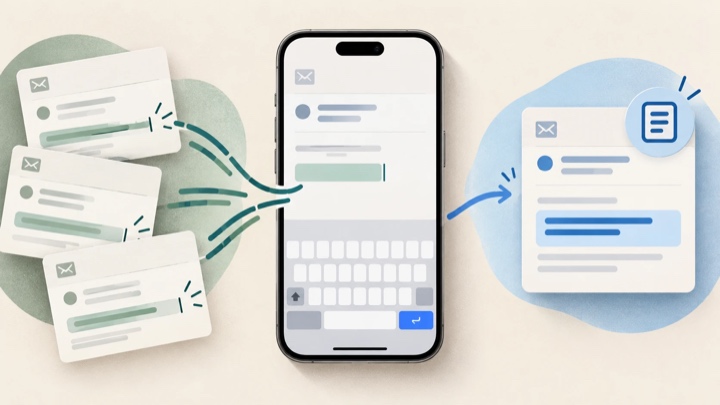
If you keep typing the same lines in emails on your iPhone, use Apple’s Text Replacement to save a short trigger that expands into a longer phrase. Go to Settings → General → Keyboard → Text Replacement, tap Add, put the full phrase in Phrase, choose a distinctive trigger in Shortcut, and save. It works best for wording that stays the same; for details that change each time, use a short template with placeholders or draft the message from the current context instead.
This is a useful built-in option when you are tired of retyping a sign-off, a routine acknowledgement, or the opening of a common response. It is not a full email-template manager: a shortcut expands saved text, but it does not know the recipient, fill in changing details, or decide which paragraph belongs in a particular reply. Apple describes Text Replacement as a way to enter longer text by typing a few keys.
What Text Replacement can—and cannot—do for email
Think of a Text Replacement as a fixed snippet:
- Shortcut: a short sequence you type, such as
;thanks. - Phrase: the saved text that iPhone offers in its place, such as “Thanks for the update. I’ll review this and get back to you.”
Apple’s instructions are to save a phrase and a shortcut, then type the shortcut in a text field to call up the replacement. The feature is appropriate for stable wording and repeated details. It does not transform a message based on the email you are answering, and it does not dynamically replace tokens such as [Name] or [Date]. You must edit those yourself before sending.
| Use Text Replacement for… | Don’t rely on it for… |
|---|---|
| A consistent email sign-off or contact line | A complete personalized reply with facts that change per recipient |
| A brief acknowledgement you send in the same wording | Selecting the right answer to a question in a long email thread |
| A standard first sentence or short process note | Automatically filling names, dates, prices, links, or deadlines |
| A short checklist or set of next steps that rarely changes | Making judgment calls about tone, commitments, or company policy |
For example, you could save “Thanks for sending this over. I’ve received it and will review it.” If every message needs a different promised response date, don’t bake a guessed date into the shortcut. Leave a visible placeholder to replace manually—or write that portion from the actual context.
Create an email text shortcut on iPhone
Apple’s current iPhone instructions put Text Replacement under Settings → General → Keyboard → Text Replacement. You can also open keyboard settings while typing on some iPhone keyboards. The precise route can vary by iOS version, so if you do not see the keyboard shortcut, use the Settings path.
- Open Settings.
- Tap General, then Keyboard.
- Tap Text Replacement.
- Tap the Add button.
- Paste or type the reusable wording into Phrase.
- Enter a distinctive trigger in Shortcut.
- Tap Save.
Apple’s Text Replacement guide gives the same basic setup: enter the phrase, choose the shortcut, then use that shorthand when typing. For an email, use a trigger that is unlikely to appear as an ordinary word. For instance, a semicolon prefix such as ;ack can be easier to recognize than a common word like thanks—but choose a pattern that feels natural and test it in a draft.
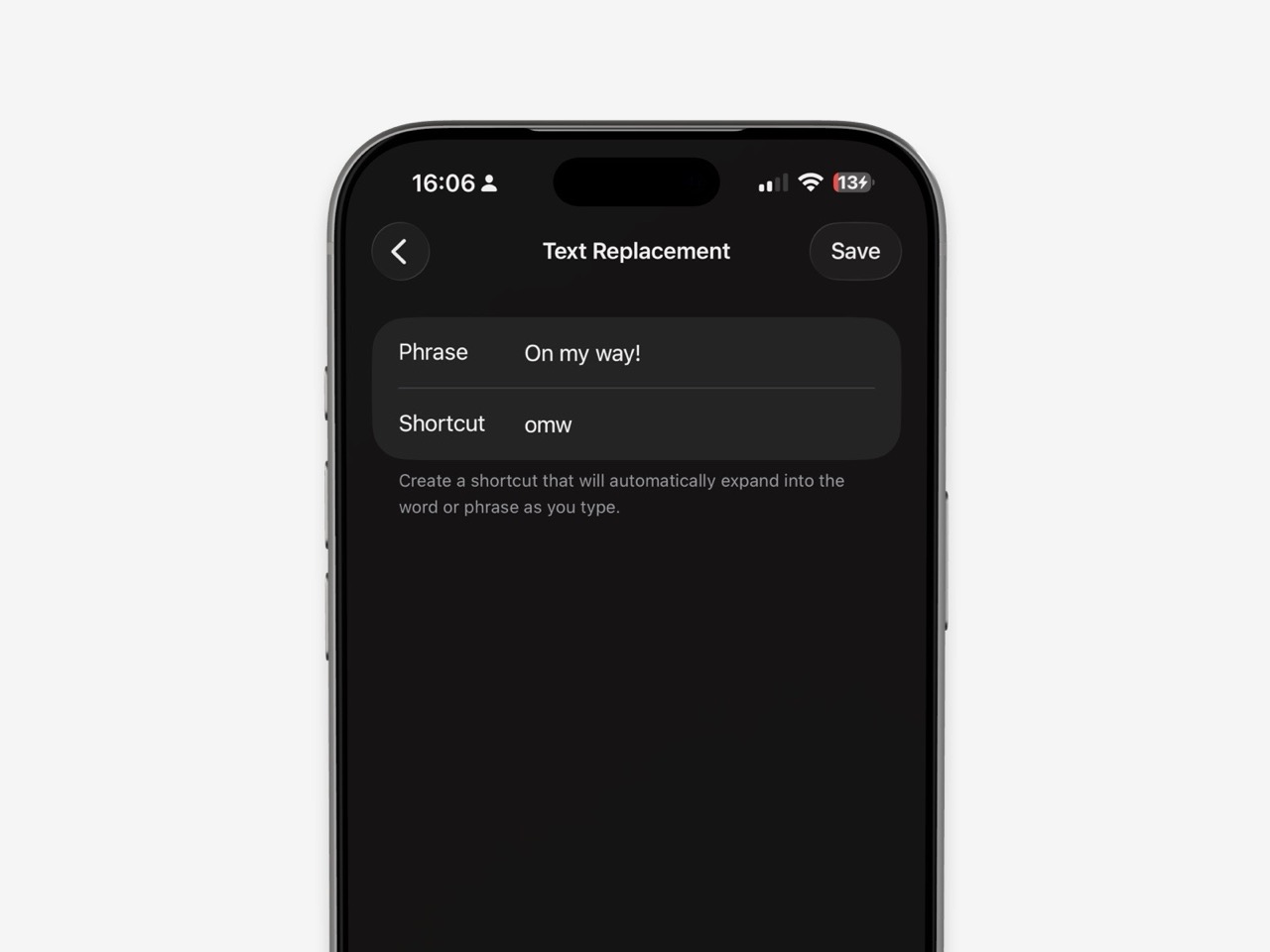
After saving, open a draft in the email app you normally use and type the trigger. Review the suggested replacement and insert it if offered. Test the snippet in a draft rather than a message you are about to send. The behavior can depend on the text field and keyboard context, so confirm it works where you plan to use it.
Useful email snippets to save
Start with phrases that are stable, short, and safe to insert without much editing. Here are examples you can adapt:
Acknowledging receipt
Shortcut: ;received
Phrase: “Thanks for sending this. I’ve received it and will review it.”
This confirms receipt without promising when you will finish. If you do want to give a timeline, add a date only after checking that it is realistic.
Asking for one missing detail
Shortcut: ;detail
Phrase: “Thanks for the note. Could you send me [the detail I need] so I can move this forward?”
The bracketed words are a reminder to personalize the line, not a field the iPhone fills automatically. Replace the placeholder before sending; otherwise the recipient may receive your editing note.
Scheduling a reply
Shortcut: ;replyby
Phrase: “I’m reviewing this and will follow up by [day/date].”
Use this only after you choose a real deadline. A stored snippet should not accidentally turn a tentative plan into a firm commitment.
A consistent sign-off
Shortcut: ;signoff
Phrase: “Best, [Your Name]”
This can be convenient if you regularly type the same sign-off. If you use different names, roles, or contact details for different contexts, create separate shortcuts or enter the correct signature manually.
A client invoice reminder opening
Shortcut: ;invoice
Phrase: “I’m following up on invoice [number], which was due [date]. Could you let me know its payment status?”
Keep the invoice number and due date as placeholders. Confirm them against your records before sending; a shortcut saves typing, not verification.
Pick a shortcut that will not expand by accident
The shortcut matters as much as the phrase. If you use an ordinary word or common abbreviation, you may trigger the expansion while writing something unrelated. A distinctive prefix can make a trigger easier to recognize, but no pattern is perfect for everyone.
Use these checks when you create one:
- Avoid common words. Don’t make
meetexpand if you often type “meeting.” - Use a consistent prefix. For example, reserve
;for saved email phrases if you rarely type it in normal prose. - Keep each shortcut memorable.
;ackis easier to recall than a random string you have to look up. - Test in a draft. Confirm the replacement is the phrase you expect before using it in a real message.
- Review the final email. Check every placeholder, name, date, amount, attachment, and commitment.
If a saved phrase appears in the wrong place, remove or edit that shortcut under Text Replacement. Apple’s Auto-Correction and predictive text guide explains how to manage text replacements from Keyboard settings. Text Replacement is not the same as turning off Auto-Correction: one expands shortcuts you create, while Auto-Correction addresses likely spelling errors.
When one fixed template is not enough
Text Replacement is a good fit when the words barely change. It becomes awkward when every email needs a different summary, tone, answer, or set of details. A fixed snippet cannot read the incoming message and choose the relevant next step. You can still use it for a stable sign-off or opening, then write the variable part yourself.
For example, a customer-service response may need to acknowledge a problem, but the actual resolution depends on the customer’s case and your company’s approved policy. A generic saved paragraph can help with the acknowledgement; it should not invent a refund, replacement, timeline, or exception. Likewise, a client update can reuse a greeting while the status, owner, and due date must come from current project information.
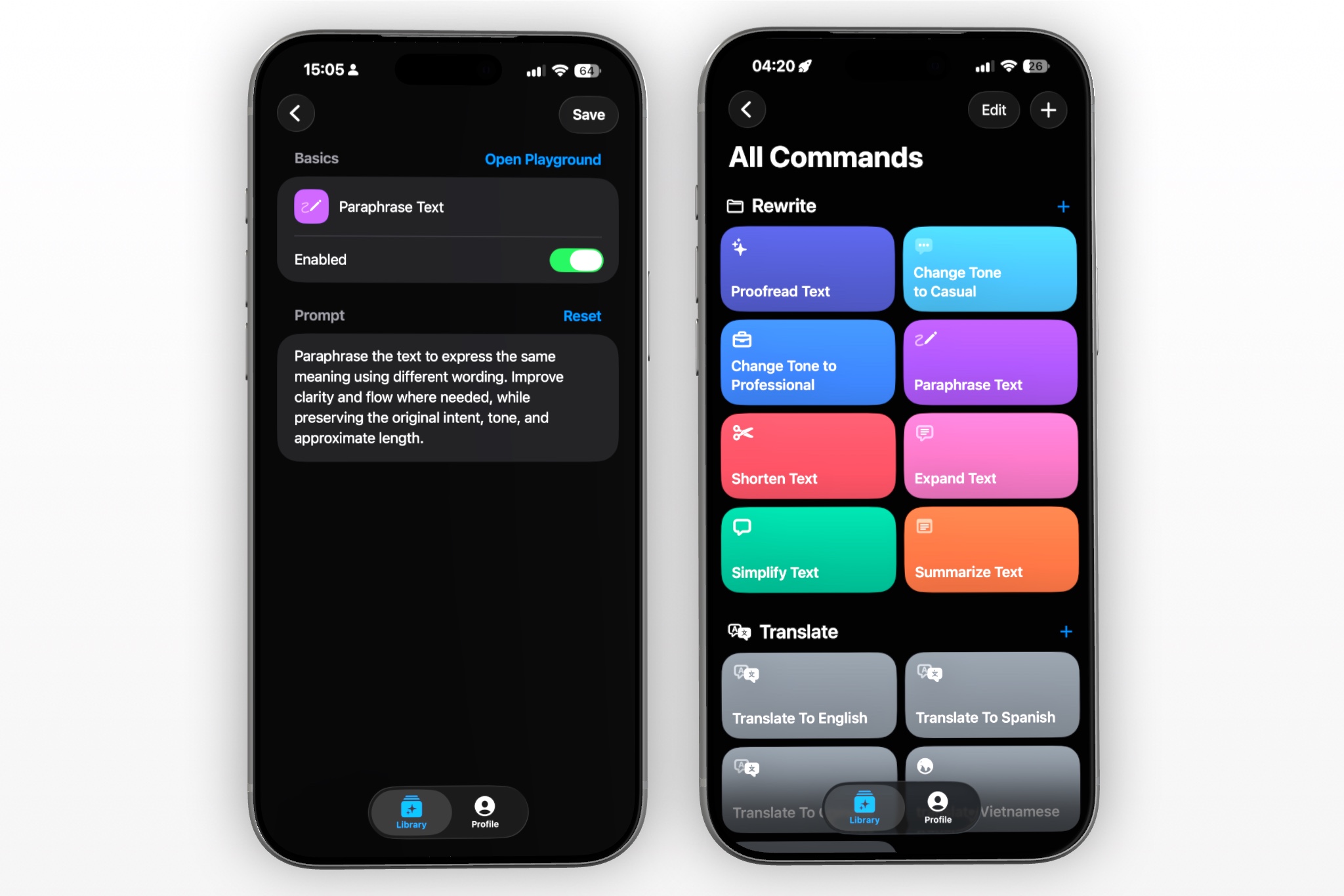
If you repeatedly draft a contextual response from rough notes, a RewriteMate custom command is a different kind of tool: it can take the text you provide and apply a saved instruction to revise it. It is optional; Text Replacement remains the native solution for fixed wording. RewriteMate does not verify your underlying facts, so review names, amounts, dates, links, policies, and promises before using the result.
A safe RewriteMate command recipe for email drafts
- Command name: Email Draft — Clear and Courteous
- When to use it: You have a rough draft and want a clearer, more courteous version without adding new information.
- When not to use it: You need a legally binding response, a verified policy decision, or a commitment you have not confirmed.
- Suggested folder: Email
- Output: Copy the result for a separate draft, or insert/replace text only after reviewing what will change.
Instruction to save:
Rewrite the email draft below so it is clear, concise, and courteous. Preserve the meaning and every factual detail exactly. Do not invent names, dates, amounts, links, policies, decisions, deadlines, or promises. Keep placeholders in brackets. If the draft is missing information needed to make the message accurate, leave a short bracketed note instead of guessing. Draft: [paste my draft]
Example:
Draft: “got the file. will check it and respond friday”
Possible revision: “Thanks for sending the file. I’ve received it and will review it. I’ll follow up by Friday.”
The example is only appropriate if Friday is genuinely the deadline you intend. If the source draft does not contain a due date, do not let a rewrite add one. Before inserting a generated draft, compare it with your original and verify that no new commitment slipped in.
Frequently asked questions
Can I save a full email as an iPhone keyboard shortcut?
Text Replacement lets you store a phrase and a shortcut. You can use it for reusable wording, but it does not automatically personalize changing details. Keep variable items as placeholders and edit them before sending.
Where are email templates on iPhone?
For a simple keyboard-based snippet, open Settings → General → Keyboard → Text Replacement, add a phrase and shortcut, and save. This is different from a dedicated email app’s template feature, if that app offers one.
Why is my Text Replacement shortcut not expanding?
Check that the shortcut and phrase were saved correctly, then test in a draft text field. Try the Settings path to reopen the replacement list and verify the entry. Apple’s support instructions describe Text Replacement in keyboard settings, but the exact behavior may vary by text field or keyboard context.
How do I stop an email shortcut from expanding by accident?
Edit the trigger to use a distinctive sequence you do not normally type, then test it. If you no longer need the replacement, remove it from Settings → General → Keyboard → Text Replacement.
Can Text Replacement fill in a name, date, or other variable?
No. It expands the phrase you saved; it does not determine which person or date belongs in a particular email. Use visible placeholders and replace them manually, or write the changing text from the current context.
Should I use Text Replacement or an AI writing command?
Use Text Replacement for fixed phrases you want to insert as written. Consider a writing command when you have variable source text and want it revised according to instructions. Whichever you use, verify the final email before sending.
A practical setup to start with
Save one low-risk snippet first, such as a sign-off or a receipt acknowledgement. Test its trigger in an email draft, and see whether it fits your actual typing habits before creating more. For messages that vary, keep the details in the draft and use an optional rewrite workflow only to improve clarity—not to make decisions or supply facts.
Related articles
Keep reading
How to Reply to an Email Professionally From Your iPhone
Write clear, professional email replies from your iPhone with a simple structure, practical examples, and AI-assisted editing tips that keep your message accurate.
How to Remind a Client About an Overdue Invoice Without Sounding Rude
Use a calm, specific reminder to follow up on an overdue client invoice without apologizing for asking to be paid. Get adaptable email and short-message templates, plus checks to avoid inaccurate fees, dates, or promises.
How to Ask for Approval Without Sounding Demanding
Request a decision clearly in email, Slack, or text without vague follow-ups, unnecessary apologies, or pressure disguised as politeness.

Felix Tran
RewriteMate Dev & Editorial Lead
Write about everyday workflows, systems that help ideas move faster, from first draft to finished work.