
October 16, 2026
How to Reschedule a Meeting Professionally From Your iPhone
If you need to reschedule a meeting, tell the other person as soon as you know, identify the original date and time, give only as much explanation as the situation calls for, and offer one or two replacement times you have actually checked. A brief apology and a clear next step usually sound more considerate than a long explanation. After the new time is agreed, make sure the calendar invitation reflects it.
A simple structure for a professional reschedule request
Use this order so the recipient can understand the change and answer easily:
- Name the meeting and its current date or time.
- Say directly that you need to move it.
- Give a short reason if it helps the recipient understand the request. You do not need to disclose private details.
- Offer one or two specific times that you have checked, including the time zone when relevant.
- Acknowledge the inconvenience and ask one clear question.
That structure is consistent with practical workplace guidance to state the meeting details, request the change, offer alternatives, and thank or apologize to the recipient. Indeed’s guide to rescheduling a meeting gives similar components and examples. Adapt the wording to your relationship and the urgency; templates are starting points, not rules for every workplace.
Copyable general message
Hi [Name] — I need to move our [meeting name] scheduled for [day, date] at [time and time zone]. [Brief reason, if useful.] Would [new option 1] or [new option 2] work for you? Sorry for the change, and thanks for your flexibility.
If you do not yet have confirmed availability, do not invent replacement times. Ask the other person to share a few options, or say when you will send times after checking your calendar.
Choose the right channel and amount of detail
The best wording depends on how soon the meeting starts, who is attending, and how formal the relationship is. The goal is not to make a routine scheduling change sound dramatic; it is to make the change easy to understand and act on.
| Situation | Practical channel | What to include |
|---|---|---|
| Internal meeting with a close teammate, not imminent | Team chat or email | Meeting name, original time, one or two checked options |
| Client or external partner | Email or the established work channel | Clear request, concise reason if appropriate, new options, brief apology |
| Meeting starts soon or attendees may already be traveling | Fastest reliable channel, often a call or direct message, followed by a written update | The change first, then alternatives and invite update |
| Group meeting with several calendars | Existing calendar invitation or organizer’s scheduling process | Confirmed new time, attendees, time zone, and updated invitation |
These are practical suggestions, not universal etiquette rules. If your workplace, client, or event organizer has a preferred process, follow it. For a last-minute change, do not rely on a channel the attendees may not see in time; contact them through the normal urgent channel and then leave a clear written record.
Message examples for common situations
Use the examples as frameworks. Replace every bracket with details you have verified, and remove any sentence that is not true for your situation.
Rescheduling a client call
Hi [Client Name] — I need to request a new time for our [project/topic] call scheduled for [day, date, time and time zone]. A [brief, accurate reason] has come up. I’m available [option 1] or [option 2]. Would either work for you? I’m sorry for the change and appreciate your flexibility.
If the reason is private, keep it general: “A scheduling conflict has come up” may be enough. Do not add a detailed explanation just to make the request sound legitimate.
Moving an internal team meeting
Hi team — I can’t make our [meeting name] at [original date and time]. Could we move it to [option 1] or [option 2]? If neither works, please send a time that suits the group. I’ll update the invite once we agree.
The last sentence is useful only if you are responsible for the invitation. If someone else owns the calendar event, ask that person to update it instead.
Asking to move a meeting today
Hi [Name] — I’m sorry for the short notice, but I need to move our [meeting] scheduled for [time and time zone] today because [brief reason, if appropriate]. Could you do [option 1] or [option 2]? If not, I can work around a time that suits you. I’ll follow up with the calendar details.
For a very imminent or high-stakes meeting, send the fastest reliable message and consider calling. A carefully worded email is not helpful if the other person does not see it before the original start time.
When you cannot share the reason
Hi [Name] — I’m sorry, but I need to reschedule our [meeting] on [date and time]. I have a conflict I can’t move. Would [option 1] or [option 2] work instead? Thank you for understanding.
You can be respectful without disclosing sensitive health, family, or personnel information. Keep the explanation truthful and proportional; do not invent an emergency or provide details you are not comfortable sharing.
Before you send: check the logistics on your iPhone
Calendar mistakes can make a considerate message confusing. Before proposing a time, check the event and your availability, then read the message once for date, time, and time zone.
- Find the exact event. Confirm its name, original date, start time, duration, and attendee list.
- Check your real availability. Offer only times you can attend. If you have not checked a calendar or another commitment, do not present a slot as confirmed.
- Make the time zone explicit when needed. This matters for remote or traveling participants. Apple documents that Calendar can create or edit an event in a time zone different from the one currently shown on the iPhone. Check Apple’s time-zone instructions if you need to confirm how an event is displayed.
- Send the request, then confirm the agreement. A proposed time is not a confirmed meeting until the other person accepts it.
- Update the invitation if you manage it. In Apple Calendar, open the event, tap Edit, change the event details, and tap Done. Apple notes that invitation features vary by calendar account or server, so check the event afterward and confirm that the right attendees received the change rather than assuming a message also updated the invite. See Apple’s event-editing guide and invitation guidance.
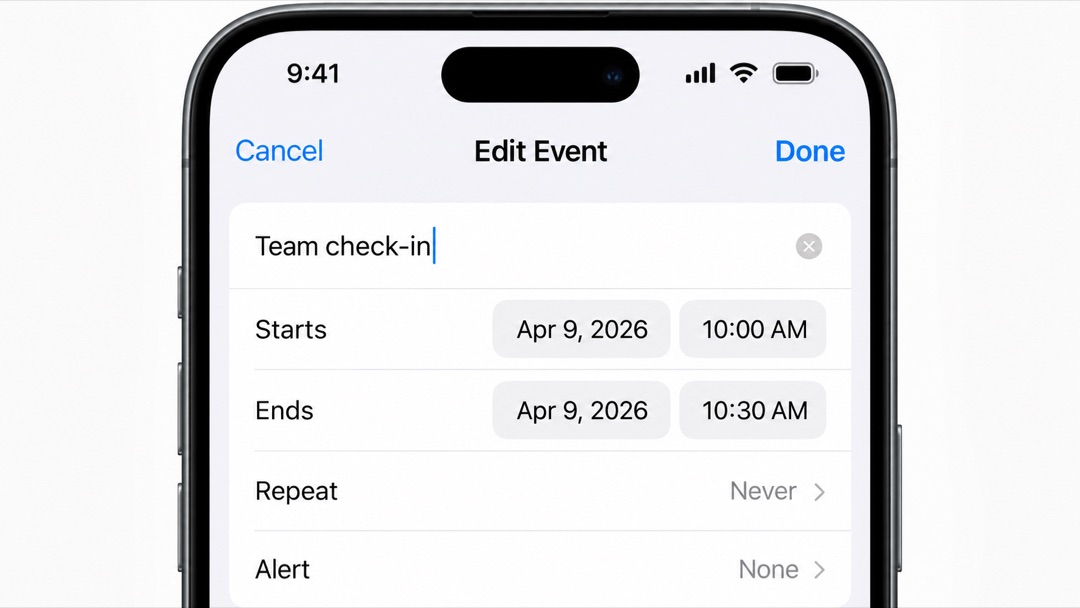
Original recreation based on Apple’s Calendar guide, not a device screenshot.
If another person created the event, ask the organizer to change it or confirm how they want the change handled. Do not tell attendees that the calendar is updated until you have verified that the correct invitation changed.
What to avoid in a rescheduling message
- A vague request with no next step: “Can we do another time?” leaves the recipient to solve the scheduling problem. Offer checked options when you can.
- A long apology before the actual request: Acknowledge the inconvenience once, then make the practical next step easy to see.
- An unverified date or time: A polished message cannot prevent a calendar mistake. Recheck the date, time, duration, and time zone yourself.
- A promise you cannot make: Avoid “I’ll send the new invite now” unless you control the event and can do it.
- A made-up reason or unnecessary disclosure: Be truthful, brief, and respectful of your own privacy.
- Treating a proposed option as confirmed: Keep the distinction clear: “Would this work?” is not “We are confirmed.”
Turn a repeat reschedule draft into a saved RewriteMate command
If you regularly write these requests from your iPhone, a reusable command can help reshape a rough draft while keeping the dates and options you supplied. RewriteMate’s custom commands are saved writing instructions you can reuse from the keyboard; they do not check your calendar, contact attendees, or update an invitation. Use the command for wording, then verify and handle the scheduling yourself.
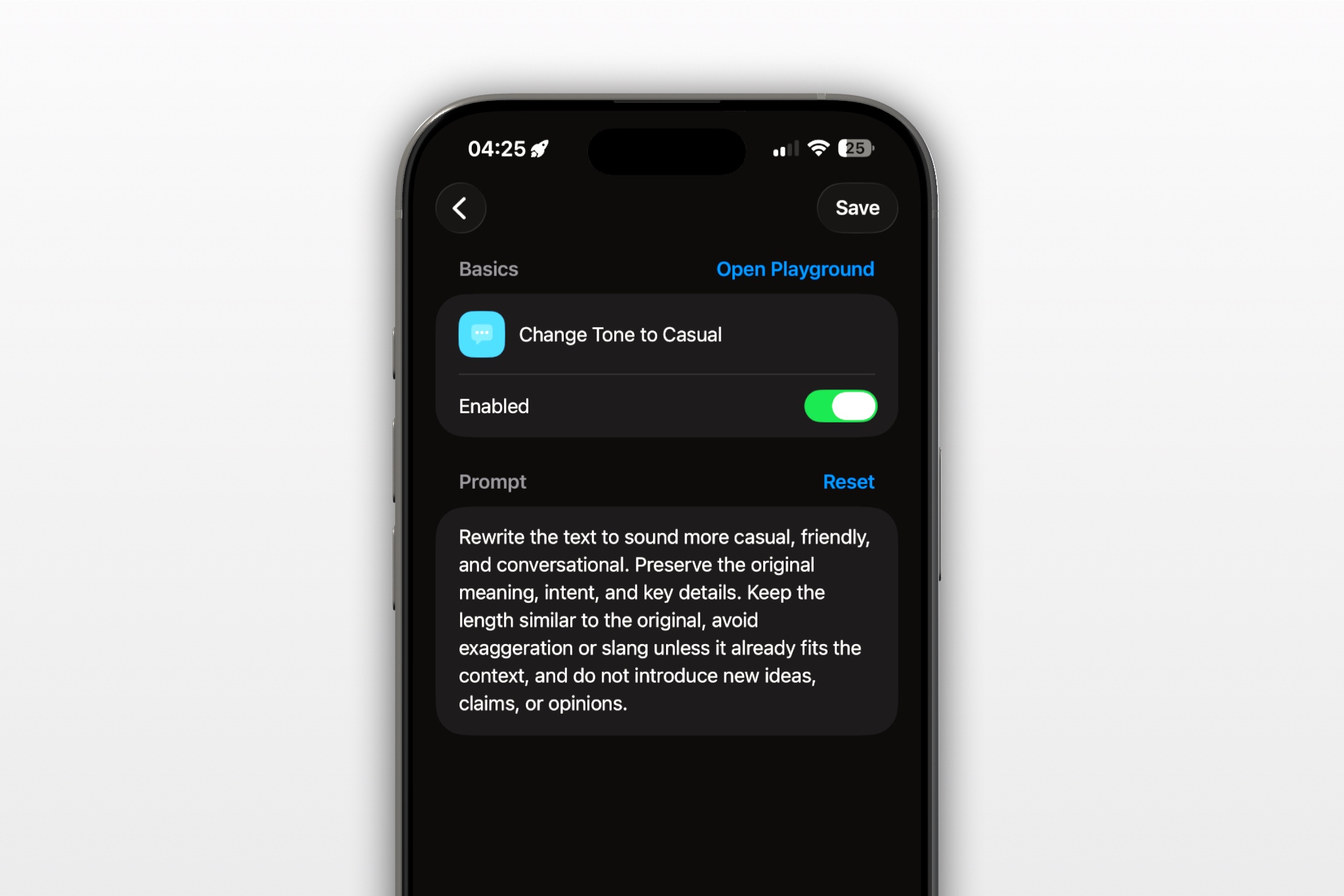
Command name: Reschedule a Meeting Clearly
Suggested folder: Work Messages
Use when: You have a draft or notes for a routine work or client reschedule and want a concise, considerate request.
Do not use when: You need urgent real-time coordination, must disclose sensitive information, or have not checked your availability. Contact the person directly and confirm the facts first.
Output action: Insert into the draft, then manually check before sending.
Saved instruction:
Rewrite this draft as a concise, considerate request to reschedule a meeting. Preserve all names, meeting details, original date and time, reason, proposed alternatives, time zones, and commitments exactly as provided. Do not invent availability, add a reason, confirm a proposed time, claim that a calendar invitation was changed, or remove important logistics. Acknowledge inconvenience once and end with one clear next step. If a required detail is missing or unclear, mark it [CHECK] rather than guessing. Return only the revised message.
Example input:
Need move project call Fri 10, conflict. Can do Monday 2 or Tuesday 11 Pacific. sorry
Example output:
Hi [Name] — I need to move our project call scheduled for Friday at 10 a.m. [time zone]. I have a conflict at that time, but I’m available Monday at 2 p.m. or Tuesday at 11 a.m. Pacific. Would either option work for you? Sorry for the change, and thanks for your flexibility.
The example uses a placeholder for the original time zone because the input did not specify it. Replace [Name], confirm the original date and time zone, and check the proposed slots against your calendar. An AI rewrite can improve phrasing; it cannot verify the schedule or confirm that the invitation changed.
Frequently asked questions
How do I politely ask to reschedule a meeting?
State which meeting you mean, say that you need to move it, provide a brief truthful reason if useful, and offer one or two checked alternatives. A short apology and a clear question make the request easy to answer.
Is it unprofessional to reschedule a meeting?
Not necessarily. Conflicts happen. Communicating promptly, being direct, and taking responsibility for the next step are more useful than over-apologizing. Follow any specific norms or instructions that apply to your organization or relationship.
What should I say if I need to reschedule at the last minute?
Lead with the change and the original meeting time, apologize once for the short notice, and give the best confirmed alternatives you have. Use a channel the attendees are likely to see promptly; for a consequential meeting, a direct call may be more appropriate than relying on email alone.
Do I need to explain why I’m rescheduling?
Usually, a brief explanation is enough when one is appropriate. You can keep personal or sensitive reasons general. Do not invent a reason or disclose private details simply to justify the request.
Should I send a new calendar invitation?
If you manage the invitation, make sure the agreed time is reflected in the event and that the right attendees receive the update. Calendar-account capabilities differ, so check the event in the service you used. If someone else organized the meeting, ask them to update it.
What if I do not know my new availability yet?
Say that you need to reschedule, give a realistic time when you will follow up, and do not offer unverified slots. You can also ask the other person to suggest a few options.
The best reschedule message is not elaborate: it is accurate, timely, and easy to answer. Check the calendar before sending, keep the reason as brief as the situation allows, and confirm the invitation after a new time is agreed. If a saved RewriteMate command helps you clean up a recurring draft, use it as a wording aid—not as a substitute for checking the facts or changing the calendar.
Related articles
Keep reading

How to Tell a Client You Need More Time Professionally
A clear way to request more time from a client without making excuses, overpromising a new date, or leaving the next step unclear.

How to Ask for Approval Without Sounding Demanding
Request a decision clearly in email, Slack, or text without vague follow-ups, unnecessary apologies, or pressure disguised as politeness.

How to Rewrite a Text Message With AI on iPhone
Learn how to use AI to rewrite a text message on iPhone while keeping the facts, context, and voice that make the message yours.

Felix Tran
RewriteMate Dev & Editorial Lead
Write about everyday workflows, systems that help ideas move faster, from first draft to finished work.