November 15, 2026
Why Won’t My iPhone Suggest Certain Words?
If your iPhone does not suggest a correctly spelled word or phrase, type it yourself rather than waiting for the suggestion. A missing prediction is not proof that the word is misspelled or that your keyboard is broken. Recent reporting describes phrases that Apple’s keyboard may intentionally avoid suggesting, while Apple’s public support guidance explains how predictive text works but does not publish a phrase-by-phrase list or a control for editing one.
That distinction matters: typing, predictive text, and Auto-Correction are related but different. You can enter text that the keyboard does not suggest. Predictive text offers possible next words or completions; Auto-Correction may change a word you already typed. Each problem calls for a different response.
What recent reporting says—and what it does not establish
In November 2026, Reuters reported that an independent researcher found a large set of words and phrases in iOS that the keyboard would not autocomplete or swipe-type in many cases. Reuters also reported that Apple said the keyboard is designed to avoid suggestions it considers inappropriate or offensive, while users can still type specific words and override suggestions. The Guardian’s coverage describes the same researcher’s findings and examples. Reuters’ report and The Guardian’s reporting are journalism about independent research and Apple’s response—not Apple’s own technical documentation.
So treat the reported “gray list” as an explanation for some missing predictions, not a complete diagnostic for every word that fails to appear. The coverage does not provide an official user-facing list or show a setting that can make an individual phrase appear in predictive suggestions. A particular word may also be uncommon, language-dependent, or simply not the next word the keyboard predicts.
First identify which keyboard behavior is happening
Look at what the iPhone does after you type the word or phrase:
| What you notice | What it means | A reasonable next step |
|---|---|---|
| The keyboard does not offer the phrase you expected | A prediction is absent; the phrase may still be typed | Enter the phrase manually, one character or word at a time |
| A suggestion appears, but it is not the word you want | The prediction is a choice, not a requirement | Continue typing or choose the exact text yourself |
| The iPhone changes a word after you type it | Auto-Correction may be involved | Review or undo the correction before continuing |
| The usual suggestion area is missing for many ordinary words | This may be a broader predictive-text setting or language issue | Check Apple’s current predictive-text guidance and language availability |
Apple’s support article distinguishes Auto-Correction from predictive text and documents the general keyboard controls. It also says predictive features are available only for supported languages. Its published guide does not describe the recently reported phrase-specific restrictions. Apple’s current support overview is the right reference if ordinary suggestions have disappeared more broadly.
What to do when one specific phrase is missing
Type the exact phrase manually
If the phrase itself matters, enter it directly. You do not need to find a special switch or persuade the keyboard to offer it. For example, if a work message needs a product name, a person’s name, or a correctly spelled technical term that is not appearing, type the full name and read it back before sending.
Manual typing is especially useful for proper nouns and exact quotations. It avoids accidentally accepting a different suggestion merely because it appears in the suggestion area. If you use swipe typing and it produces a different word, tap into the text and correct the characters yourself. The goal is the intended text—not making the keyboard generate a preferred suggestion.
Do not confuse a missing suggestion with a correction
If you typed the right word and then see it changed, that is different from the keyboard never suggesting it. Apple’s support page explains that an Auto-Correction can be reviewed by tapping the corrected word and choosing another option. If this keeps happening with a person’s name, see our guide to stopping iPhone Auto-Correction from changing names for a name-specific workflow.
Do not turn off all predictive features just because one phrase is absent. The published controls apply broadly; they are not documented as a way to add one missing phrase to the suggestion system. Likewise, resetting a keyboard dictionary is not a verified fix for a specific phrase omission. Avoid changing unrelated settings unless you have a separate, broader problem.
If suggestions are missing for many ordinary words
That is a different complaint from one phrase being skipped. Check whether predictive text is enabled, whether the active keyboard language supports it, and whether the behavior occurs in more than one ordinary text-entry context. Apple documents the general settings and feature-availability information in its predictive text and Auto-Correction guidance.
If you are troubleshooting, change one setting at a time and retest with a plain, familiar sentence. This makes it easier to tell whether a global setting was involved. If the issue remains across common words and text fields, consult Apple Support rather than assuming the reported phrase-specific behavior explains it.
If you need the same phrase often
A saved phrase shortcut is a separate tool from predictive text. Apple’s Text Replacement guide explains how a user-created shortcut can expand into a chosen phrase. That can help when you repeatedly type a stable expression, but it does not add the phrase to Apple’s predictive suggestion list. Our related guides cover Text Replacement not expanding and creating email templates with Text Replacement.
Use a shortcut only when you can remember it and the expansion is appropriate in every place you might type it. Avoid creating a shortcut that could accidentally insert sensitive, customer-specific, or outdated wording. Verify the expansion before sending.
Where RewriteMate fits—and where it does not
RewriteMate is not a setting for Apple’s predictive-text system and cannot make a missing Apple suggestion appear. Its role is different: if you have already typed a draft and your remaining job is to make the sentence clearer or adjust its tone, RewriteMate can help transform text according to a writing instruction. It cannot verify a word’s spelling, determine whether a phrase is appropriate for your context, or guarantee that an exact term will survive a rewrite.
For names, dates, technical terms, quotations, or sensitive wording, compare any transformed result with your original and restore exact wording yourself before sending. If your only problem is that one word was not suggested, manual typing is the more direct fix.
Quick checklist before sending
- Read the actual text field, not just the suggestion row. Confirm that the word you meant is what appears in the message.
- Check names and unusual terms character by character. A plausible alternative can still be the wrong one.
- Do not accept a nearby suggestion automatically. Continue typing or edit the text if the suggestion changes the meaning.
- Separate one-word behavior from system-wide behavior. A single missing prediction does not establish that predictive text is disabled.
- Use official help for broad failures. Apple’s guidance covers general settings and supported languages, not a user-adjustable list of individual phrases.
If this topic interests you because a name keeps being replaced after you type it, use the name-specific steps in our Auto-Correction guide. If what you need is a repeatable fixed phrase, the Text Replacement articles above are a closer match than an AI rewrite.
FAQs
Why won’t my iPhone suggest a word that is spelled correctly?
Predictive text offers possible words or completions; it does not promise to suggest every correctly spelled term. Recent reporting describes some phrases that Apple’s keyboard may avoid suggesting, but Apple has not published a user-facing phrase-by-phrase list in the support material reviewed here. Type the word manually if you need that exact text.
Is the iPhone blocking me from typing the phrase?
The reporting cited above says users can still type the phrases and override predictive suggestions. A missing autocomplete suggestion is not the same as a block on entering the text. If your keyboard behaves differently, consult Apple Support for your specific device and software version.
Is this the same as Auto-Correction changing a word?
No. A missing prediction means the keyboard did not offer the word you expected. Auto-Correction changes text after you type it. Apple documents general ways to review corrections; a single missing suggestion does not mean the same feature is malfunctioning.
Can I add one word to the iPhone predictive-text list?
Apple’s public support guidance describes general predictive-text controls and Text Replacement, but it does not document a user control for adding one phrase to the predictive suggestion system. Text Replacement can expand a shortcut into fixed text; it is not the same as a predictive suggestion.
Will turning off predictive text make the missing phrase appear?
No such per-phrase effect is documented in Apple’s public help. Predictive-text controls apply to the feature broadly. If one term is missing while ordinary predictions appear, typing the exact term is the direct workaround.
Can RewriteMate fix Apple’s missing suggestions?
No. RewriteMate does not change Apple’s suggestion list. It may help revise a draft after you have entered it, but check the output against your source—especially for names, quotations, numbers, and exact phrases.
Related articles
Keep reading
How to Stop iPhone Autocorrect From Changing Names
Stop iPhone autocorrect from changing names, brands, slang, and unusual spellings with Text Replacement, keyboard settings, and a keyboard-dictionary reset when needed.
iPhone Text Replacement Not Working? Diagnose It Without Losing Shortcuts
When an iPhone text shortcut will not expand, test the saved entry, keyboard, and app separately before changing settings. This guide shows a safe troubleshooting order and explains why resetting the keyboard dictionary should be a last resort.
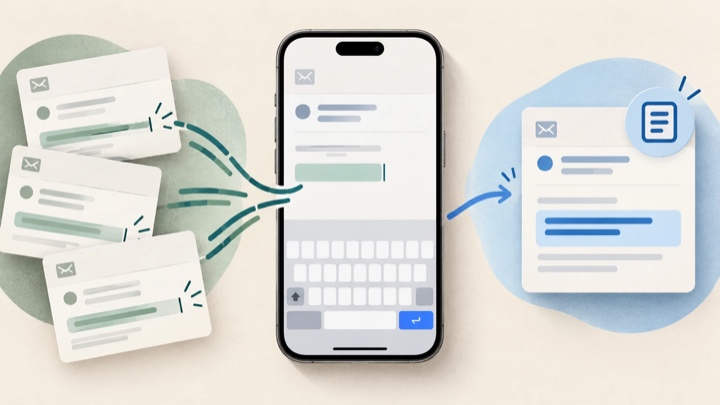
How to Create Email Templates on iPhone With Text Replacement
Stop retyping the same email lines on your iPhone. Set up reusable Text Replacement shortcuts, avoid accidental expansions, and learn when a fixed snippet is not flexible enough for the message you need to write.

Felix Tran
RewriteMate Dev & Editorial Lead
Write about everyday workflows, systems that help ideas move faster, from first draft to finished work.